

Google Keyword Planner: How to Use It for Free Keyword Research
Short answer
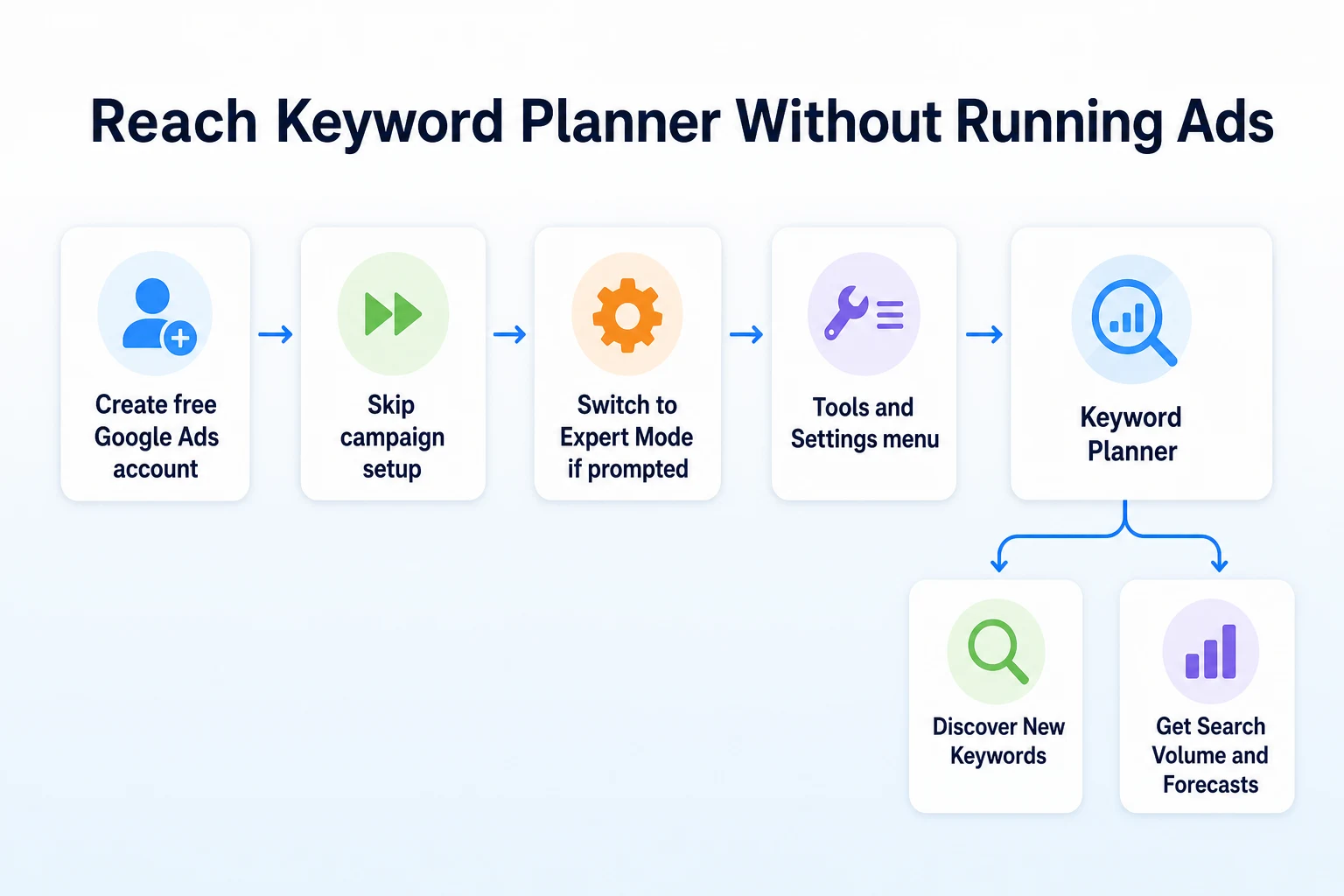
Google Keyword Planner is a free tool inside Google Ads that shows keyword ideas and volume ranges, even if you never run a campaign. Create a free account, skip the campaign setup, and open Keyword Planner under Tools and Settings. It won't give exact search numbers unless you spend on ads, but the ranges still help you find local, buyer-intent keywords worth a page.
A bakery owner wants to add a page about custom wedding cakes to her website.
She has no idea what to call it.
Should the page say "custom wedding cakes" or "wedding cake orders" or something else entirely? Most keyword research tools want a monthly subscription before they'll show a single number.
Google Keyword Planner is different. It's free, it's already built into Google Ads, and you don't have to spend a cent on advertising to use it.
The catch is that it was built for advertisers, not for small business owners writing website pages, so getting to the useful part means working around a few screens designed to sell you an ad campaign.
Here's how to set it up, read what it tells you, and turn the results into a short list of local, buyer-intent keywords worth writing a page for.
What Google Keyword Planner Is (and Isn't)
Keyword Planner is a planning tool inside Google Ads.
Its main job is to help advertisers find keyword ideas and estimate how those keywords might perform in a paid campaign.
It is not a dedicated SEO tool, and Google doesn't present it as one.
But you don't need to run a single ad to open it and browse keyword ideas. Creating an account and looking around costs nothing.
What you need to open it
You need a Google account and a free Google Ads account.
You don't need a credit card to create the account or to browse Keyword Planner.
Google will ask for billing details only when you actually try to launch a campaign, not before.
If you already have a Google Ads account from a past campaign, you can use that one instead of creating a new one.
Why the free version shows ranges, not exact numbers
When you look up a keyword without an active ad campaign spending money, Keyword Planner shows a search volume range instead of a single figure, such as "1K to 10K".
Google documents this behavior directly: accounts with recent ad spend see more precise historical metrics, while accounts without that spending history see broader ranges.
You can read the details in Google's own help article on Keyword Planner's historical metrics.
This isn't a bug or a deliberate way to withhold data from small businesses. It's how the tool is designed to work for accounts that aren't actively buying ads.
A range is still useful. It tells you roughly how much search demand exists and lets you compare one keyword against another.
Set Up a Free Google Ads Account Without Running a Campaign
The setup process is built around getting you to launch a campaign quickly, so a few steps need a bit of patience.
Create the account
Go to the Google Ads website and sign in with the Google account you want to use for the business.
If you've never used Google Ads before, you'll be asked to create a new account.
Google will usually try to walk you straight into setting up a Smart campaign, asking for your business goal, website, and budget.
You can proceed through these screens without entering payment details yet. The billing step comes later, right before a campaign actually goes live.
Skip the campaign setup screen
Partway through the Smart campaign flow, look for a small link, often worded something like "Switch to Expert Mode" or an option to create an account without setting up a campaign.
It can be easy to miss because it's usually styled as a secondary link rather than a button.
Clicking it takes you to the standard Google Ads account view instead of pushing you further into campaign creation.
If you've already entered a budget or business details, you can still back out at this point. Nothing is charged until you actually confirm and launch a campaign with billing information attached.
Switch to Expert Mode if Google starts a Smart campaign
Google Ads now defaults new accounts to Smart campaigns, which simplify advertising but also hide some of the account's standard tools.
If you find yourself inside a Smart campaign setup with no obvious way out, look in the account settings for an option to switch to Expert Mode.
Expert Mode gives you access to the full set of standard Google Ads tools, including Keyword Planner, without requiring you to keep a Smart campaign running.
Once you're in Expert Mode, you won't need to touch campaign settings again just to use the planner.
Find Keyword Planner and Its Two Tools
Once you're inside the main Google Ads interface, look for the wrench icon labeled Tools and Settings near the top right of the screen.
Under the "Planning" column in that menu, you'll find Keyword Planner.
Clicking it opens two separate tools, and it's worth knowing the difference before you start typing.
Discover New Keywords
This is the tool you'll use most often.
You enter a few words, phrases, or even a page from your website, and Google returns a list of related keyword ideas, each with a volume range, a competition rating, and other advertising metrics.
It's designed for brainstorming. You put in a general idea and get back dozens or hundreds of related searches you might not have thought of.
Get Search Volume and Forecasts
This second tool works in the opposite direction.
Instead of discovering new ideas, you paste in a list of keywords you already have in mind, and it returns volume data for exactly those terms.
This is useful once you've already built a shortlist and want to check the numbers for specific phrases, including ones Discover New Keywords didn't suggest on its own.
For most small businesses, the research starts with Discover New Keywords and then moves to this second tool to confirm the finalists.
Run Your First Seed Keywords Through the Tool
With Keyword Planner open, it's time to put in your first search terms, known as seed keywords.
Choose seed keywords that describe what you sell
A seed keyword should describe a real service or product, not your business name.
For a hypothetical bakery, useful seed keywords might include "custom cakes", "wedding cakes", and "birthday cakes".
Avoid vague seed terms like "bakery solutions" or "quality baked goods". They don't reflect how a customer actually searches, and Keyword Planner will return equally vague results back.
Enter three to five seed keywords at once. That's usually enough to generate a broad, varied list without making the results harder to scan.
Set your location, language, and date range
By default, Keyword Planner often shows data for an entire country, which is too broad for a business that only serves one city or region.
Change the location setting to the area you actually serve; a city, a group of neighboring cities, or a metro area, depending on how your business operates.
Set the language to match the language your customers actually search in.
Check the date range too. The default usually covers the past twelve months, but extending it can reveal seasonal patterns, which matters for a business like a bakery that sees spikes around holidays and wedding season.
Once these settings are in place, the keyword ideas and volume ranges you see will actually reflect the customers you can serve, not generic national search behavior.
Read the Volume Ranges and Competition Column Correctly
Once the results load, you'll see a long table with columns for average monthly searches, competition, and a few advertising metrics like top of page bid.
Two of those columns matter for SEO research. The rest can be ignored.
What the volume ranges mean
The "Avg. monthly searches" column shows a range rather than a single number, for the reasons covered earlier.
A keyword might show "1K to 10K" or "100 to 1K".
That's a wide spread, but it's still enough to sort keywords into rough tiers: the ones with real search demand, the ones with a modest but useful amount, and the ones nobody is really searching for.
Range shown in Planner | Approximate monthly searches | What the competition rating measures |
|---|---|---|
100K to 1M | Very high volume, usually a broad or generic term | How many advertisers bid on this term in Google Ads auctions |
10K to 100K | High volume, often a competitive commercial term | Not how hard it is to rank organically |
1K to 10K | Solid, workable volume for most small businesses | Reflects advertiser demand, which can be high even for low-traffic searches |
100 to 1K | Modest but often realistic for a local service | Can show "Low" even on a keyword with strong buyer intent |
10 to 100 | Low volume, still worth considering for a very specific service | Often unrated due to insufficient advertiser data |
These figures are illustrative.
What the competition column does not tell you
The competition column shows "Low", "Medium", or "High".
It's tempting to read that as how hard a keyword is to rank for organically. It isn't.
Competition in Keyword Planner measures how many advertisers are bidding on that term in the Google Ads auction, relative to all keywords.
A keyword can show "Low" competition in Keyword Planner and still sit on a search results page packed with established local businesses and directories.
Equally, a keyword can show "High" competition because it's valuable to advertisers, while the organic results for it are thin and genuinely easy to compete in.
Treat the competition column as a note about advertising demand, not a verdict on your chances of ranking. If you want a sense of organic difficulty, you still need to look at what's currently ranking for that term.
Narrow the List to Local, Buyer-Intent Keywords
Discover New Keywords can easily return two or three hundred suggestions from a handful of seed terms.
Most of them aren't worth a page.
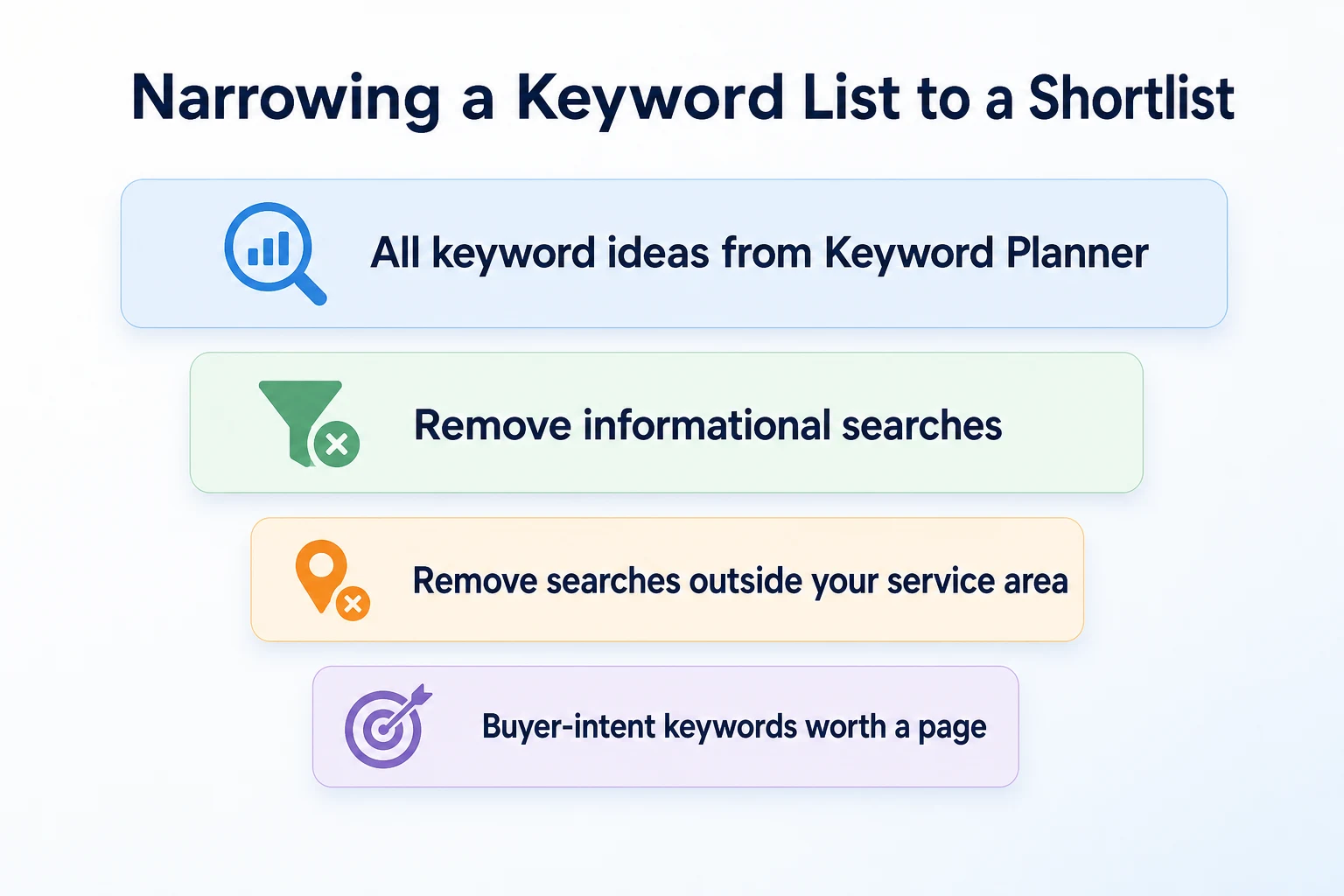
Some describe searches with no commercial intent at all. Others describe a city or service you don't actually offer. The job now is to cut the list down to the keywords that genuinely match what a buyer in your area would type before hiring or buying from you.
Words that usually signal buyer intent
Certain words in a search phrase tend to signal that someone is close to making a decision, rather than researching a general topic.
Intent type | Example modifier | Example keyword |
|---|---|---|
Buyer intent | Order, buy, price, cost, near me, delivery | Order custom birthday cake |
Buyer intent | Hire, book, quote, same day | Book wedding cake tasting |
Informational | How to, recipe, ideas, tips | How to make a wedding cake |
Informational | Best, vs, difference between | Fondant vs buttercream |
These examples are illustrative.
This doesn't mean informational keywords are worthless. They can support an educational article further down the line.
But if the goal right now is a page that brings an enquiry, prioritize the keywords that sound like someone ready to order, book, or ask for a quote.
Add your city or service area to the list
Go back through the remaining keywords and check which ones make sense with your city or service area attached.
"Custom wedding cake" might get far more national search volume than "custom wedding cake Austin", but the national version includes a lot of searches from people outside your delivery area.
If Keyword Planner didn't already suggest the local versions, add them manually in Get Search Volume and Forecasts to check their numbers directly.
Keep in mind that a locally modified keyword will usually show a smaller volume range than its broader counterpart. That's expected, and it's still the more useful number for a business that only serves one area.
Our local SEO guide covers how to make sure your website actually supports those local searches once you've found them, including your Google Business Profile and how your pages describe the areas you serve.
Turn the Shortlist Into Actual Pages
A spreadsheet of keywords doesn't do anything for your business on its own. Each keyword needs to land on a page.
Match each keyword to one page
Go through your shortlist and decide, for each keyword, what kind of page it belongs on.
A keyword like "custom wedding cakes" probably belongs on a core service page.
A keyword like "how much does a wedding cake cost" might belong on a pricing explanation or a buying guide.
A keyword like "wedding cake tasting appointment" might point to a booking page or a specific section of the service page.
The goal isn't one page per keyword. It's one clear page per genuine customer need, with the related keywords grouped underneath it.
Our service page SEO guide explains how to structure a commercial page so it actually answers what a buyer wants to know, rather than just mentioning the keyword a few times.
Check you don't already have a page competing for it
Before creating a new page, check whether an existing page on your site already targets a similar phrase.
If your homepage, your services page, and a blog post all talk about wedding cakes in roughly the same way, adding a fourth page won't help. It can actually split your visibility between pages that are all competing for the same searcher.
Our guide to keyword cannibalization walks through how to spot this in Google Search Console and decide whether to merge, differentiate, or remove a page.
A Worked Example: From 200 Ideas to a 10-Keyword Shortlist
Imagine a small bakery in a mid-sized city that wants to grow its wedding and custom cake business.
This example is illustrative. The keywords, volumes, and pages are invented to show the process, not a real business's data.
The seed keywords and starting list
The owner enters three seed keywords into Discover New Keywords: "wedding cakes", "custom cakes", and "birthday cakes", with the location set to her city.
Keyword Planner returns 214 suggestions, ranging from "wedding cake ideas" to "cake decorating classes" to "gluten free wedding cake".
Most of these don't fit what the bakery actually offers or don't carry buyer intent. The owner works through the list, removing anything informational, anything describing a service the bakery doesn't provide, and anything clearly outside her delivery area.
The filtered shortlist
After an hour of filtering, she's left with a short, workable list.
Keyword | Volume range | Competition | Destination page |
|---|---|---|---|
Custom wedding cakes [city] | 100 to 1K | Low | Wedding cakes service page |
Wedding cake tasting [city] | 10 to 100 | Low | Booking page |
How much does a wedding cake cost | 1K to 10K | Medium | Pricing guide |
Custom birthday cakes [city] | 100 to 1K | Low | Birthday cakes service page |
Gluten free custom cakes | 10 to 100 | Low | Section of main service page |
These figures are illustrative.
Five of the ten final keywords are shown here. The rest followed the same pattern: a mix of service pages, one pricing guide, and a couple of specific sections folded into existing pages rather than new URLs.
Once the keywords are mapped to pages, checking what the page actually talks about matters too. Our free Keyword Density Checker can show whether a draft page genuinely covers the keyword it's meant to target, or drifts off into unrelated topics.
Common Mistakes When Using Keyword Planner for SEO
Keyword Planner is a genuinely useful free tool, but it was built for a different job than the one most small business owners are asking it to do.
A few habits cause more confusion than they solve.
Confusing ad competition with SEO difficulty
This is the mistake worth repeating.
A keyword marked "Low" competition in Keyword Planner tells you that few advertisers are bidding on it. It says nothing about how many established websites already rank for it organically.
Treat that column as a note about paid advertising demand, not a shortcut for deciding what's easy to rank for. If you want a genuine sense of organic difficulty, our low-competition keywords guide explains how to judge that properly, including what to look for in the actual search results.
Chasing an exact number instead of a range
Some business owners spend real money running a small ad campaign purely to unlock exact search volume numbers, then cancel the campaign once they have the figures.
That's rarely necessary.
A range like "100 to 1K" is usually enough to decide whether a keyword is worth a page. You don't need to know whether it's 340 or 670 searches a month to make that call. What matters is whether it's meaningfully higher or lower than the other keywords on your list.
Picking a keyword without checking the live search results
Keyword Planner tells you what people search for. It doesn't tell you what Google currently shows them.
Before committing to a keyword, search it yourself in an incognito browser window. Look at what kind of pages appear: service pages, directories, forums, or guides.
If the results are dominated by pages that don't look like yours, that's useful information Keyword Planner can't give you on its own.
A 30-Minute Keyword Planner Research Session
You don't need a full afternoon to get useful output from Keyword Planner. A focused half hour is enough for a first pass.
Time block | What to do | What you should have by the end |
|---|---|---|
0 to 5 minutes | Open Keyword Planner, set your location, language, and date range | A tool ready to return results that match your actual customers |
5 to 10 minutes | Enter three to five seed keywords describing a real service | A raw list of keyword ideas with volume ranges and competition |
10 to 20 minutes | Scan the list and remove anything informational, irrelevant, or outside your service area | A shorter list of candidates with likely buyer intent |
20 to 25 minutes | Add your city or service area to the remaining keywords and check them in Get Search Volume and Forecasts | Local versions of your best keywords with their own volume ranges |
25 to 30 minutes | Match each surviving keyword to an existing page or a page you need to create | A short, actionable shortlist tied to specific pages |
These time blocks are a suggested pace, not a fixed rule.
You can run this session once a quarter to check whether new keyword ideas have appeared, or whenever you're planning a new page and need somewhere to start.
Where RepGet Fits
Keyword Planner is good at one thing: showing you what people actually type into Google, along with a rough sense of how much demand exists.
What it doesn't do is turn that list into finished pages, check whether your existing site already covers a keyword, or tell you what's wrong with a page once it's published.
That's closer to what RepGet is built for. It brings website auditing, keyword research, content planning, article writing, and search performance reporting from Google Search Console into one workflow, so the keyword shortlist you build in Keyword Planner has somewhere practical to go.
If you're not sure whether your website already has technical or content issues getting in the way of new pages, RepGet's free website audit crawls your site, gives it a 0 to 100 SEO score, and lists issues worth investigating. No account or credit card required.
RepGet also offers a set of free SEO tools that each run one specific check, which can be useful alongside Keyword Planner once you've picked your target keywords.
None of this replaces Keyword Planner's own data, and RepGet doesn't generate search volume itself. It's a place to act on what Keyword Planner tells you, not a substitute for it.
The bottom line
Google Keyword Planner is a genuinely free way to see what people search for, even though it was built with advertisers in mind.
Setting it up takes a few extra clicks to get past the campaign setup screens, but no payment details are required just to browse keyword ideas.
Read the volume ranges as rough tiers, not exact counts. Read the competition column as advertiser demand, not organic difficulty.
Then filter the results down to the keywords that sound like a real buyer in your area, and give each one a page that actually answers their question.
Check what your website needs before you add new pages
Before writing new pages around your keyword shortlist, it's worth checking whether your existing site has issues holding it back. Run a free website audit with RepGet to see what's worth fixing first. No account or credit card required.
FAQ
Is Google Keyword Planner really free to use?
Yes. Creating a Google Ads account and browsing Keyword Planner costs nothing, and you're never charged for using it unless you separately choose to launch and fund an ad campaign.
Do I need to run ads to see keyword search volume?
No. You can see keyword ideas and volume ranges without spending on ads. Accounts without recent ad spend just see a broader range instead of an exact monthly figure.
Why does Keyword Planner only show a volume range instead of an exact number?
Google shows more precise historical numbers to accounts with recent ad spend and broader ranges to accounts without it. This is documented behavior, not a tool malfunction.
What does the competition column in Keyword Planner mean for SEO?
It measures how many advertisers bid on that keyword in the Google Ads auction, not how hard it is to rank for organically. A "Low" rating doesn't mean weak organic competition.
Can I use Keyword Planner for local keyword research?
Yes. Set the location filter to your city or service area before searching, and add your city name to candidate keywords when checking them in Get Search Volume and Forecasts.
How accurate is Google Keyword Planner's search volume data?
It reflects Google's own search data, but without ad spend you only see a range, not an exact figure. Treat it as a reasonable guide for comparing keywords, not a precise count.
What's the difference between Keyword Planner and a dedicated SEO tool?
Keyword Planner is built for advertisers and focuses on ad auction metrics. A dedicated SEO tool typically adds organic ranking difficulty, current search results, and page-level recommendations that Keyword Planner doesn't provide.
Can I use Keyword Planner without entering a credit card?
Yes. You can create a Google Ads account and open Keyword Planner without entering payment details. Google only asks for billing information if you choose to launch a paid campaign.