

SEO Audit Checklist: A Worksheet for Small Business Sites
Short answer
An SEO audit checklist for a small business site covers four areas: technical health (crawling, indexing, speed, mobile), content quality (titles, duplicate or thin pages), accessibility (alt text, contrast, structure), and conversion basics (calls to action, working forms). Work through each with Search Console open, then prioritize by what blocks visibility first.
A small business owner decides to run an SEO audit before a slow season hits.
They open a blank document, type "SEO Audit" at the top, and stop.
What actually goes on the list? Robots.txt rules? Blog post titles? The contact form? All of it feels important and none of it feels like a complete picture.
This happens because most advice about an SEO audit checklist only covers one slice of the job, usually the technical side, and leaves out content, accessibility, and whether the site actually turns a visitor into an enquiry.
Here's a checklist that covers all four areas, built as a worksheet you can reuse every quarter instead of starting from a blank page each time.
What an SEO Audit Actually Checks (and What It Can't Fix)
A complete audit isn't one long list. It's four shorter ones, each covering a different way a site can quietly lose visitors.
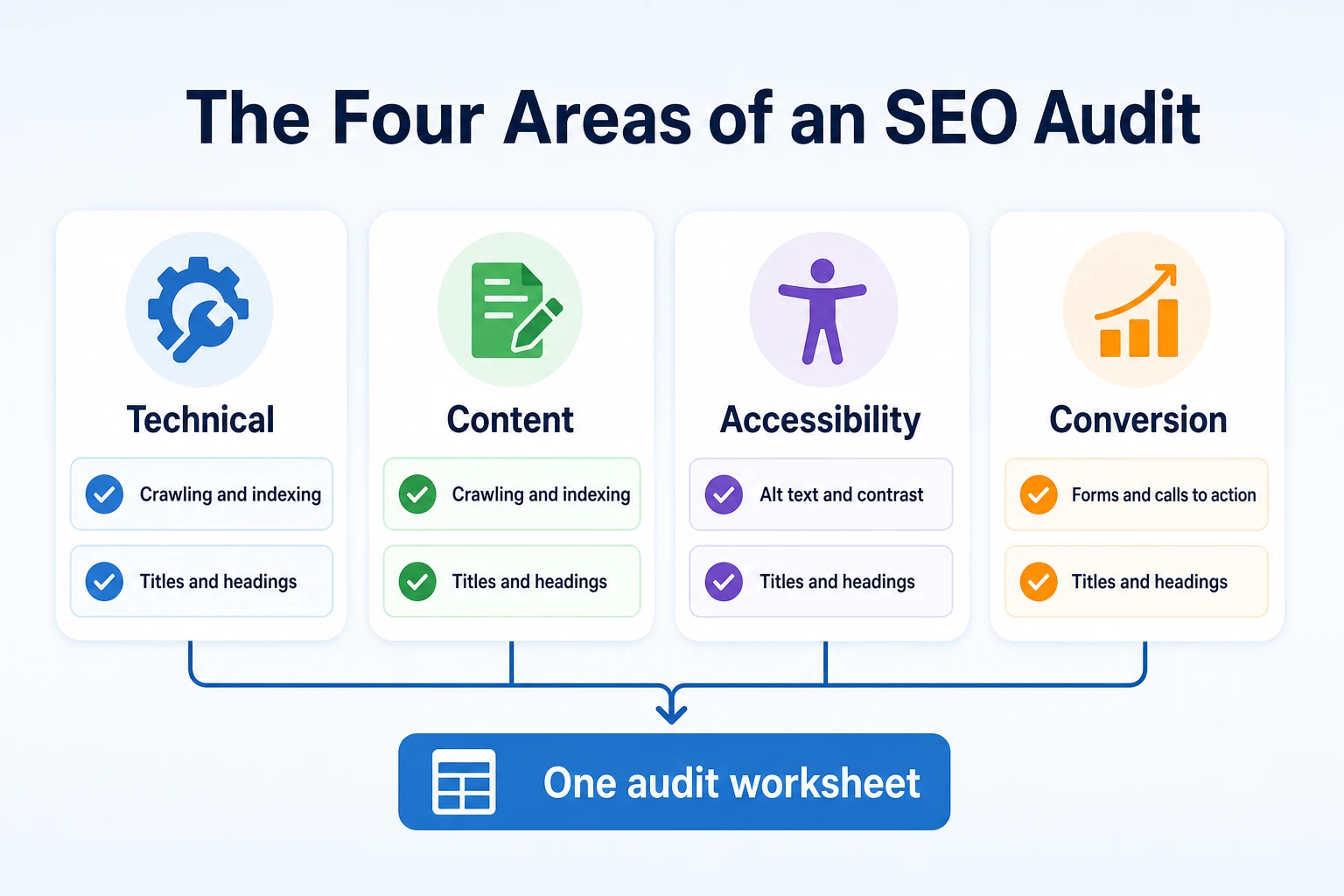
The four areas this checklist covers
Technical checks ask whether search engines can actually crawl and index your pages in the first place.
Content checks ask whether the pages that do get indexed say something worth ranking and worth reading.
Accessibility checks ask whether a visitor using a screen reader, or simply a slow connection, can actually use the page.
Conversion checks ask the most basic question of all: once someone lands on the page, can they do what they came to do?
Skipping any one of the four leaves a gap. A technically perfect site with no clear call to action still loses the visitor. A beautifully written page a search engine can't crawl never gets the chance to be read at all.
What a checklist can't decide for you
A checklist tells you where to look. It doesn't tell you whether a page's writing is actually good, whether a design choice serves your specific customers, or whether a slow quarter is worth a redesign.
Those are judgment calls, and they belong to whoever knows the business, not to a worksheet.
What follows is built to surface the issues worth that judgment, not to replace it.
What to Gather Before You Start
A few minutes of setup saves a lot of backtracking once the audit is underway.
Access you'll need
Before opening a single page, make sure you can actually get into the accounts that hold the data this audit depends on.
Access or tool needed | What it's for | Where to get it |
|---|---|---|
Google Search Console | Indexing status, search performance, and crawl errors | Free, set up at search.google.com/search-console |
Website analytics | Traffic trends and which pages get visited | Usually already installed; check with whoever built the site if unsure |
CMS admin login | Editing titles, meta descriptions, and page content | Your website platform's admin area |
A free website audit | A starting list of technical and content issues to investigate |
Setting up a worksheet you'll reuse
Build one simple sheet with a column for the issue, the page it's on, the priority, and the date it was fixed.
Keep it in a shared document, not a note on someone's desktop. The point of a checklist is that it gets used again next quarter, not that it's beautifully formatted the first time.
Group rows by the four areas: technical, content, accessibility, and conversion. That grouping will match the order of this article and make it easy to see which area has the most open issues.
Technical Checks: Crawling, Indexing, and Site Health
Nothing else in this checklist matters if a search engine can't reach the page in the first place.
Crawling and indexing
Start with whether your pages are actually indexed. Search Console's Page Indexing report lists how many pages are indexed and the reasons any are excluded.
Check your robots.txt file for rules that might be blocking a folder or page by accident. RepGet's free Robots.txt Checker gives a plain verdict on what's allowed and what's blocked.
Confirm your XML sitemap lists the pages you actually want found, and that it's submitted in Search Console. Google's documentation on search essentials covers what a site needs to be eligible for indexing in the first place.
Mobile usability and speed
Open a few key pages on an actual phone, not just a resized browser window. Check that text is readable without zooming and that buttons aren't too small to tap accurately.
Page speed matters for the visitor experience, even where it isn't the deciding ranking factor. A page that takes several seconds to load loses visitors before they see anything.
Broken links and redirects
Click through your main navigation and a sample of internal links. A broken link inside your own site is an easy fix that often gets missed because nobody clicks through their own menu regularly.
Check that old URLs redirect properly if the site has been through a redesign or a URL change. A missing redirect can quietly drop a page that used to rank.
Technical check | How to check it | Tool or report to use |
|---|---|---|
Pages indexed | Review the Page Indexing report for exclusions | Google Search Console |
Robots.txt rules | Confirm no important folder is blocked | RepGet's Robots.txt Checker |
Sitemap accuracy | Compare sitemap URLs against live pages | RepGet's Sitemap Checker |
Mobile usability | Load key pages on an actual phone | A physical device or browser device emulator |
Broken links | Click through navigation and a sample of internal links | Manual check or a link checker tool |
Content Checks: Titles, Structure, and Duplication
Once a page can be found, the next question is whether it's worth finding.
Titles and meta descriptions
Check that every important page has a unique title tag and meta description, written for a person deciding whether to click, not stuffed with repeated keywords.
RepGet's free Meta Tag Checker shows every tag a page currently has, which is a fast way to spot a missing or duplicated title across a site.
Thin, duplicate, and outdated pages
Look for pages with very little actual content, pages that say almost the same thing as another page on the site, and pages describing a service or product you no longer offer.
None of these need to be deleted automatically. Some thin pages genuinely serve a narrow purpose. The point is to notice them and decide on purpose, rather than leaving them by accident.
Pages competing with each other
Check whether two pages on your own site seem to target the same search term. This often happens quietly over time, as new blog posts or service pages get added without anyone checking what already exists.
Our guide to keyword cannibalization walks through how to spot this pattern in Search Console and decide which page should stay as the main target.
Content check | What to look for | Where to check it |
|---|---|---|
Title tags | Missing, duplicated, or generic titles | RepGet's Meta Tag Checker |
Meta descriptions | Missing or duplicated across pages | RepGet's Meta Tag Checker |
Thin pages | Pages with very little substantive content | Manual review, sorted by word count if your CMS tracks it |
Outdated pages | Services, products, or prices no longer accurate | Manual review against your current offerings |
Competing pages | Two pages ranking for overlapping queries | Google Search Console Performance report, filtered by query |
Accessibility Checks That Double as SEO Checks
Accessibility and SEO aren't the same thing, but they lean on a lot of the same markup.
A page built to work well for a screen reader user is usually also a page a search engine can parse cleanly, because both depend on clear structure rather than guesswork.
Images and alt text
Check that images carry descriptive alt text, not a filename like IMG_4021.jpg left over from a phone's camera roll.
Alt text should describe what the image actually shows, in plain language, so a screen reader user gets the same information a sighted visitor gets by looking at it.
The W3C's quick reference for the Web Content Accessibility Guidelines covers what counts as sufficient alt text and when an image can be marked as decorative instead.
Heading structure and reading order
Check that headings follow a logical order: one H1 per page, H2s under it, H3s nested under the relevant H2, without skipping levels or using a heading just because it looks bold.
A jumbled heading structure confuses a screen reader user trying to navigate by heading, and it makes a page harder for a search engine to understand too, since headings are one of the signals it uses to work out what a page is actually about.
Link text and navigation
Check that link text describes where the link goes, instead of a vague
Check that link text describes where the link goes, instead of a vague phrase like click here repeated across the page.
"Click here" or "read more" tells a screen reader user nothing about the destination when they're tabbing through a list of links out of context, and it gives a search engine almost as little to work with about what the linked page actually covers.
Check your main navigation labels too. A menu item called "Solutions" means something to the person who wrote it and very little to a visitor or a crawler trying to work out what's behind it.
Accessibility check | Why it matters | Where to check it |
|---|---|---|
Alt text on images | Gives screen reader users the same information a sighted visitor gets, and gives search engines context for the image | Page source, or your CMS's image settings |
Heading hierarchy | Lets screen readers and crawlers navigate and understand page structure | Browser's accessibility inspector or a heading outline tool |
Color contrast | Keeps text readable for visitors with low vision, and avoids content that blends into the background | A contrast checking tool, or the WCAG quick reference |
Link text | Describes a link's destination out of context, for screen readers and crawlers alike | Manual review of navigation and in-page links |
Conversion Checks: Does the Site Do Its Job?
A page can be fast, well written, and perfectly structured, and still fail at the one job it exists to do: turning a visitor into an enquiry, a call, or a sale.
This is the area most technical checklists skip entirely, because it has nothing to do with crawling or ranking. It has everything to do with whether the traffic you do earn is worth anything.
Contact and call-to-action checks
Check that your phone number, email, and address appear somewhere obvious on every important page, not buried on a separate contact page three clicks deep.
Test every form on the site yourself, start to finish, including the confirmation step. A form that silently fails to send is one of the quietest ways a business loses enquiries, because nobody notices until a customer calls asking why nobody replied.
Look at your calls to action on key pages. A visitor who reads a full service page should know exactly what to do next: call, book, or fill out a form. If the next step isn't obvious, that's worth fixing regardless of how well the page ranks.
Trust signals worth a second look
Check whether the site shows anything that helps a new visitor feel confident handing over their contact details: reviews, past work, certifications, or a clear answer to basic questions like service area and pricing range.
None of these need to be elaborate. A short, honest page about who runs the business and where it operates often does more work than a polished but vague "About Us" paragraph.
Check that your business details match across the site and anywhere else they appear, like a Google Business Profile. A mismatched phone number or address is a small thing that quietly erodes trust.
A Worked Example: Auditing a Small Landscaping Site
Imagine a small landscaping company running its first audit using this checklist. This example is illustrative.
Working through the technical section, the owner finds that Search Console lists twelve pages as excluded, and a check with RepGet's Robots.txt Checker shows an old rule blocking an entire /projects/ folder, left over from when the site was in development. That folder holds most of the company's project photos and descriptions.
Moving to content, a scan of title tags turns up three service pages all using the exact same title, copied from a template and never edited. The Performance report also shows two blog posts both getting impressions for "lawn aeration cost," splitting clicks between them instead of one page owning the term.
The accessibility pass finds most images using filenames as alt text, and a few pages where an H3 appears before any H2, left over from a past redesign that moved sections around without checking the heading order.
On the conversion side, the contact form itself works fine, but it sits at the very bottom of a long service page with no reminder higher up that calling or booking is an option. The phone number only appears in the site footer, in small gray text.
Every one of these goes into the worksheet with a page, a priority, and a blank date column waiting to be filled in once it's fixed.
How to Prioritize What the Audit Finds
A finished audit usually produces more findings than anyone can fix in a single afternoon. Prioritizing them keeps the list from turning into a source of guilt instead of a plan.
What to fix first
Anything blocking crawling or indexing goes first, because nothing else on the list matters for a page that search engines can't reach at all. The blocked /projects/ folder in the example above is exactly this kind of issue.
After that, fix anything actively hurting clicks or conversions on a page that already gets traffic: a broken form, duplicate titles on pages competing for the same search, or a call to action nobody can find.
What can reasonably wait
Lower priority issues are the ones that improve quality over time without blocking anything right now: refining alt text that's present but generic, tightening a page's structure, or updating an older page's content to match current offerings.
Priority level | Example issue | Typical timeframe to fix |
|---|---|---|
Fix first | Robots.txt blocking an indexed folder, broken contact form | Same day to a few days |
Fix next | Duplicate title tags, two pages competing for one query | Within two weeks |
Schedule later | Generic alt text, an outdated but low-traffic page | Next quarter or as time allows |
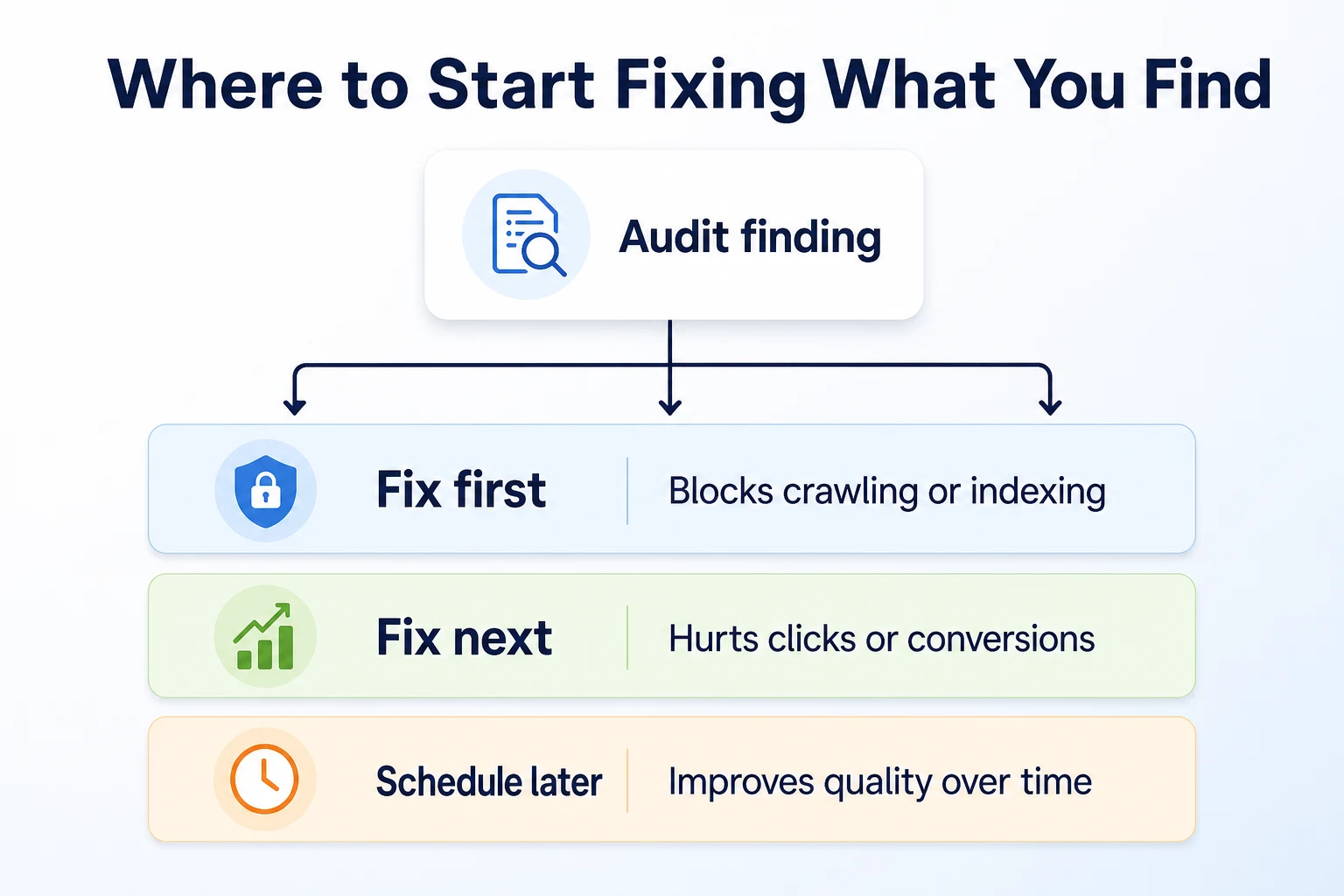
These timeframes are illustrative and depend on how much time a business can realistically give the work each week.
Our guide on what to fix first on a website that gets no traffic covers this same prioritization problem in more depth, for a site where every issue seems to compete for attention at once.
A 2-Hour Audit You Can Run Every Quarter
The checklist above is thorough enough to take a full day the first time through. Once the worksheet exists, a repeat audit doesn't need nearly as long.
The 2-hour audit, step by step
Breaking the audit into timed steps keeps it from sprawling into an open-ended project that never quite gets finished.
Audit step | Time needed | What to do during it |
|---|---|---|
Technical scan | 30 minutes | Check Page Indexing report, robots.txt, and sitemap for new issues since last quarter |
Content review | 30 minutes | Scan titles and meta descriptions on pages added or edited recently |
Accessibility spot check | 20 minutes | Review alt text and heading order on a sample of newer pages |
Conversion check | 20 minutes | Test the main contact form and confirm calls to action are visible on key pages |
Update the worksheet | 20 minutes | Log new findings, mark previous findings fixed or still open |
Running this every quarter catches new problems early, before a leftover setting from a site update has months to quietly affect traffic. A business with a more active site, publishing content weekly or changing pages often, might find monthly works better than quarterly.
Common Mistakes When Running Your Own Audit
Most of the trouble with a DIY audit isn't a missed technical detail. It's how the process gets handled once the list of findings exists.
Treating the audit as a one-time project. A checklist run once and filed away stops being useful the moment the site changes again, which for most small businesses happens within weeks, not years.
Trying to fix everything in one sitting. A long findings list tackled all at once usually means nothing gets finished properly, and it makes it hard to tell which fix actually helped later.
Skipping accessibility because it feels unrelated to rankings. It's a separate discipline from SEO, but the two checklists overlap enough that skipping one quietly leaves gaps in the other.
Auditing content without checking Search Console first. Rewriting a page's title based on a guess, when the Performance report would have shown exactly which query it's actually being found for, wastes the rewrite.
Not logging what was fixed. Without a date in the worksheet, there's no way to connect a later traffic change back to a specific fix, which makes it impossible to learn what actually mattered.
Assuming a clean audit means nothing to improve. A site with no urgent findings can still have pages that could rank better, convert better, or read better. A quiet audit is a good result, not a reason to stop checking.
Letting one person's blind spot stand in for a full review. Whoever built the site often stops noticing its own small flaws. A second pair of eyes, or a fresh run through the checklist after time away from it, tends to catch what familiarity hides.
Where RepGet Fits
Working through four areas by hand, as this checklist does, takes real time, and most of the judgment calls inside it still belong to whoever knows the business: which thin page is actually fine as it is, which call to action fits the brand, which trust signal matters to a specific customer.
Where RepGet can speed things up is the technical and content scanning at the start of the process. Its free website audit crawls a site, gives it a 0 to 100 SEO score, and lists technical and content issues worth investigating, which covers a good share of the technical and content sections above in a few minutes instead of an afternoon. No account or credit card required.
RepGet's free SEO tools cover individual checks from this list on their own, including robots.txt rules, sitemap validity, and meta tags, which is useful if you only need to recheck one area rather than run the whole worksheet again.
RepGet also brings keyword research, content planning, article writing, publishing, and search performance reporting from Google Search Console into one workflow, so once an audit turns up a content gap or an outdated page, there's a direct place to act on it.
RepGet doesn't check accessibility contrast ratios, test a contact form by submitting it, or decide whether a page's writing is actually good. Those parts of this checklist still need a person looking at the live site. RepGet also doesn't guarantee that fixing an audit finding will change a ranking, a Google Maps position, or how often a business gets mentioned by an AI assistant.
The Bottom Line
A complete SEO audit checklist covers four areas, not one. Technical checks confirm a page can be found at all. Content checks confirm it's worth finding. Accessibility checks confirm anyone can actually use it. Conversion checks confirm a visitor who arrives can do something once they're there.
Skipping any one of the four leaves a real gap, even if the other three look perfect.
The worksheet matters more than any single finding on it. A list run once and forgotten stops reflecting the site within a quarter. A short, timed check run every few months catches problems while they're still small, and it turns an audit from a dreaded one-time project into a routine part of running the site.
Find out what your website needs first
Before working through the full checklist by hand, see what a quick scan already turns up. Run a free website audit with RepGet to get a starting list of technical and content issues worth investigating. No account or credit card required.
FAQ
What should be included in an SEO audit for a small business?
A complete audit covers four areas: technical health like crawling and indexing, content quality like titles and duplicate pages, accessibility like alt text and heading structure, and conversion basics like working forms and visible calls to action.
How often should I run an SEO audit on my website?
Quarterly works well for most small business sites, since it catches new issues before they sit unnoticed for months. A site that publishes content weekly or changes often may benefit from a monthly check instead.
Can I do an SEO audit myself without hiring an agency?
Yes. A checklist covering technical, content, accessibility, and conversion issues, worked through with Search Console open, covers most of what a small business site needs without outside help.
What's the difference between a technical SEO audit and a content audit?
A technical audit checks whether search engines can crawl and index pages at all, covering things like robots.txt and sitemaps. A content audit checks whether those indexed pages are worth ranking, covering titles, duplication, and thin pages.
Does website accessibility affect SEO rankings?
Accessibility and SEO are separate disciplines, but they share underlying markup like heading structure, alt text, and descriptive link text, which is why fixing one often improves the other.
How long does a basic SEO audit take?</p>
A first full audit can take a day working through all four areas. Once a reusable worksheet exists, a repeat audit can be done in about two hours.
What tools do I need to run an SEO audit?
Google Search Console, your site's analytics, admin access to your CMS, and a simple worksheet to log findings are enough. Free tools can speed up individual checks like robots.txt or meta tags.
What should I fix first after an SEO audit?
Fix anything blocking crawling or indexing first, since nothing else matters for a page search engines can't reach. After that, prioritize issues actively hurting clicks or conversions on pages that already get traffic.