

Canva Brush AI: How Canva's New AI Design Model Works
Short answer
On October 29, 2026, Canva launched Brush, a new AI design model that lets you edit designs by typing plain-language instructions instead of clicking through menus. It reads a design's layout structure, so changes apply to the right text, image or background layer, and it can apply one instruction across multiple pages at once. Availability and pricing details are still rolling out across Canva's plans.
A small business owner opens a Canva template she's used for months.
Normally she'd click through a dozen menus to change the sale banner's color and swap out the headline.
This time she just types a sentence asking for exactly that, and the design updates in front of her.
That's the idea behind Canva Brush AI, a new design model Canva launched on October 29, 2026. Here's what Canva has actually said about how Brush works, what makes it different from the AI tools already inside Canva, and what it's realistic to expect from it this week.
What Canva Announced on October 29
On October 29, 2026, Canva introduced Brush, described as a new AI design model built specifically for editing designs through natural-language instructions. Instead of typing a prompt to generate something from scratch, a user types an instruction describing a change, and Brush applies it to an existing design.
Canva framed Brush as a step beyond generating images or layouts from a blank page. The pitch is editing: taking something that already exists, whether a social graphic, a slide deck or a flyer, and changing it with a sentence instead of a sequence of clicks.
The announcement in brief
Canva's announcement centered on three things: natural-language editing of existing designs, a model that understands a design's layout rather than treating it as a flat image, and the ability to apply one instruction across multiple pages at once. Canva hasn't published a full technical breakdown of the model itself, so most of what's known comes from how Canva describes the feature working in practice rather than the underlying architecture.
Why Canva Built a Separate Model Instead of Extending Magic Design
Canva already had AI tools for generating designs and editing images. Brush is presented as a distinct model rather than an upgrade bolted onto an existing one, which suggests the editing task Canva is targeting (understanding a layout well enough to change one part of it without disturbing the rest) needed a different approach than generating a new design from a prompt. Canva hasn't explained the technical reasoning behind that choice in detail, but the practical result is a tool built around changing what's already there, not starting over.
How Natural-Language Design Editing Works in Brush
The core interaction is simple to describe even if the work behind it isn't: you open a design, type what you want changed in plain language, and Brush applies it.
What a Prompt Can Change in One Step
Canva has described Brush as able to handle instructions like changing a color scheme, swapping headline text, adjusting spacing, or replacing an image, all from a written instruction rather than a manual edit. A prompt doesn't need to specify which layer or element to touch. Brush is described as figuring that out from the design itself.
That's a meaningful change from typing a prompt to generate a new image, where the output is a fresh file you then have to rework by hand if it's close but not quite right. Here the starting point is the design you already have, and the instruction edits it directly.
What Brush Still Asks You to Confirm Before Applying a Change
Canva's description doesn't suggest Brush applies every instruction silently and permanently. A user still sees the proposed change and confirms it before it's finalized, similar in spirit to how other AI editing tools in Canva have worked. Canva hasn't published full detail on how undo or version history interacts with Brush specifically, so it's worth treating any AI-applied change as something to review before publishing a design, the same as you would with a manual edit.
Layout Understanding: What Makes Brush Different
The part of Canva's announcement that matters most for day-to-day use isn't the natural-language prompt itself. It's what sits underneath it: Brush reading a design as a structure rather than a picture.
Reading a Design as Structured Elements, Not a Flat Image
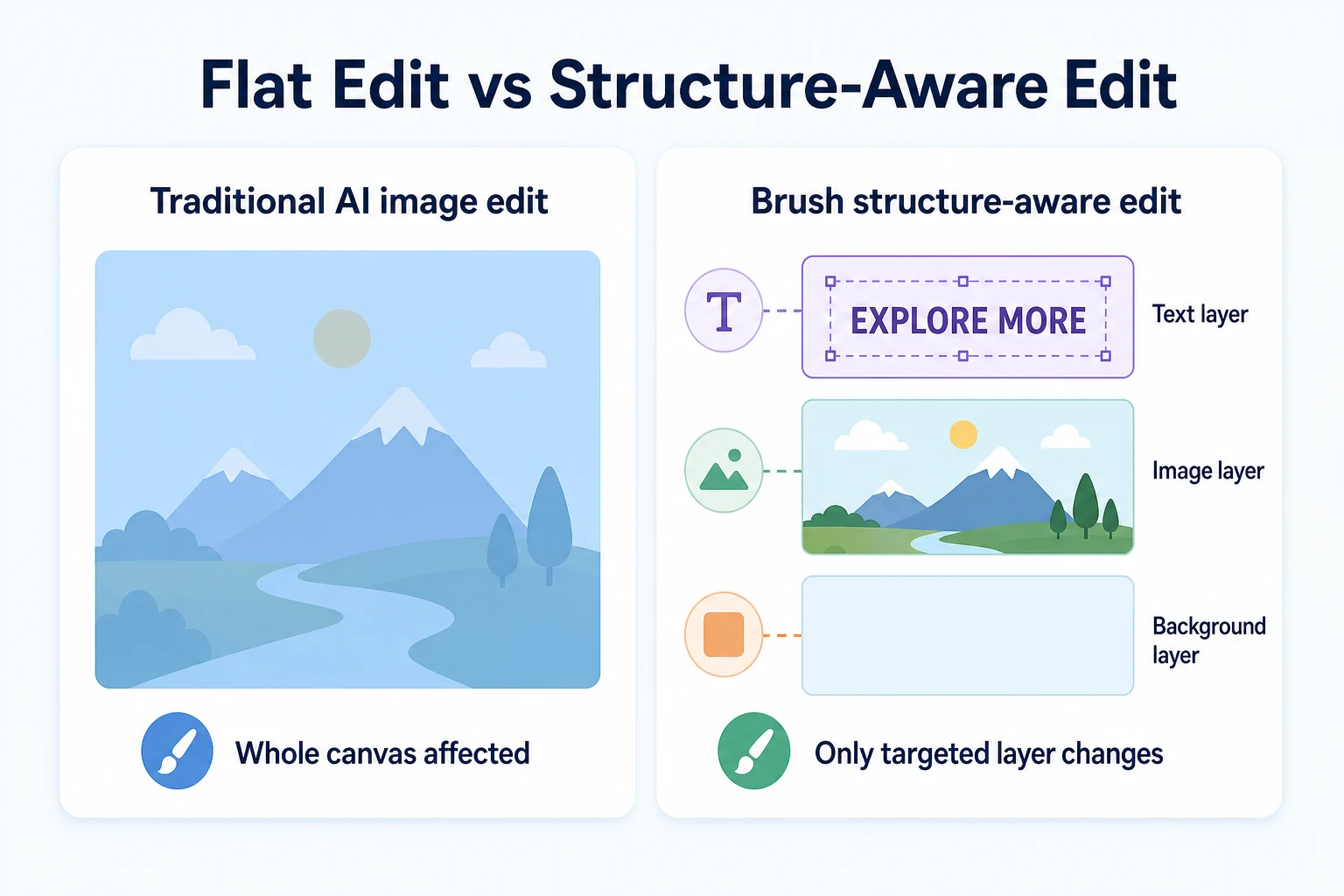
Canva described Brush as understanding a design's layout, meaning it can distinguish a text block from a background image from a logo placement, rather than treating the whole canvas as one flat image to be regenerated. That distinction is what lets a prompt like "change the headline color" affect only the headline, rather than altering the whole design and leaving you to fix everything else that shifted by accident.
Why Layout Understanding Matters for Brand Consistency
A small business that reuses the same template for weekly posts or recurring ads depends on consistency: the same logo placement, the same font, the same spacing, with only the content changing. An editing tool that doesn't understand layout risks breaking that consistency every time it's used, even for a small change. Brush's layout understanding is what makes it plausible to use for repeated, brand-consistent edits rather than one-off experiments you have to clean up afterward.
Capability | Flat image AI editing | Brush's structure-aware editing |
|---|---|---|
Changing one text element | Often regenerates or affects the whole image | Targets the specific text layer |
Preserving logo and brand placement | Not guaranteed; may shift or distort | Described as preserved as a separate element |
Editing within an existing template | Usually generates a new image instead | Edits the existing design directly |
Predictability of the result | Lower, since the whole canvas can change | Higher, since only the targeted layer changes |
Multi-Page and Multi-Design Changes
The third piece of Canva's announcement extends the same idea from a single design to a set of them.
Applying One Instruction Across a Whole Deck or Carousel
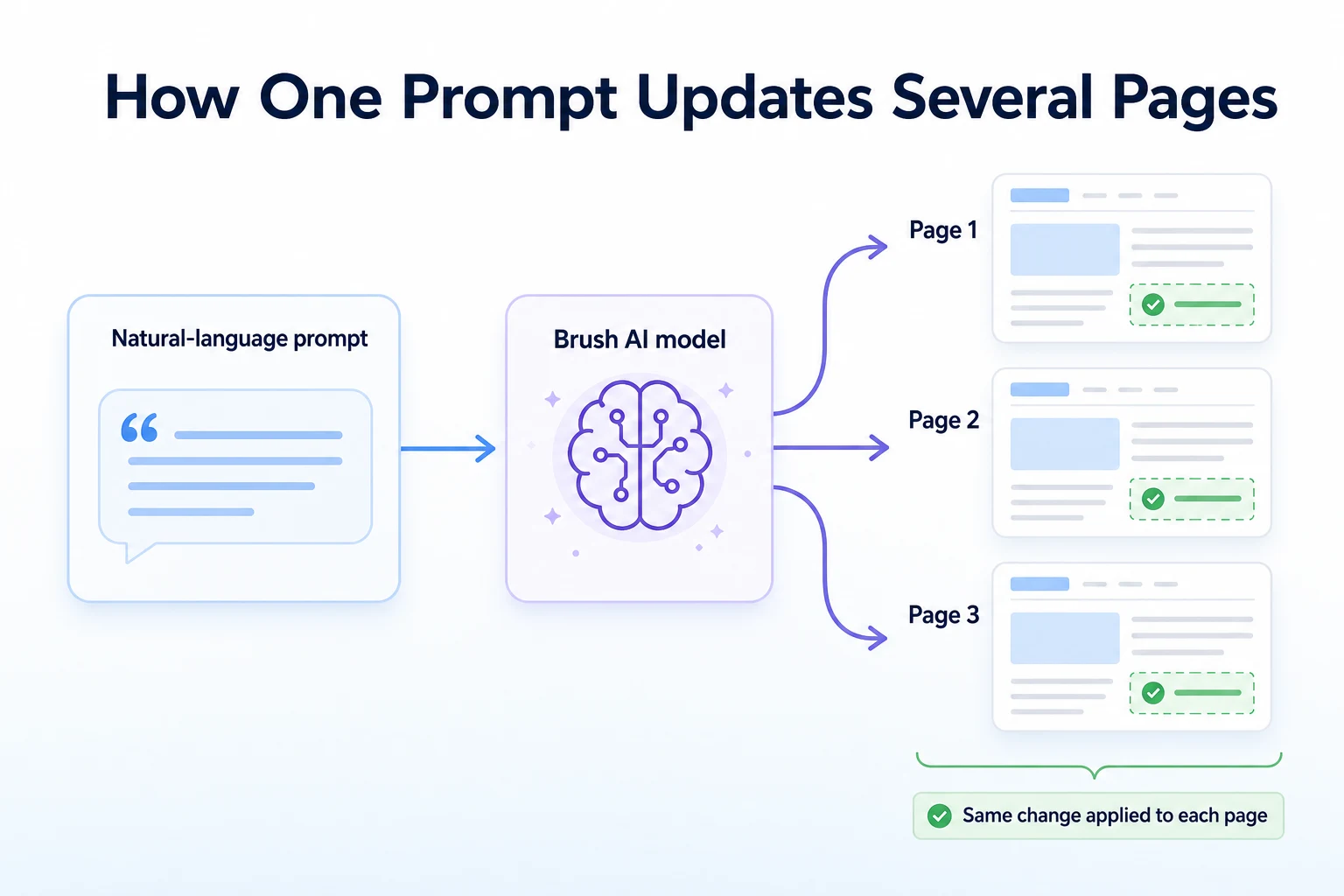
Canva described Brush as able to apply one instruction across multiple pages at once, such as a slide deck or a social media carousel. Instead of repeating the same edit page by page, a single prompt (for example, changing an accent color across an entire presentation) is described as updating every page that uses it. For a business that builds a week of social posts from one template, or a deck with a dozen slides sharing a color scheme, that removes a repetitive manual step.
What Canva Hasn't Said About Multi-Design Limits
Canva hasn't published a stated limit on how many pages or designs a single Brush instruction can apply to, nor has it detailed what happens when pages in a set use different layouts rather than one consistent template. It's reasonable to expect more predictable results on a set of pages that already share a structure than on a mixed set of unrelated designs, but that's an inference based on how layout understanding is described, not something Canva has confirmed directly. Testing on your own template set remains the only reliable way to know how far a single instruction will actually reach.
Brush vs Canva's Existing AI Tools
Canva didn't launch Brush into an empty toolbox. It already had more than one AI feature for generating and editing designs, and it's worth being clear about what those did before October 29 so Brush doesn't get credited with things it isn't actually new at.
What Magic Design and Magic Edit Already Did
Magic Design has worked as a generator: describe what you want, or upload an image or a brand asset, and Canva produces a set of design options built from scratch. Magic Edit, a separate feature, has let a user select part of an existing image and replace or alter it with a prompt, mostly within photos rather than across a full multi-element layout. Both tools are useful, and neither one is being retired or folded away by Brush's launch.
What's Actually New With Brush
The difference is in what each tool assumes you're starting with. Magic Design assumes you want something new. Magic Edit assumes you want to change part of a photo. Brush assumes you already have a finished design, built from text, images, backgrounds and brand elements together, and that you want to change one part of it through a plain instruction without disturbing the rest. That's a narrower, more specific job than either of the other two tools was built for, and it's the reason Canva introduced it as a separate model rather than a new mode inside an existing one.
Canva AI tool | What it does | How it differs from Brush |
|---|---|---|
Magic Design | Generates new design options from a prompt or uploaded asset | Starts from nothing; Brush starts from a finished design |
Magic Edit | Edits or replaces a selected part of an image using a prompt | Works within a photo; Brush works across a full layout of text, image and background elements |
Brush | Edits an existing design through natural-language instructions, understanding its layout | Built for editing what already exists, including across multiple pages at once |
Availability: Who Can Use Brush Right Now
Canva's announcement didn't frame Brush as available to every account on every plan the moment it launched. As with most feature rollouts, access is starting somewhere specific and expanding from there.
Which Plans and Platforms Have It First
Canva has described Brush as rolling out starting with the web app, with its presence inside Canva's mobile apps and other surfaces following afterward. Canva hasn't published a definitive list of which account tiers get first access, though features built around Canva's more advanced AI models have historically reached Pro and Teams accounts before free accounts see them, if free accounts get them at all. That pattern is worth keeping in mind, but it's not a confirmed detail about Brush specifically.
What Canva Hasn't Confirmed About the Rollout
Canva hasn't published a firm date for when Brush reaches every region, every plan, or every platform Canva runs on. It also hasn't said whether the feature is appearing for all eligible users at once or in smaller waves, which is a common approach for AI features that need real usage to refine. If Brush doesn't appear in your account yet, that's not necessarily a sign anything is wrong with your account. It may simply not have reached you.
Question | What's confirmed | What's still unclear |
|---|---|---|
When did Brush launch? | October 29, 2026 | Full timeline for reaching every account |
Which platform has it first? | The web app, per Canva's description | When mobile apps get full access |
Is it region-limited at launch? | Not addressed directly | Whether every region sees it at the same time |
Is the rollout staged or immediate? | Not addressed directly | Whether all eligible users get it at once or in waves |
Pricing: What's Free and What Requires a Paid Plan
Cost is usually the first practical question after availability, and here too Canva's published detail is thinner than a business owner would probably like before planning around the feature.
What's Included on the Free Plan
Canva hasn't published a definitive statement confirming full Brush access on its free plan. Given how Canva has handled its more capable AI features in the past, it's reasonable to expect some limited access on a free account, whether that's a capped number of edits, a narrower set of instruction types, or access to Brush on single designs without the multi-page capability. None of that is confirmed by Canva directly, so it's worth checking your own account rather than assuming based on how other features have been tiered before.
What Requires Canva Pro or Teams
Canva Pro and Teams accounts have generally received fuller access to Canva's AI features first, including higher usage limits and earlier rollout. It's a reasonable expectation that the same pattern applies to Brush, particularly for the multi-page editing capability, though Canva hasn't published a specific pricing breakdown tied to Brush at launch.
Plan | Brush access | Notes |
|---|---|---|
Free | Not confirmed; likely limited if available | Canva hasn't published a definitive statement either way |
Canva Pro | Likely fuller access, based on past rollout patterns | Not confirmed specifically for Brush at launch |
Canva Teams | Likely fuller access, based on past rollout patterns | Not confirmed specifically for Brush at launch |
Practical Applications for Social Graphics, Ads and Business Content
None of this matters much until it's tied to the kind of work a small business actually does in Canva week to week. Brush's natural-language editing and layout understanding point toward a few specific jobs that used to take more time than they should.
Social Media Graphics and Carousels
A lot of social content starts from one template reused for months: the same frame, the same logo placement, a new headline and photo each time. That's exactly the pattern Brush is described as handling well, since it edits within an existing structure rather than generating something new each time. A prompt describing a new sale, a new product, or a seasonal color swap could, in principle, update a week's worth of posts built from the same template without reopening each one individually. Our piece on socialpost AI and similar tools looks at a related question worth asking before leaning on any AI tool for a content schedule: whether it's actually replacing planning, or just speeding up production of a plan you still need to make yourself.
Advertising Creative Variants
Ad platforms generally reward having a few creative variants to test rather than one static image, and manually producing those variants (different headlines, different accent colors, different calls to action) is exactly the repetitive work a prompt-based edit is suited to. Brush's layout understanding matters here specifically, since an ad variant that accidentally shifts the logo or crops out the price isn't usable no matter how fast it was produced. Our guide to Meta AI ads covers a related part of this picture: platforms are also using AI on the targeting and delivery side, so a faster way to produce creative variants on the design side fits into a broader shift rather than standing alone.
Presentations and Internal Business Documents
A sales deck, a pricing one-pager or an internal report usually goes through several small revisions before it's final: a new price, an updated stat, a different cover slide. Canva's description of Brush applying one instruction across multiple pages suggests this kind of repetitive deck maintenance is a reasonable use case, since a change to a shared element like a color scheme or a footer wouldn't need to be made slide by slide. It's a smaller, less visible use than social graphics or ads, but for a business that lives inside a recurring deck template, it may end up being the most time saved of the three.
A Worked Example: Redesigning a Week of Social Posts with Brush
This example is illustrative, not a record of how any real business used Brush.
Imagine a small bakery that reuses one Instagram template for its weekly specials and tests Brush for a week to see how far a plain instruction actually goes.
Day | Prompt given | What changed |
|---|---|---|
Monday | "Change the accent color from orange to a warm red across this week's posts." | The accent color updated on all five scheduled posts built from the shared template, leaving the logo and layout untouched. |
Tuesday | "Swap the headline to say 'Weekend Special' instead of 'Daily Deal.'" | Only the headline text updated; the image and background stayed the same. |
Wednesday | "Make the price text larger so it stands out more." | The price text resized without affecting surrounding spacing or other elements. |
Thursday | "Replace the product photo with the one I just uploaded." | The image layer updated while the text and layout stayed in place. |
Friday | "Apply this weekend's color scheme to next week's three draft posts too." | The three draft posts, built from a slightly different layout, updated unevenly, with one needing a manual fix. |
These figures are illustrative.
The pattern that stands out is Friday. The instruction worked cleanly across posts that shared the exact same template, and less cleanly once the layout varied even a little. That lines up with what Canva hasn't detailed about multi-design limits: consistency in the source templates still seems to matter for how reliably one instruction spreads across several pages.
A 30-Minute Checklist to Try Brush on Your Own Templates
Before relying on Brush for a real campaign, it's worth running a short test on a template that doesn't matter if it goes wrong.
Step | Task | Why it matters |
|---|---|---|
1 | Duplicate a template you already use regularly, rather than editing the original | Keeps your actual brand assets safe while you test |
2 | Try a simple, single-element prompt first, like changing one color | Shows whether Brush targets the right layer before you try anything more complex |
3 | Check that the logo, spacing and font stayed untouched after the edit | Confirms layout understanding is working as described, not just producing a plausible-looking result |
4 | Test the same prompt across two or three pages built from the same template | Reveals how reliably one instruction applies to a set rather than a single design |
5 | Repeat the test on a page built from a different layout | Shows whether results hold up outside a perfectly matched template set |
6 | Review every result before publishing, treating it like any manual edit | Canva hasn't published full detail on how version history interacts with Brush, so a human check still matters |
Limitations and Common Mistakes to Avoid
Brush is new, and Canva's own description leaves real gaps between what the feature is built to do and what a business might assume it does after a quick demo.
Canva hasn't said Brush can write marketing copy from scratch, choose a color scheme that fits your brand without guidance, or judge whether a design actually works for the audience it's aimed at. It edits what you describe, not what you meant but didn't say. A vague prompt is likely to produce a vague result, the same as it would with any other AI tool. Canva also hasn't published anything suggesting Brush checks brand guidelines on its own, so a result that's technically correct can still drift from a business's actual brand standards if nobody reviews it.
Mistake | Why it backfires | Better move |
|---|---|---|
Publishing an edit without reviewing it first | Canva hasn't detailed how undo and version history work with Brush specifically, so an unwanted change could be harder to trace back | Treat every Brush edit like a manual one and check it before it goes live |
Writing vague prompts | A prompt without specifics leaves Brush guessing at intent, the same as any natural-language tool | Name the exact element and the exact change, like a color, a word, or a size |
Assuming multi-page edits always apply evenly | Canva hasn't confirmed how Brush handles a set of pages with different layouts | Test on a small set first, especially when pages don't share an identical template |
Rebuilding a whole campaign around Brush immediately | Availability, pricing, and reliability across layouts are all still unconfirmed in places | Use it on lower-stakes templates first, and keep a manual fallback ready |
Expecting it to know your brand guidelines automatically | Canva hasn't described Brush as checking brand rules on its own | Keep a human reviewing output against your actual brand standards |
Where RepGet fits
RepGet has no connection to Canva or to Brush. It doesn't generate design graphics, edit images, or touch anything inside Canva's apps.
What RepGet works on sits one step further along, once a design made in Canva is ready to go somewhere. A social graphic or an ad creative eventually needs a landing page, a product page, or a blog post behind it, and that's the layer RepGet's website auditing, keyword research, content planning, article writing and publishing work on. A business that's suddenly producing more visual content faster, because a tool like Brush removed some of the manual editing work, often finds the bottleneck has simply moved: the website now needs pages and posts that match what's being promoted, written and published at a similar pace.
If a business wants to check whether its website is ready to support a faster content and campaign schedule, RepGet's free website audit crawls the site and gives it a 0 to 100 SEO score, flagging technical and content issues worth fixing first. No account or credit card required. RepGet's free SEO tools cover related checks, like whether a page's tags and descriptions are doing their job once a visitor actually clicks through from one of those new graphics or ads.
RepGet doesn't design graphics, doesn't integrate with Canva, and doesn't guarantee that faster content production will translate into more traffic, rankings or sales. What it can do is make sure the website behind that content is technically sound and clearly described, regardless of which design tool produced the visuals pointing people to it.
The bottom line
Canva's October 29 launch of Brush is a real, documented step toward editing designs with plain language instead of menus, built around a model that reads a design's layout rather than treating it as one flat image. The ability to apply a single instruction across several pages at once is genuinely new among Canva's AI tools, and it's distinct from what Magic Design and Magic Edit were built to do.
What's still open is how far that reliability extends once templates stop matching exactly, which plans get full access, and what Brush costs once pricing is confirmed in detail. Until Canva publishes more on those points, the sensible approach is the same one that applies to any new AI feature: test it on something low-stakes, review every result, and let it earn a bigger role in your workflow gradually rather than handing it a whole campaign on day one.
Find out what your website needs first
Run a free website audit with RepGet to see what your site needs before a faster Canva workflow sends more visitors its way. No account or credit card required.
FAQ
What is Canva Brush AI?
Brush is a new AI design model Canva launched on October 29, 2026. It lets you edit an existing design by typing a plain-language instruction, and it understands the design's layout so only the targeted element changes.
When did Canva launch Brush?
Canva announced Brush on October 29, 2026, describing it as a separate AI model built specifically for editing existing designs through natural-language instructions rather than generating new ones from scratch.
Is Canva Brush AI free to use?
Canva hasn't published a definitive statement on free-plan access to Brush. Based on how Canva has handled past AI features, fuller access is more likely on Canva Pro or Teams plans, though this isn't confirmed specifically for Brush.
How is Brush different from Canva's Magic Design?
Magic Design generates new design options from a prompt or uploaded asset. Brush instead edits a design you already have, changing one part through an instruction while leaving the rest of the layout untouched.
Can Brush edit multiple pages or designs at once?
Canva describes Brush as able to apply one instruction across multiple pages, such as a slide deck or social carousel. Canva hasn't confirmed how reliably this works when pages use different layouts rather than one shared template.
Do I need Canva Pro to use Brush?
Canva hasn't published a specific pricing breakdown tied to Brush at launch. Past rollout patterns suggest Pro and Teams accounts may get fuller access first, but this isn't confirmed directly for this feature.
What can't Canva Brush AI do yet?
Canva hasn't described Brush as writing marketing copy from scratch, judging brand fit on its own, or checking brand guidelines automatically. It edits what you describe, so vague prompts and unreviewed results remain real risks.