

Robots.txt Generator: How to Create a Safe File for Google and AI
Short answer
A safe robots.txt file allows Google, Bing, and any AI crawlers you actually want visiting, while blocking only pages you truly don't want crawled, like admin screens or internal search results. Use a generator or template as a starting point, never copy another site's file as is, then test it with a robots.txt checker before you publish it live. A wrong line can hide an entire site from search.
A small business owner finds a robots.txt file online.
It looks official, it's from a site in a similar industry, and pasting it in feels like the safe, thorough thing to do.
A few weeks later, service pages that used to show up in Google have quietly disappeared.
Nobody touched the content. Nobody changed the URLs. The only thing that changed was that borrowed file, and one line in it told search engines to stay away from the exact folder those pages live in.
This happens more often than it should, usually because a robots.txt generator or template gets copied without checking what each line actually does on this particular site.
A robots.txt file is a small, plain text file with real consequences. Get it right and it quietly keeps crawlers out of the pages you never wanted indexed anyway. Get it wrong and it can hide your whole site, or the AI assistants your customers now use to find businesses like yours.
Here's how to build one that's safe for Google, Bing and the AI crawlers you actually want visiting, using a generator as a starting point rather than a shortcut.
What a Robots.txt File Actually Does (and Doesn't Do)
Robots.txt is a set of instructions for crawlers. It tells well-behaved bots which parts of a site they're welcome to crawl and which parts to leave alone.
That's the whole job. It's not a security tool, and it's not a guarantee about what shows up in search results.
What robots.txt can control
It can tell a crawler not to request certain URLs or folders. Google's own documentation on how robots.txt works describes it as a way to manage crawler traffic, not a way to keep pages out of Google entirely.
A well-written file can stop crawlers from wasting time on admin screens, internal search results or duplicate parameter pages, which is a genuinely useful thing to do on a larger site.
What it can't control
A disallowed page can still get indexed if other sites link to it. Google may show the URL in search results with no description, because it was never allowed to crawl the page to see what's on it.
Robots.txt also doesn't stop a page from being viewed by someone who already has the link. It's not password protection, and it doesn't hide sensitive information from a determined visitor.
Robots.txt vs. the noindex tag
If the goal is genuinely keeping a page out of Google's results, a noindex meta tag does that job. Robots.txt does a different job: it stops the crawl, not necessarily the listing.
Using both together usually backfires. If a page is disallowed in robots.txt, Google can't crawl it to see the noindex tag in the first place, so the two instructions can work against each other instead of together.
Method | What it does | When to use it |
|---|---|---|
Robots.txt disallow | Asks crawlers not to request a URL or folder | Low-value pages you don't want crawled at all, like internal search results |
Noindex tag | Allows crawling, but asks search engines not to list the page | Pages that need to be crawled and understood, but shouldn't appear in results |
Password protection | Blocks access entirely until a login is provided | Genuinely private or sensitive content that shouldn't be viewable by anyone uninvited |
The Handful of Rules You Actually Need to Know
Most robots.txt files, even on large sites, use only a handful of directives. You don't need to memorize a long specification to write a safe one.
User-agent and Disallow
User-agent names which crawler a rule applies to, and Disallow names a path that crawler shouldn't request. A line reading User-agent: * applies to every crawler that doesn't have its own specific block.
An empty Disallow: line means nothing is blocked for that crawler, which is easy to miss when scanning a file quickly.
Allow and wildcards
Allow carves out an exception inside a broader disallowed folder, which is useful when most of a directory should stay hidden but one file or subfolder shouldn't. Wildcards, written as *, let a single line match a pattern of URLs rather than one exact path.
Google's guide to creating a robots.txt file covers the full syntax, including how matching rules are resolved when more than one applies to the same URL.
Pointing to your sitemap
A Sitemap line isn't a crawling rule at all. It simply tells crawlers where to find your XML sitemap, which makes it easier for them to discover your pages in the first place.
Directive | What it does | Example |
|---|---|---|
User-agent | Names the crawler a rule block applies to |
|
Disallow | Asks the named crawler not to request a path |
|
Allow | Creates an exception inside a disallowed path |
|
Sitemap | Points crawlers to your XML sitemap location |
|
What a Safe Robots.txt Looks Like for a Typical Small Business Site
Most small business sites don't need an elaborate file. They need a short one that blocks very little and says so clearly.
A baseline file you can start from and adjust
Imagine a local plumbing company's website, with service pages, a blog, a contact form and a staff login screen. These URLs are illustrative.
User-agent: *
Disallow: /wp-admin/
Allow: /wp-admin/admin-ajax.php
Disallow: /cart/
Sitemap: https://example.com/sitemap.xml
Nearly everything on the site stays open to crawling. The only paths blocked are an admin area and a cart page, neither of which a customer or a search engine needs to find.
Before publishing a file like this, it's worth confirming your sitemap address is correct and that the sitemap itself is valid. RepGet's free Sitemap Checker & Finder can locate and check a site's sitemap in a few seconds.
The Mistakes That Accidentally Block Google
Almost every harmful robots.txt file wasn't written to cause damage. It was written for one situation and then left in place for another.
A leftover block from a staging site
Development and staging sites often carry a blanket rule like Disallow: /, which tells every crawler to stay away from the entire site. That's sensible while a site is being built.
It's a serious problem if that same file gets copied to the live domain during launch and nobody removes the blanket block afterward.
Blocking the folders your CSS and images live in
Some older templates disallow folders like /wp-includes/ or a theme's asset directory, on the assumption that crawlers only care about text. Google's documentation makes clear that blocking resources a page needs to render, like CSS and JavaScript files, can prevent Google from properly understanding the page.
Case-sensitive paths and typos
Paths in robots.txt are case-sensitive, so Disallow: /Contact won't match a URL at /contact. A simple typo in a folder name can also leave the intended block doing nothing, while a stray character elsewhere can block far more than intended.
Mistake | What it does to crawling | How to fix it |
|---|---|---|
Leftover staging block ( | Hides the entire live site from crawlers | Remove the blanket rule once the site goes live |
Blocking CSS or JavaScript folders | Stops Google from fully rendering and understanding pages | Allow the folders that hold styling and scripts your pages need |
Case mismatch or typo in a path | Blocks the wrong URL, or fails to block the intended one | Copy paths directly from the browser address bar and double-check capitalization |
Disallowing the whole blog by accident | Removes an entire content section from search results over time | Check that each disallowed folder is named precisely and intentionally |
Our checklist on how to get your website indexed by Google is worth reviewing if pages seem to be missing from search for reasons beyond robots.txt.
Deciding Whether to Allow or Block AI Crawlers
Alongside Googlebot and Bingbot, a newer set of crawlers now visits sites on behalf of AI assistants. GPTBot collects pages for OpenAI's models, ClaudeBot does something similar for Anthropic, and PerplexityBot crawls pages that Perplexity's answers might draw from.
None of these are search engine crawlers in the traditional sense. Allowing or blocking them doesn't affect whether your site shows up in Google. It affects whether these companies can access your pages at all, for whatever purpose they use that access for.
Why a business might block an AI crawler
Some businesses would rather their original writing, pricing and photography not be used to train a model they have no relationship with. That's a reasonable position, and robots.txt is the documented way to express it.
A business with content behind a paywall, or with pages full of proprietary data it doesn't want copied, has a similarly clear reason to block.
Why a business might allow one
A business that wants to show up when someone asks an AI assistant to recommend a company like theirs generally needs to let the relevant crawler read their site first. If GPTBot can't access your service pages, there's less chance ChatGPT has seen them at all.
Our guide to getting mentioned in ChatGPT goes into this in more depth, including what showing up in an AI answer does and doesn't depend on.
Crawler name | Operated by | What blocking it does |
|---|---|---|
GPTBot | OpenAI | Stops OpenAI from crawling the site for its documented purposes, including model training |
ClaudeBot | Anthropic | Stops Anthropic's crawler from accessing pages on the site |
PerplexityBot | Perplexity | Stops Perplexity's crawler from accessing pages it might otherwise use in an answer |
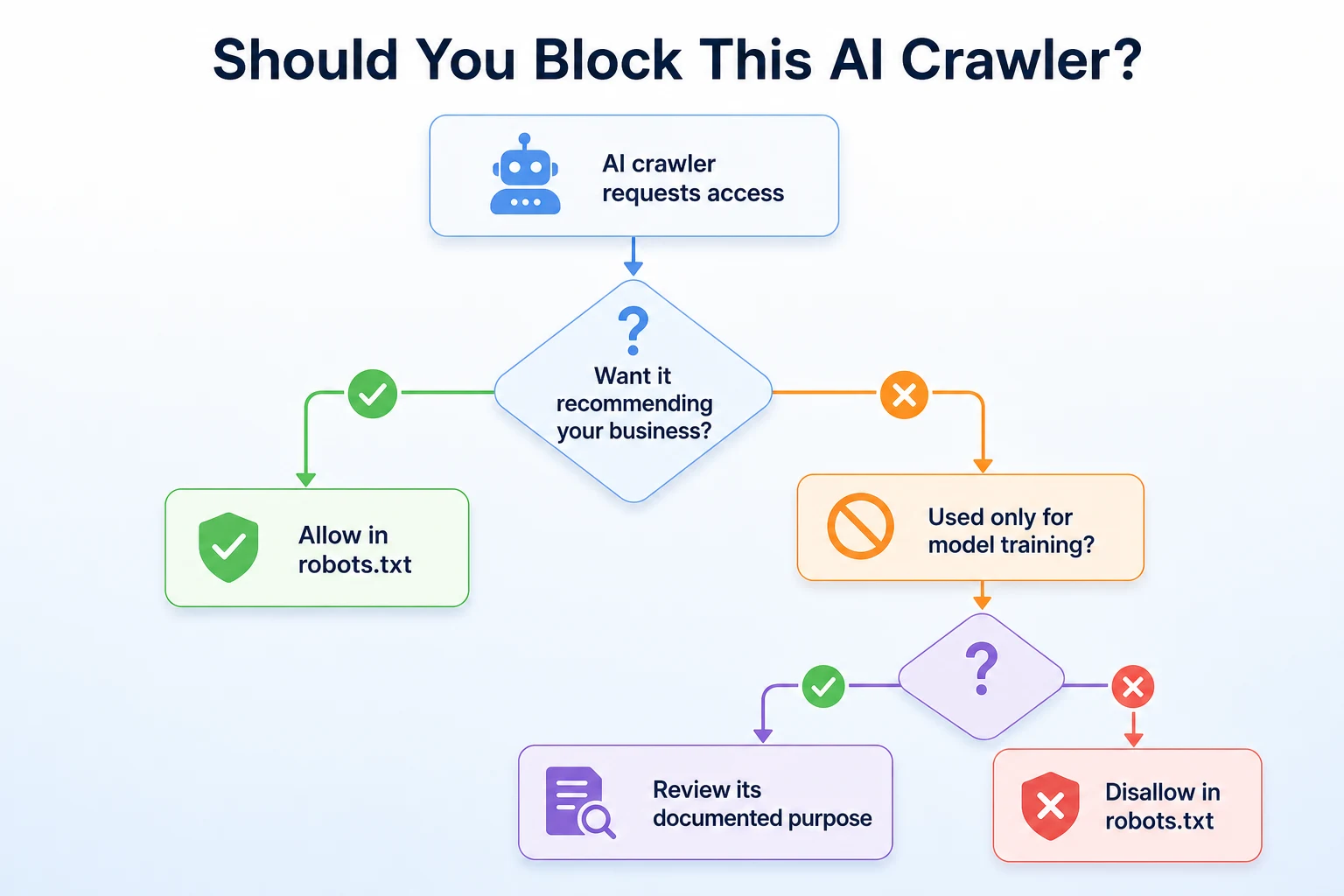
OpenAI documents GPTBot's behavior and how to control it in its crawler documentation, which is worth reading directly rather than relying on a secondhand summary, since crawler names and policies do change.
Before deciding anything, it helps to know what your site currently allows. RepGet's free AI Crawler Checker tests whether GPTBot, ClaudeBot and PerplexityBot can currently reach a given site.
Writing Rules for AI Crawlers Without Blocking Search Engines
The part that trips people up is mixing AI crawler rules into the same block that governs Googlebot and Bingbot. A single misplaced line can end up blocking far more than intended.
Each crawler you want to treat differently needs its own User-agent block. Rules written under User-agent: * apply to anything without a more specific block of its own, so a crawler named separately ignores the general rules entirely and only follows the ones written for it by name.
Example: block AI crawlers but keep Google and Bing
Imagine a site that wants to stay fully open to search engines while keeping AI crawlers out. These rules are illustrative.
User-agent: Googlebot
Disallow:
User-agent: Bingbot
Disallow:
User-agent: GPTBot
Disallow: /
User-agent: ClaudeBot
Disallow: /
User-agent: PerplexityBot
Disallow: /
Sitemap: https://example.com/sitemap.xml
Each crawler named here only follows the block written for it. Googlebot and Bingbot see an empty disallow line, meaning nothing is off limits. The three AI crawlers each see Disallow: /, which blocks the entire site for them specifically.
Example: allow everything to crawl
A business that's comfortable with AI crawlers visiting doesn't need separate blocks for them at all. A single User-agent: * section with little or nothing disallowed already covers every crawler, named or not.
User-agent: *
Disallow:
Sitemap: https://example.com/sitemap.xml
This is the simpler file, and it's a reasonable default for a business that isn't trying to exclude any particular crawler. Adding named blocks only makes sense once there's a specific crawler you actually want to treat differently from the rest.
Using a Robots.txt Generator Safely
A generator can save time, but it's worth understanding what it's actually doing before trusting what it hands back.
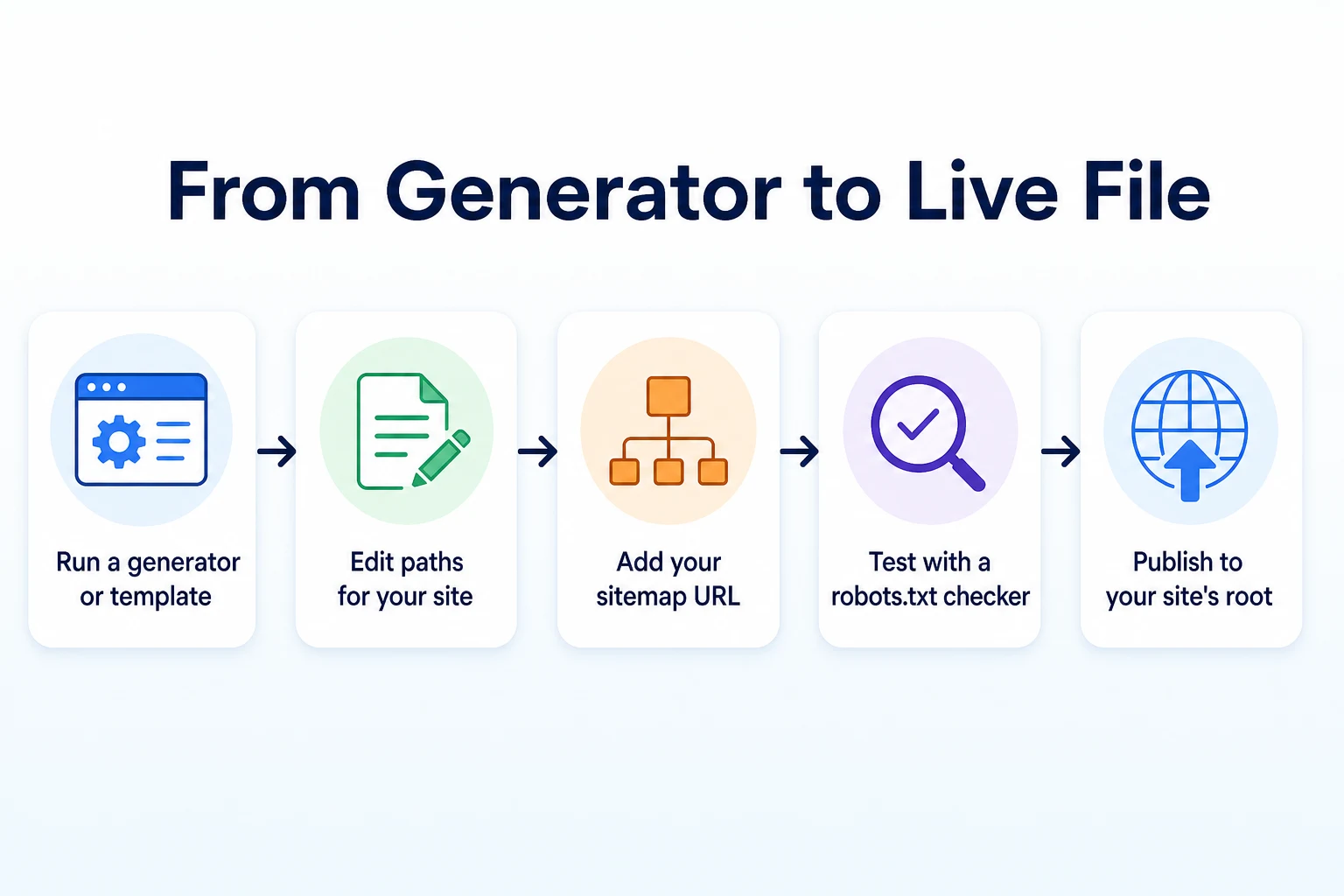
What a generator actually produces
Most generators ask a few questions, like which folders to block and which crawlers to name, then assemble a file from those answers using standard syntax. Some offer preset templates for common platforms like WordPress or Shopify.
That's genuinely useful for getting the syntax right. Few people remember offhand whether a trailing slash matters or how wildcards are matched, and a generator removes that guesswork.
What a generator can't do is know which folders on your specific site should actually be blocked. It doesn't know your URL structure, your staff login path or which parts of the site matter to your business. Those answers only come from someone who knows the site.
What to check before you trust the output
Read every line the generator produces before publishing it, rather than treating the output as finished. Confirm each disallowed path actually exists on your site and actually deserves to be blocked.
Check that the sitemap line points to your real sitemap address, not a placeholder left over from the tool's default template. Check that nothing blocks your CSS, JavaScript or image folders, since some older templates still carry that advice forward by default.
Once the file looks right, confirm it behaves the way you expect before it goes live. RepGet's free Robots.txt Checker gives a verdict for both search engines and AI crawlers together, which is a faster way to catch a mistake than reading the raw text line by line.
Where to Put the File and How to Publish It
A robots.txt file only works if crawlers can find it in the one place they're built to look.
It needs to sit at the root of your domain, as a plain text file named exactly robots.txt, reachable at an address like https://example.com/robots.txt. A copy sitting in a subfolder, or saved under a different file name, won't be read by any crawler.
WordPress
WordPress generates a basic virtual robots.txt file automatically, visible at the usual address even without a physical file on the server. Most SEO plugins let you edit its contents directly from the dashboard, which is simpler than managing a separate file through hosting access.
If a physical robots.txt file already exists in the site's root folder, it typically takes priority over the virtual one, so it's worth checking which version is actually being served before assuming a plugin edit took effect.
Shopify and other hosted platforms
Shopify and several other hosted platforms generate a default robots.txt automatically and, depending on the platform, may allow edits through a template file or theme setting rather than a direct upload. The exact method varies by platform and sometimes by plan, so it's worth checking the platform's own help documentation rather than assuming a WordPress-style edit will work the same way.
Whatever the platform, the test is the same: visit the live address directly in a browser and read exactly what's published there, since that's the only version crawlers ever see.
Testing Your Robots.txt Before It Goes Live
A robots.txt file can look correct and still behave in a way you didn't intend. The only way to know for sure is to test it, not just read it.
Checking the file manually
Start by typing the file's address directly into a browser, at a path like https://example.com/robots.txt. What loads there is exactly what every crawler sees, so it's worth reading it fresh rather than trusting the file you think you uploaded.
Check that the sitemap line resolves to a real, working sitemap. Check that every disallowed path is one you actually meant to block, and that nothing important sits inside it by accident. If the file was edited through a plugin or theme setting, confirm the live version matches what you saved, since a cached copy can sometimes linger longer than expected.
Checking it with a robots.txt checker
Reading the file catches typos and obvious mistakes, but it won't always tell you how a specific crawler interprets overlapping rules. A checker does that work for you.
RepGet's free Robots.txt Checker gives a verdict for search engines and AI crawlers together, so you can confirm in one pass that Googlebot and Bingbot are allowed where you expect and that any AI crawler you named is treated the way you intended, whether that's allowed or blocked.
Run the check again after any change to the file, even a small one. A single line moved into the wrong block is enough to undo what the rest of the file gets right.
A 20-Minute Checklist for Reviewing an Existing Robots.txt File
Most small business sites already have a robots.txt file, even if nobody remembers writing it. It's worth a short, scheduled look rather than assuming it's still doing what it was meant to do.
Step | What to check | Time |
|---|---|---|
1. Load the live file | Visit the file's address directly and read what's actually published, not a saved draft | 2 minutes |
2. Scan for a blanket block | Confirm there's no leftover | 2 minutes |
3. Check each disallowed path | Confirm every blocked folder still exists and still deserves to be blocked | 5 minutes |
4. Check CSS and JavaScript access | Confirm nothing blocks the folders your pages need to render properly | 3 minutes |
5. Review named AI crawler blocks | Confirm GPTBot, ClaudeBot and PerplexityBot are allowed or blocked on purpose, not by default | 3 minutes |
6. Confirm the sitemap line | Check it points to a real, current sitemap address | 2 minutes |
7. Run a checker tool | Confirm the verdicts match what you intended for each crawler | 3 minutes |
Twenty minutes is enough to catch the kind of mistake that otherwise sits unnoticed for months. Put a reminder on the calendar every few months, or any time the site moves to a new host, theme or platform, since those changes sometimes rewrite the file without anyone deciding to.
Where RepGet Fits
Deciding which folders deserve to be blocked, and which AI crawlers a business actually wants reading its pages, is a judgment call that belongs to the people who run the site. No tool can make that decision on your behalf, because it depends on what the business sells, what it's comfortable with and what its customers actually search for.
What RepGet can do is make it faster to check the result of that decision. Its free Robots.txt Checker gives a verdict for search engines and AI crawlers together, so a file edited by hand or produced by a generator can be confirmed in a few seconds rather than read line by line. Its free website audit crawls a site, gives it a 0 to 100 SEO score and lists technical issues worth investigating, which can surface a robots.txt problem alongside other things worth fixing on the same visit. No account or credit card required for either.
RepGet doesn't write a business's robots.txt file for it, doesn't decide which AI crawlers a business should welcome, and doesn't guarantee that allowing a crawler leads to a mention in an AI assistant's answer or a particular position in Google. Those outcomes depend on far more than one small text file, and nobody can promise them.
The Bottom Line
A safe robots.txt file is a short one, written on purpose, where every blocked path has a clear reason behind it.
A generator or template is a reasonable place to start, but the output still needs a read-through from someone who knows the site, a check that the sitemap line is real, and a test before it goes live. The same care applies to AI crawlers: naming one in its own block lets you allow or block it deliberately, without touching the rules that keep Google and Bing crawling normally.
None of this guarantees a ranking, a spot in an AI assistant's answer or a particular amount of traffic. What it does is make sure the file isn't quietly working against the site it's supposed to protect.
Find out what your website needs first
Before publishing a new robots.txt file, see what your site currently allows and what else might need attention. Run a free website audit with RepGet to check your site's technical setup alongside its content. No account or credit card required.
FAQ
Can a robots.txt generator accidentally block Google?
Yes, if its default output or a copied template includes a blanket rule or a mistyped path. Always read what a generator produces and test it with a checker before publishing it to a live site.
Do I need a robots.txt file if my site is small?
A small site can function without one, since crawlers will still crawl it by default. A short file is still worth having if you want to block a specific folder or point crawlers to your sitemap.
How do I block ChatGPT from crawling my website?
Add a
User-agent: GPTBotblock withDisallow: /to your robots.txt file. OpenAI documents GPTBot's behavior directly, so it's worth checking its current crawler documentation before relying on this rule.Where should I upload my robots.txt file?
It needs to sit at your domain's root as plain text named exactly
robots.txt, reachable at an address likehttps://example.com/robots.txt. A copy in a subfolder won't be read by crawlers.Does blocking GPTBot stop my site from appearing in ChatGPT answers?
Blocking GPTBot stops OpenAI's crawler from accessing your pages for its documented purposes. It doesn't guarantee anything about whether or how a business is mentioned in an AI assistant's response.
How often should I check my robots.txt file?
A quick review every few months is reasonable, and it's worth checking again any time the site changes host, theme or platform, since those changes sometimes rewrite the file without anyone deciding to.
What's the difference between robots.txt and a noindex tag?
Robots.txt asks crawlers not to request a URL at all. A noindex tag allows crawling but asks search engines not to list the page. Using both on the same page can work against each other.
Can I have different robots.txt rules for different AI bots?
Yes. Each crawler can have its own
User-agentblock with its own rules, so you can allow one AI crawler while blocking another without affecting Googlebot or Bingbot at all.