

Google reCAPTCHA for WooCommerce: A Setup Guide That Protects Sales
Short answer
Google reCAPTCHA stops spam orders and fake accounts on a WooCommerce store, but the wrong setup slows down checkout and costs real sales. Use the invisible reCAPTCHA v3 on checkout, the v2 checkbox on login and contact forms, and test every form as a customer before launch. Start with a lenient score threshold and adjust it once you see real traffic.
A store owner adds reCAPTCHA after a run of fake orders and spam signups.
Within a week, the fake orders stop. So do a few real ones.
A customer messages on Instagram saying checkout wouldn't let them past a puzzle of traffic lights and crosswalks. Another just gives up and buys from a competitor instead.
The store owner never meant to make checkout harder. They just wanted the bots gone.
Setting up Google reCAPTCHA for WooCommerce is usually simple. Getting the settings right so it blocks bots without blocking customers takes a bit more care. Here's how to add it the way that protects your store instead of quietly costing you sales.
What Google reCAPTCHA Actually Protects on a WooCommerce Store
reCAPTCHA is a free service from Google that checks whether a visitor filling out a form is a human or an automated script. It sits behind the scenes on a page, usually a login form, a registration form, or a checkout, and returns a signal to the site about how likely that visitor is to be a bot.
reCAPTCHA v2 vs v3, in plain terms
Google has published two main versions that work differently. reCAPTCHA v2 is the version most people recognize: a checkbox that says
a checkbox that says "I'm not a robot," sometimes followed by a challenge of picking out traffic lights or crosswalks in a grid of photos. reCAPTCHA v3 works differently. It runs invisibly in the background, scoring every visitor's behavior on a scale, with no checkbox and no puzzle for anyone to click through. Google's own documentation on how reCAPTCHA works covers both versions in more technical detail, including how the scoring and verification requests actually work under the hood.
Version | How it works | What the customer sees | Best use on a store |
|---|---|---|---|
reCAPTCHA v2 | Checkbox verification, sometimes followed by an image challenge | A checkbox, occasionally a puzzle | Login, registration, contact forms |
reCAPTCHA v3 | Scores behavior invisibly in the background, no interaction required | Nothing, unless the site adds its own notice | Checkout, any high-traffic form |
What it actually protects on a store
On a typical WooCommerce site, reCAPTCHA is usually added to one or more of a handful of forms: the checkout page, customer login, account registration, and the contact form. Each of these can be targeted by bots for a different reason, and which forms you protect, and with which version, matters more than just turning the feature on everywhere at once.
Why Store Owners Add reCAPTCHA in the First Place
Most store owners don't add reCAPTCHA out of curiosity. They add it after noticing a pattern that's already costing them time or money.
Common bot problems on small stores
A contact form filling up with spam messages is one of the most common triggers, since an open form with no protection is an easy target for automated scripts. Fake account registrations are another, often created in bulk by bots testing stolen email lists or trying to build up accounts for later abuse. A surge of orders placed with the same stolen card number, tested in small amounts across many stores, is a third, and it's often the one that pushes an owner to act quickly. Our guide to why a website traffic bot hurts your SEO instead of helping covers a related pattern: automated traffic that looks like activity but doesn't represent real customers, which is the same underlying problem showing up in a different part of the site.
Why card testing fraud matters at checkout
Card testing is the specific reason checkout protection gets prioritized over other forms. A bot runs a list of stolen card numbers through a store's checkout in small, fast transactions, checking which ones are still valid before using them elsewhere for a larger purchase. Each attempt can trigger a payment processor fee even when the charge is declined, and a large enough batch can flag a store's payment account for review, which is a bigger disruption than the fees alone. reCAPTCHA at checkout is one of the more direct ways to make that kind of automated testing harder to run at scale.
Where reCAPTCHA Can Go Wrong at Checkout
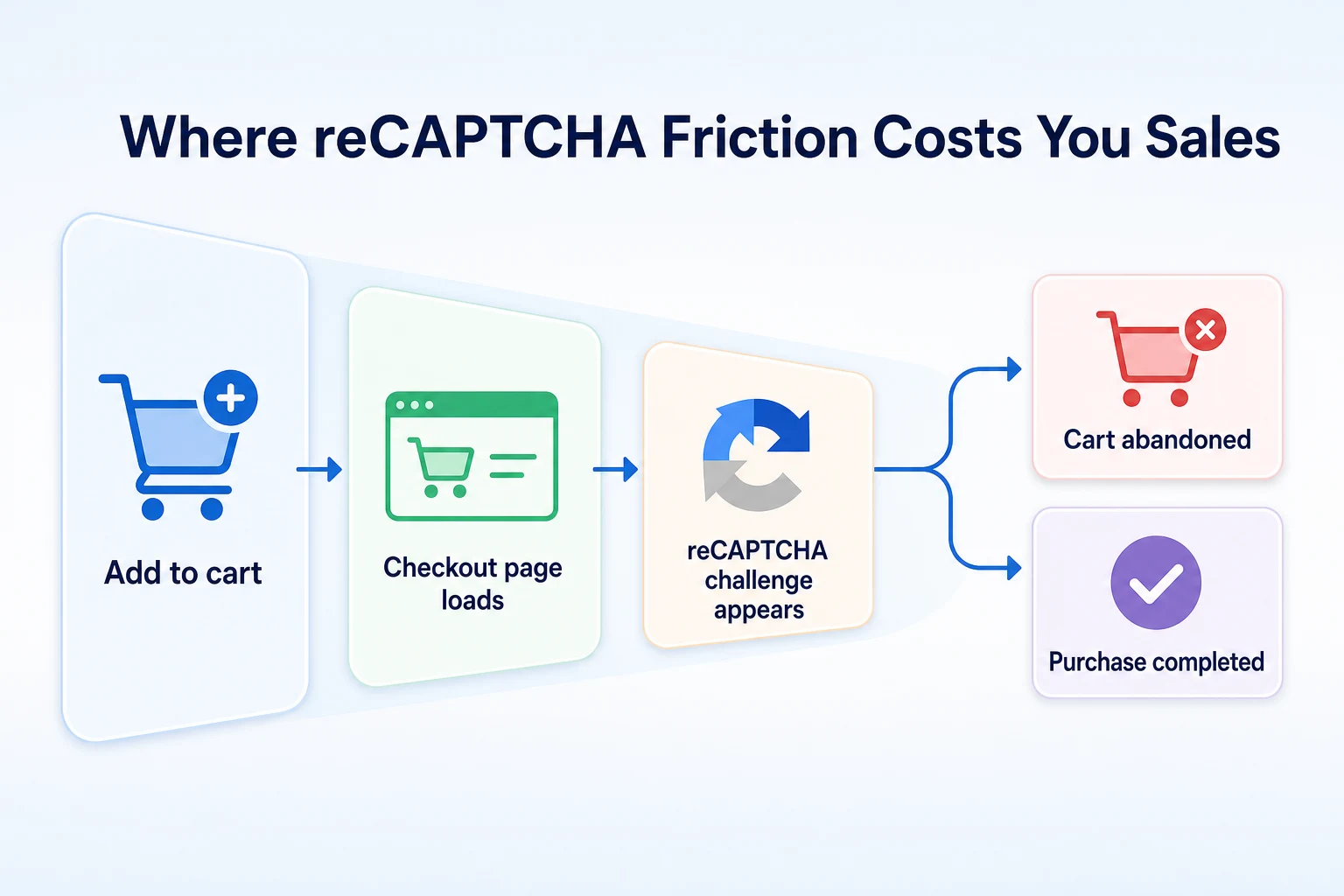
Checkout is also the page where a reCAPTCHA mistake costs the most, because it's the one step between a shopper and a completed sale.
Why checkout is different from a login form
A customer who fails a login challenge usually just tries again, since they already know they want to get into their account. A customer at checkout is often making a decision in the moment, especially on a phone, in a hurry, or comparing prices across a few tabs. A confusing puzzle, a slow-loading challenge, or a false flag that blocks a legitimate card isn't a small delay at that point. It's a reason to close the tab and buy somewhere else instead.
Signs reCAPTCHA is costing you sales
A jump in cart abandonment right after reCAPTCHA goes live is the clearest sign something's off, especially if it lines up closely with the date it was added. Customer messages mentioning a confusing checkbox, a puzzle that wouldn't load, or an order that wouldn't go through are worth taking seriously even if they're rare, since most frustrated shoppers never bother to message at all. A drop in completed orders on mobile specifically is another pattern worth checking, since image challenges and slow-loading widgets tend to cause more trouble on a small screen and a weaker connection than on desktop.
Choosing the Right reCAPTCHA Version for Each Form
Not every form on a store needs the same version, and treating checkout the same way as a login page is one of the more common reasons reCAPTCHA ends up costing sales.
Why v3 fits checkout best
Because reCAPTCHA v3 runs invisibly and returns a score without asking the customer to do anything, it adds no visible step to checkout at all. That matters at the point where a shopper is closest to completing a purchase and least willing to tolerate an extra click. Google's documentation on reCAPTCHA v3 describes how the score is generated from background signals rather than from any action a visitor takes, which is exactly why it fits a high-stakes page like checkout better than a visible challenge does.
When the v2 checkbox still makes sense
A visible checkbox is a reasonable fit for forms where a small bit of friction doesn't threaten a sale, like a login page, an account registration form, or a contact form. These are lower-stakes moments where a customer expects to take an extra step anyway, and the checkbox gives a store owner a clearer, more visible layer of protection against repeated bot attempts on forms that don't need to feel frictionless.
Form or page | Recommended version | Why |
|---|---|---|
Checkout | reCAPTCHA v3 | No visible step, lowest risk of losing a sale over friction |
Customer login | reCAPTCHA v2 | Low stakes, customers expect a small step here |
Account registration | reCAPTCHA v2 | Blocks bulk fake sign-ups without affecting shopping |
Contact form | reCAPTCHA v2 | Common spam target, friction here doesn't cost a sale |
Comments or reviews | reCAPTCHA v2 | Same spam risk as a contact form |
Getting Your reCAPTCHA Keys Before You Start
Before any plugin or setting on the WooCommerce side matters, the store needs a site key and a secret key from Google, tied to its own domain.
Registering your site in the reCAPTCHA admin console
Registering a site takes a few minutes in Google's reCAPTCHA admin console. The process asks for the domain the keys will be used on, along with which version to generate keys for, v2 or v3. Once registered, Google issues two keys: a site key, which is used on the front end of the store, and a secret key, which is used on the server side to verify responses. Both are needed for the setup to work, and neither is useful without the other.
Keeping your keys and domains matched correctly
Keys are tied to the exact domain they were registered under, so a site key generated for example.com won't work correctly on www.example.com or a staging subdomain unless that domain was added during registration too. If a store runs on a staging environment before launch, it's worth adding that domain in the admin console as well, or testing will fail in ways that look like a plugin problem when it's actually a domain mismatch. Keeping a copy of both keys somewhere safe, outside the plugin settings screen alone, also saves time if the plugin ever needs to be reinstalled or swapped for another one later.
Step-by-Step: Installing reCAPTCHA on WooCommerce
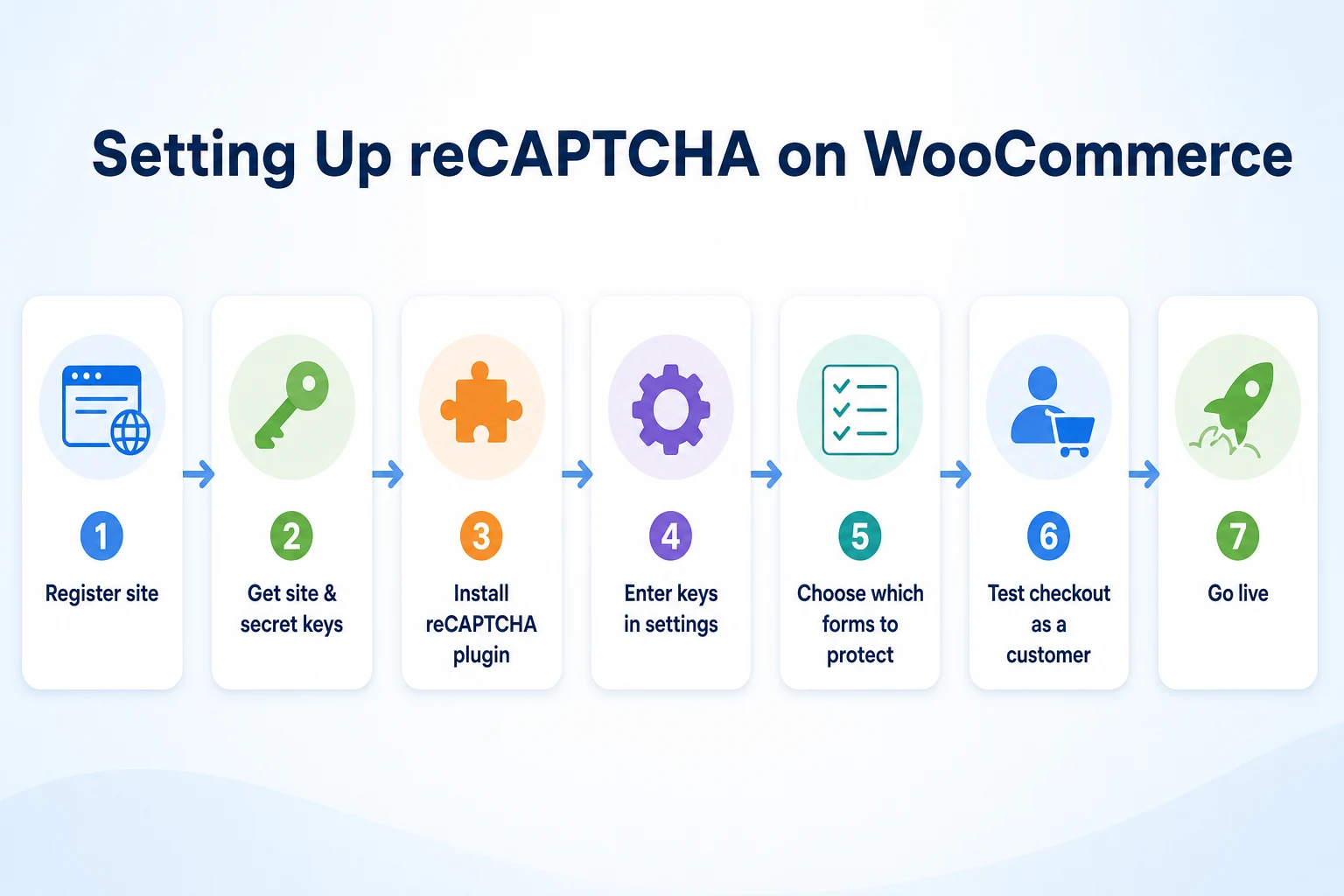
With both keys in hand, the actual installation on a WooCommerce store is usually the fastest part of the whole process.
Picking a reCAPTCHA plugin
Most stores add reCAPTCHA through a WordPress plugin rather than by editing theme files directly, since a plugin handles the technical connection between the keys and the forms on the site. Some WooCommerce extensions and payment plugins include reCAPTCHA support built in, which is worth checking before installing a separate plugin on top. A dedicated reCAPTCHA plugin is still the more flexible option for most stores, since it usually lets you choose which forms get protected and which version applies to each one, rather than locking the whole site into a single setting.
Whichever plugin you choose, confirm it supports the version you actually want on each form. A plugin built only around the v2 checkbox won't give you the invisible v3 behavior that checkout needs, and the reverse is also true.
A worked example: setting it up on a small store
Imagine a small bakery selling gift boxes online through WooCommerce. This example is illustrative. The owner registers the site in Google's reCAPTCHA admin console twice, once for v3 and once for v2, since the store plans to use both versions on different pages. Two site keys and two secret keys come out of that step.
Next, the owner installs a reCAPTCHA plugin and pastes all four keys into its settings screen, matching each pair to the right version. In the plugin's form settings, checkout gets switched to v3 with no visible checkbox. Login, registration, and the contact page get switched to v2 with the checkbox turned on. The plugin is saved, and the store now has two different kinds of protection running on two different kinds of pages, without either one interfering with the other.
The whole process, from registering keys to saving the plugin settings, takes under half an hour for a store this size. The part that takes longer, and matters more, is everything covered next: setting the threshold and testing it properly before customers ever see it.
Setting the Score Threshold Without Blocking Real Customers
reCAPTCHA v3's invisible scoring is only useful once a store decides what to do with the score it returns, and this single setting is where most checkout friction actually comes from.
How the score threshold actually works
reCAPTCHA v3 scores each visitor on a scale from 0.0 to 1.0, where a score closer to 1.0 suggests the interaction looks like a real person and a score closer to 0.0 suggests it looks automated. The store, not Google, decides what to do at each point on that scale. A common approach is to pick a threshold number and treat anything below it as suspicious, either blocking the action outright or flagging it for a second check.
The score itself isn't a judgment of guilt. It's a probability estimate based on background signals like browsing behavior and interaction patterns, and like any probability estimate, it gets some visitors wrong in both directions.
Starting lenient and adjusting over time
Setting the threshold too strict right out of the gate is one of the most common ways reCAPTCHA ends up blocking real shoppers. A new visitor browsing from a new device, a shared office network, or a privacy-focused browser can sometimes score lower than a returning customer on a familiar device, even though both are genuine. Starting with a lower, more lenient threshold and only tightening it after watching real traffic for a few weeks gives a store a chance to see what its actual customer base scores like, rather than guessing at a number that sounds reasonable in theory.
Most stores do better treating a low score as a reason for a lighter second check, like an extra confirmation step, rather than an automatic block. That keeps a mistaken low score from turning into a lost sale outright.
Testing reCAPTCHA Before It Goes Live
A setup that looks correct in the plugin settings can still behave differently once a real visitor, on a real device, with a real connection, actually reaches the page.
A 20-minute pre-launch test
Before relying on reCAPTCHA with actual customers, it's worth running through checkout and every other protected form as if you were a shopper yourself, on more than one device and more than one browser state. Twenty minutes is usually enough to catch the problems that matter most.
Test | How to do it | What you're checking for |
|---|---|---|
Full checkout on desktop | Add a product and complete a test purchase start to finish | No visible delay, no unexpected block |
Full checkout on mobile | Repeat the same purchase on a phone, on mobile data if possible | Challenge or score check doesn't stall on a slower connection |
Checkout in incognito mode | Open a private browser window with no login history | A new, unrecognized visitor still checks out normally |
Login and registration forms | Create a test account and log in with it | Checkbox appears correctly and doesn't block a valid attempt |
Contact form | Submit a real test message | Message sends and reaches the store's inbox as expected |
Our SEO audit checklist covers a similar approach for a technical site review: working through the site page by page, as a visitor would, rather than trusting that a setting is correct just because it was saved. The same habit applies here.
Common Mistakes That Frustrate Real Customers
Most of the complaints that trace back to reCAPTCHA come from a short list of setup choices, repeated across a lot of different stores.
Mistake | What it does to customers | Fix |
|---|---|---|
Using the v2 checkbox on checkout | Adds a visible step at the exact moment a sale is about to complete | Switch checkout to the invisible reCAPTCHA v3 |
Setting the score threshold too strict from day one | Blocks genuine shoppers on new devices or unfamiliar networks | Start lenient and tighten only after watching real traffic |
Never testing on mobile | Slow-loading challenges and layout issues go unnoticed until a customer complains | Run checkout on a phone before launch, not just on desktop |
Protecting every form with the visible checkbox | Adds friction to low-risk pages that didn't need it | Match the version to the form using the table earlier in this guide |
Mismatched domain and keys | Reserves checkout for broken verification that looks like a plugin bug | Add every domain and subdomain the store runs on to the reCAPTCHA admin console |
Each of these is a one-time fix once it's spotted, which is exactly why the testing step before launch matters more than it might seem. Catching a mismatch or a too-strict threshold in a twenty-minute test costs nothing. Catching it after a week of lost sales costs a lot more.
Monitoring reCAPTCHA After Launch
Getting reCAPTCHA live isn't the last step. The weeks right after launch are when a threshold set slightly wrong, or a form that behaves differently under real traffic than it did in testing, actually shows up.
What to check in the reCAPTCHA admin console
Google's reCAPTCHA admin console shows a breakdown of the scores it's been returning for your site, which gives a rough picture of where real traffic is landing on that 0.0 to 1.0 scale. If a large share of genuine-looking traffic is clustering just below the threshold you set, that's a sign the threshold needs loosening rather than a sign the traffic itself is suspicious. Checking this weekly for the first month after launch catches a miscalibrated setting well before it's cost many sales.
When an alternative approach makes more sense
reCAPTCHA isn't the only way to cut down on spam and fraud, and it isn't always the best fit for every store. A honeypot field, a hidden form field that's invisible to a real visitor but gets filled in by simple bots, can catch a lot of basic spam with no visible step for anyone. Rate limiting on checkout attempts, through a payment processor or a security plugin, can slow down card testing without touching the customer experience at all. If reCAPTCHA keeps causing complaints even after the threshold's been adjusted and every form's been tested, it's worth checking whether one of these lighter approaches would handle the same problem with less friction. Our technical SEO audit guide covers how to prioritize fixes like this on a site, which is a useful habit to borrow when deciding whether a security setting is worth keeping as is, adjusting, or replacing.
Where RepGet fits
RepGet doesn't configure reCAPTCHA, set score thresholds, or manage WooCommerce checkout settings. That work happens in Google's admin console and in your store's own plugin settings, and it needs someone who knows the store's actual traffic and customers to get the balance right.
What RepGet does cover is the broader technical and content picture around a store like this one. Its free website audit crawls a site and gives it a 0 to 100 SEO score, flagging technical and content issues worth investigating, the kind of thing that can sit on a store for months without anyone noticing while attention is focused on checkout settings. No account or credit card required. It's a reasonable way to check what else might need attention on the same site where reCAPTCHA just went in.
RepGet doesn't guarantee a ranking, a reduction in fraud, or a specific checkout conversion rate, and it doesn't replace the judgment calls covered throughout this guide: which version to use where, what threshold to start with, and when a complaint from a customer is worth acting on.
The bottom line
Google reCAPTCHA for WooCommerce does a real job: it cuts down on spam submissions, fake account signups, and card testing fraud, and it's free to use. The part that determines whether it helps or hurts a store isn't whether to add it. It's which version goes where, how strict the threshold starts out, and whether anyone actually tested it as a customer before real shoppers found the problems first.
Checkout calls for the invisible reCAPTCHA v3, started lenient and adjusted once real traffic shows what your customers actually look like to Google's scoring system. Login, registration, and contact forms can carry the visible v2 checkbox without much risk, since a small step there doesn't cost a sale the way it does at checkout. None of this needs to be complicated, but skipping the testing step is how a well-meaning fix for spam quietly turns into a reason customers leave without buying.
Find out what your website needs first
Before or after setting up reCAPTCHA, it's worth knowing what else your store's site needs. Run a free website audit with RepGet to see the technical and content issues worth fixing. No account or credit card required.
FAQ
Does WooCommerce have built-in reCAPTCHA support?
Not on its own. WooCommerce itself doesn't include reCAPTCHA, so most stores add it through a WordPress plugin or an extension that connects the store's forms to Google's keys.
Will reCAPTCHA slow down my WooCommerce checkout?
Not if it's set up correctly. The invisible reCAPTCHA v3 runs in the background with no checkbox or puzzle, so a properly configured checkout shouldn't feel slower to a real shopper.
Should I use reCAPTCHA v2 or v3 for WooCommerce?
Use v3 for checkout, since it's invisible and adds no step before a sale completes. The v2 checkbox is fine for lower-stakes forms like login, registration, or contact.
How do I stop reCAPTCHA from blocking real customers?
Start with a lenient v3 score threshold, watch real traffic in the admin console for a few weeks, and only tighten it once you can see what genuine customers actually score like.
Where do I get a reCAPTCHA site key for WooCommerce?
Register your store's domain in Google's reCAPTCHA admin console. It issues a site key and a secret key for each domain and version you choose.
Can reCAPTCHA hurt my conversion rate?
Yes, if it's set up poorly: a visible challenge at checkout, a too-strict threshold, or no mobile testing can all cause real shoppers to abandon their cart before completing a purchase.
Is Google reCAPTCHA free for small online stores?
Yes. reCAPTCHA itself is a free service from Google, though setting it up on WooCommerce usually requires a plugin, and some plugins charge for extra features beyond the basic connection.
What's a good reCAPTCHA score threshold for checkout?
There's no single correct number. Most stores do better starting with a lower, more lenient threshold and adjusting it gradually after watching how real customers actually score over a few weeks.