

Technical SEO Audit: The Fixes That Affect Rankings First
Short answer
A technical SEO audit checks whether Google can crawl, render and serve your pages quickly on any device. The fixes worth doing first are the ones blocking crawling or indexing, followed by Core Web Vitals and mobile rendering, then crawl errors in Search Console, then schema. Most small sites don't need every technical fix, just the ones affecting real visitors and Google's ability to read the site.
A business owner runs a technical SEO audit tool on their own site.
The report comes back with forty flagged issues. Render-blocking JavaScript. A missing hreflang tag. Several images without alt text. A handful of 404s.
Nothing in the report says which of these are actually costing them rankings and which are just noise a tool generates to look thorough.
So the report gets skimmed, bookmarked, and mostly ignored, because there's no obvious place to start.
A technical SEO audit doesn't need to cover forty things to be useful. It needs to cover four: whether Google can crawl your pages, how fast they load, how they render on a phone, and whether your structured data is valid. Here's how to work through those four areas in the order that actually affects rankings, instead of top to bottom on a long list.
What a Technical SEO Audit Actually Checks
A technical SEO audit looks at the plumbing of a website, not the writing on it. It asks whether a page can be reached, read and rendered quickly, on any device, rather than whether the content on that page is any good.
That distinction matters because a technically perfect page with thin, generic content still won't rank well, and a beautifully written page that Google can't crawl won't rank at all. The two kinds of audit solve different problems.
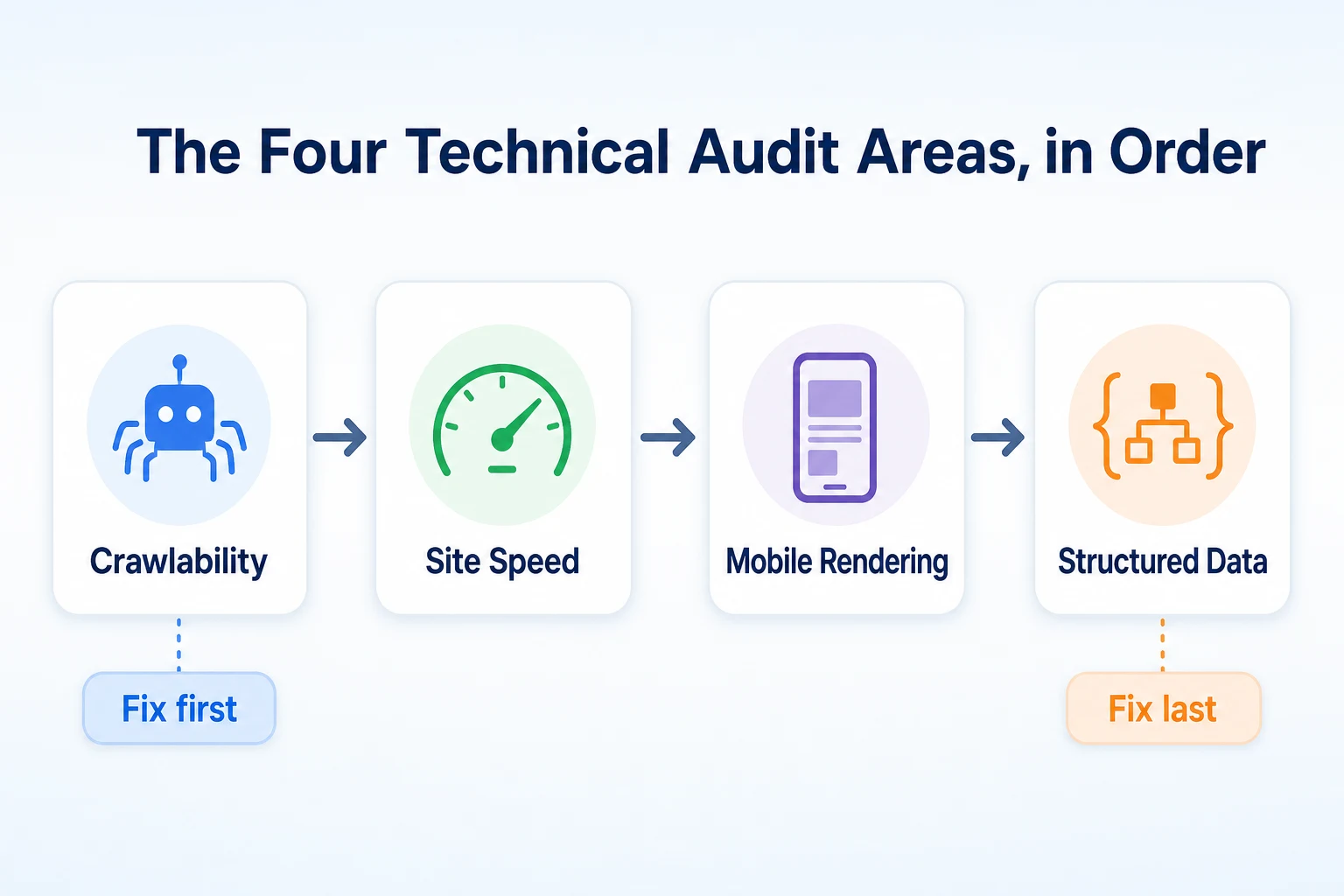
The four areas this article covers
Most of what shows up on a technical audit report falls into one of four buckets: crawlability, site speed, mobile rendering and structured data. Google's own Search Essentials documentation frames the baseline requirement simply: a page needs to be technically accessible and renderable before anything else about it gets judged.
This article works through those four areas in the order that tends to matter most, starting with whether Google can even reach your pages, since nothing else on a technical audit means anything until that's settled.
How a technical audit differs from a content audit
A content audit asks whether a page answers a real question in enough detail, whether it's up to date, and whether it's the right page to rank for a given search. A technical audit asks none of that. It asks whether the page loads, whether it's blocked, and whether a phone can display it properly.
Both audits matter, and a site usually needs both at some point. This article sticks to the technical side on purpose, because that's the part most small business owners either skip entirely or try to fix all at once from a confusing issue list.
Diagram showing the four technical audit areas in priority order: crawlability, site speed, mobile rendering and structured data.
Crawl Errors: What Stops Google From Reading Your Pages
Before a page's speed or its mobile layout matters at all, Google has to be able to find it, request it, and add it to its index. A crawl error breaks that chain, and nothing further down a technical audit list makes up for it.
Reading the Page Indexing report in Search Console
Search Console's Page Indexing report is the most direct way to see how Google is actually treating your pages, rather than guessing from the outside. It groups your URLs by status: indexed, or not indexed along with a specific reason why.
Reasons like Blocked by robots.txt, Server error (5xx), Redirect error and Soft 404 each point to a different cause, and each needs a slightly different fix. Reading this report once a month takes a few minutes and catches problems long before they show up as a traffic drop.
Common crawl errors and what causes them
A blocked page usually comes from a line in robots.txt that was meant for a different section of the site but accidentally caught more than intended. A server error usually means the page returned a 500-level response when Google tried to fetch it, often because of a hosting or plugin problem rather than anything to do with the page's content.
A redirect error means Google followed a redirect that led somewhere unexpected, often a loop or a dead end. A soft 404 is a page that returns a normal 200 status but has so little content that Google treats it as effectively empty, which is worth checking since it's sometimes a sign of a page that genuinely needs more written on it.
Crawl error | What it means | Typical fix |
|---|---|---|
Blocked by robots.txt | A rule in robots.txt is telling crawlers not to fetch this page | Check RepGet's free Robots.txt Checker and remove or narrow the rule catching it |
Server error (5xx) | The server failed to respond properly when Google requested the page | Check hosting logs or recent plugin changes, and confirm the page loads normally in a browser |
Redirect error | Google followed a redirect that looped, broke, or pointed somewhere unintended | Trace the redirect chain and point it directly at the final destination URL |
Soft 404 | The page returns a success status but has too little content for Google to treat as real | Add genuine content to the page, or remove it and redirect to a relevant one |
Why a blocked important page outranks every other fix on this list
A site can have excellent page speed, a flawless mobile layout and valid schema on every page, and none of it matters if the main service page is accidentally blocked in robots.txt. A blocked page isn't being judged poorly. It isn't being judged at all.
That's why crawl errors always come first on a technical audit, ahead of anything about speed or rendering. Our guide to how to get your website indexed by Google covers this check in more detail, including what to do when a page that should be indexed isn't.
Fixing Robots.txt, Sitemaps and Redirect Chains
Once you know what the Page Indexing report is telling you, the actual fixes usually live in three places: the robots.txt file, the sitemap, and any redirects chained together on the site.
Checking robots.txt for accidental blocks
Open your site's robots.txt file directly, usually found at the root of the domain, and read through each rule. A single line meant to block an admin folder or a staging subdomain can accidentally catch a whole directory of real pages if it's written too broadly.
RepGet's free Robots.txt Checker gives a plain verdict on what's blocked for search and AI bots together, which is faster than reading raw syntax line by line. Our robots.txt generator guide covers how to build a safe file from scratch if the existing one looks like it needs rewriting rather than just trimming.
Keeping the sitemap in sync with real pages
An XML sitemap is only useful if it lists the pages that actually exist and return a normal 200 status. A sitemap still listing pages that were deleted months ago, or missing pages added since it was last generated, sends Google mixed signals about what's current on the site.
RepGet's free Sitemap Checker & Finder finds and validates a site's sitemap, flagging URLs that don't resolve the way they should. Most website platforms regenerate a sitemap automatically, but it's worth confirming that's actually happening rather than assuming it.
Spotting and fixing redirect chains
A redirect chain happens when one URL redirects to a second, which redirects to a third, instead of pointing straight at the final page. Each extra hop adds load time and gives Google one more place for something to go wrong.
Chains like this build up quietly over years, usually after a site has been redesigned more than once without anyone cleaning up the old redirects left behind. Finding them means checking your most-linked pages and tracing where each redirect actually lands, then repointing anything with more than one hop straight at its final destination.
Site Speed and Core Web Vitals: What's Actually a Ranking Factor
Page speed earns a lot of attention in technical audits, partly because it's measurable and partly because slow sites are genuinely common. The part worth sorting out is which speed metrics Google actually documents as a ranking signal, and which are just good practice.
The three Core Web Vitals metrics, in plain English
Core Web Vitals, documented on web.dev, measure three things about a page's loading experience. Largest Contentful Paint (LCP) measures how long it takes for the biggest visible element, usually an image or block of text, to appear. Interaction to Next Paint (INP) measures how quickly the page responds when someone clicks or taps something. Cumulative Layout Shift (CLS) measures whether elements jump around unexpectedly while the page is still loading.
Metric | What it measures | Threshold Google documents as good |
|---|---|---|
Largest Contentful Paint (LCP) | How long the main content takes to appear | 2.5 seconds or less |
Interaction to Next Paint (INP) | How quickly the page responds to a click or tap | 200 milliseconds or less |
Cumulative Layout Shift (CLS) | How much visible content shifts position while loading | 0.1 or less |
What's a documented ranking signal versus general speed advice
Google has documented Core Web Vitals as part of its page experience signals. That's different from a lot of the speed advice circulating online, like compressing every image to the smallest possible file size or chasing a perfect 100 score on a speed testing tool, which goes well past what Google actually measures.
A page that passes its Core Web Vitals thresholds has met the documented bar. Squeezing out another half-second beyond that is sometimes worth doing for visitors, but it isn't a documented ranking advantage over a page that already passes.
Checking your own site's scores
Search Console's Core Web Vitals report shows how your own pages are actually performing for real visitors, grouped by whether they pass, need improvement, or fail each metric. This is a better read on your site than a single test run from one location on one device, since it reflects real-world conditions across your actual visitors.
For a quick spot-check on an individual page, a dedicated page speed testing tool can show which specific elements are slowing things down, like an oversized hero image or a script loading before the content it affects. Either way, the goal isn't a perfect score. It's getting every important page past the documented thresholds.
Mobile Rendering: What Google Sees on a Phone Versus What You See
A page that looks fine on a desktop monitor can behave very differently on a phone screen, and for most sites today, the phone version is the one that counts.
Why mobile-first indexing changes what counts
Google has documented that it primarily uses the mobile version of a page's content for indexing and ranking, a practice it calls mobile-first indexing. That means the version of your page Google judges most closely isn't necessarily the one you see when you check your own site on a laptop.
If a desktop layout hides a block of text on mobile, or loads extra content only after a click that a phone visitor never makes, Google's primary view of that page is missing whatever didn't make it to the mobile version. A technical audit that only checks a site on desktop is checking the wrong copy of the page.
Common mobile rendering problems on small business sites
A few mobile problems show up repeatedly on small business sites. Text that's readable on desktop shrinks to an uncomfortable size on a phone, forcing visitors to pinch and zoom. Buttons and links sit close enough together that a tap on one accidentally triggers another.
A full-screen popup covering the page before a visitor has read anything is another common one, especially on sites built from a template that enables this by default. And a navigation menu built for a mouse sometimes simply doesn't open at all on a touchscreen, which quietly cuts a visitor off from the rest of the site.
Testing your own site's mobile version
The most direct test is opening your own site on an actual phone, over mobile data rather than wifi, and using it the way a real visitor would: tapping the menu, reading the main paragraph, trying to reach your contact page. Watch for anything that feels cramped, hidden, or unresponsive.
Our guide to viewing your website as Googlebot covers a more technical way to check what Google's crawler actually sees when it renders a page, which goes a step further than just checking the visual layout yourself.
Structured Data and Schema: What It Adds (and What It Doesn't)
Schema markup is one of the more misunderstood items on a technical audit report, partly because it sounds more powerful than it actually is.
What schema actually does for a page
Schema is a standardized way of labeling information on a page so a computer program can read it reliably, rather than guessing from a block of regular text. Google's own documentation on structured data explains that it can make a page eligible for certain richer features in search results, like star ratings or an FAQ dropdown, but it doesn't directly improve a page's ranking position.
That distinction matters. A page with perfect schema and thin, generic content won't outrank a page with no schema and genuinely useful writing. Schema is a presentation layer sitting on top of content that still has to be good on its own.
Schema types worth adding for a small business
Most small businesses don't need an extensive schema setup. A handful of types cover the situations that actually come up, and schema documents the full vocabulary if a more specific type is ever needed.
Schema type | What it's for | Example small business use |
|---|---|---|
LocalBusiness | Describes a business's name, address, hours and contact details | Added to the homepage of a local plumbing or dental practice |
Review | Marks up a genuine customer review and its rating | Added to a testimonials section featuring real customer feedback |
FAQ | Marks up a list of questions and answers on a page | Added to a service page that ends with common customer questions |
Product | Describes an item for sale, including price and availability | Added to an individual product page on a small online store |
Validating markup before it goes live
Schema that's written incorrectly, even with a small syntax mistake, often fails silently rather than throwing an obvious error on the page itself. A validator checks that the markup is structured the way the schema vocabulary expects before it goes live, which catches mistakes that would otherwise sit unnoticed for months.
Search Console also reports structured data errors on pages it has already crawled, which is worth checking periodically even after markup has been live for a while, since a site update can sometimes break it without anyone noticing.
Sorting Technical Issues by Impact and Effort
With all four areas covered, the next question is what order to actually work through a real audit report in, especially one mixing issues from more than one of these categories at once.
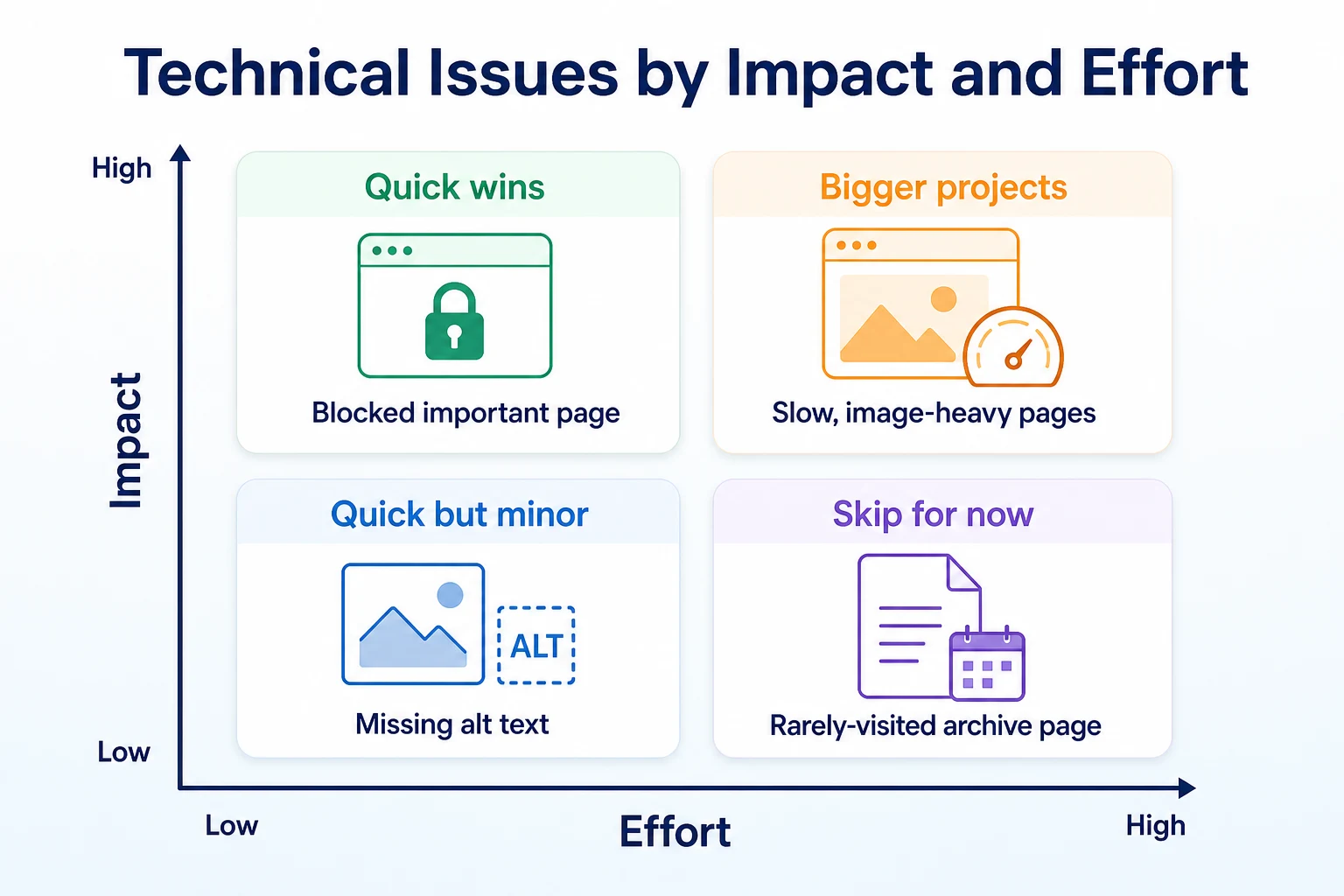
Why crawl and indexing issues come first
A blocked or unindexed page outranks everything else on this list because nothing else matters until it's fixed. A speed improvement on a page Google can't read is wasted effort, and so is a schema addition on a page that isn't even in the index.
This is why the order in this article isn't arbitrary. Crawl errors come first because they can make every other fix pointless. Speed and mobile rendering come next because they affect pages Google can already see and rank, just not as well as they could. Schema comes last because it adds presentation value on top of a page that already works.
Where speed, mobile and schema fit after that
Once crawlability is sorted, speed and mobile problems usually deserve the next slot, since both are documented as part of how Google judges page experience and both affect every visitor who lands on the page, not just the ones Google is crawling. Schema fits in after that, as a worthwhile but lower-priority addition.
The same effort-versus-impact thinking that applies to any audit list applies here too. A blocked page is low effort and high impact, so it's always worth fixing first regardless of what else is on the list. A slow, image-heavy page takes more work but still matters. Missing alt text on a handful of images is quick but minor. And a rarely visited archive page buried deep in the site usually isn't worth the time at all.
2x2 matrix sorting technical SEO audit issues by effort and impact, with examples in each quadrant: a blocked important page as a quick win, slow image-heavy pages as a bigger project, missing alt text as quick but minor, and a rarely visited archive page to skip for now.
A Worked Example: Auditing One Small Business Site
Imagine a small landscaping company runs a technical audit on its site for the first time in several years. This example is illustrative.
What changed and in what order
The audit turns up four issues spanning all four areas covered in this article: a service page accidentally blocked in robots.txt, a homepage loaded with large uncompressed images, a mobile menu that didn't open on a touchscreen, and no schema markup anywhere on the site. Working through them in the order this article recommends looks like this.
Technical issue | Before the audit | After fixes |
|---|---|---|
Blocked service page | A broad robots.txt rule accidentally blocked the tree removal service page | Rule narrowed so only the intended staging folder is blocked, page now indexed |
Slow, image-heavy homepage | Several uncompressed photos pushed LCP well past the documented threshold | Images compressed and resized, LCP now passing in the Core Web Vitals report |
Unreadable mobile menu | Menu built for a mouse hover didn't open at all on a touchscreen | Menu rebuilt to respond to a tap, confirmed working on an actual phone |
Missing LocalBusiness schema | No structured data anywhere on the site | LocalBusiness schema added to the homepage and validated before publishing |
These figures are illustrative.
The blocked page was fixed first, since nothing else mattered until Google could actually read it. Speed and mobile came next, since both affected real visitors and both are part of how Google documents page experience. Schema came last, added once everything underneath it was already working.
A 20-Minute Weekly Technical Health Check
A full technical audit doesn't need repeating every week, but a short check keeps small problems from turning into the kind that only show up months later as a traffic drop.
What to check each week
Start with the Page Indexing report in Search Console and look for anything new in the not-indexed column. A page that was fine last week and is blocked or erroring this week usually points to a recent change somewhere on the site, which is much easier to trace while it's fresh.
Next, glance at the Core Web Vitals report for any metric that's moved from passing to needing improvement. A single new image or script added without resizing is often enough to tip a page over the documented threshold, and catching it early means a five-minute fix instead of a slower investigation later.
Finally, check for new mobile usability notices and any structured data errors Search Console has started reporting. Both tend to appear after a theme update, a plugin change, or a redesign, even a small one, and both are far faster to fix the week they appear than three months later.
What a recurring problem looks like
A single blocked page or one slow image is a one-time fix. A pattern, like three different pages losing their schema validation within the same month, usually means something upstream, a template, a plugin, or a recent site change, is causing it repeatedly rather than each instance being its own unrelated accident.
Spotting that pattern during a weekly check, rather than discovering it during an annual audit, is the real value of keeping this routine short and regular rather than skipping it until something breaks visibly.
Common Technical SEO Audit Mistakes
A few habits consistently undo the value of an otherwise careful technical audit, and most of them come from working through a report in the wrong order or chasing the wrong number.
Fixing schema before fixing a crawl block is one of the most common. Spending an afternoon adding FAQ markup to a page that's blocked in robots.txt means that markup sits unused until the underlying block is cleared, which makes the order it was done in matter more than the quality of the work itself.
Chasing a perfect speed score is another. A page that already passes its documented Core Web Vitals thresholds doesn't gain a further ranking advantage from squeezing out another tenth of a second, even though a testing tool's 100-out-of-100 score can make that feel worth doing anyway.
Skipping mobile-specific testing, and checking only a desktop browser window resized smaller, misses real problems. A resized browser doesn't recreate a touchscreen, a slower mobile connection, or the way a phone's operating system renders fonts, so issues that only show up on an actual device go unnoticed.
Not rechecking after fixes go live rounds out the list. A fix that didn't actually save, or got overwritten by a later change, can sit broken for months if nobody ever looks again to confirm it worked.
Mistake | Why it hurts | What to do instead |
|---|---|---|
Fixing schema before a crawl block | The markup sits unused on a page Google can't even reach yet | Clear crawl and indexing issues first, then move on to schema |
Chasing a perfect speed score | No documented ranking advantage beyond passing the actual thresholds | Aim for every important page to pass, not to hit a perfect number |
Skipping mobile-specific testing | A resized desktop window doesn't recreate a real phone's rendering or speed | Test on an actual phone over mobile data, not just a smaller browser window |
Never rechecking after fixes | A fix that didn't save or got overwritten can go unnoticed for months | Confirm each fix cleared in Search Console a week or two after making it |
Where RepGet fits
Most of this article is work you can do with Search Console and a phone in your hand, but a first pass across a whole site goes faster with a tool built for it. RepGet's free website audit crawls a site and gives it a 0 to 100 SEO score, flagging technical issues worth investigating alongside content ones, including several covered in this article: whether pages are reachable and indexed, and basic page experience problems. It's a reasonable starting point for seeing where a site stands across most of this list at once. No account or credit card required.
RepGet doesn't replace Search Console's own Page Indexing and Core Web Vitals reports, which draw on data about real visitors that a one-time crawl can't see. It also doesn't replace the judgment call of deciding which fix matters most to your specific site this week, or guarantee a ranking, a Maps position, or a traffic result from any technical fix, however carefully it's made.
The bottom line
A technical SEO audit only needs to cover four things for most small business sites: whether Google can crawl and index your pages, how fast they load, how they render on a phone, and whether your structured data is valid.
Working through them in that order matters more than working through all forty items a long report might flag. A blocked page undoes everything else on the list, so it comes first. Speed and mobile affect every real visitor, so they come next. Schema adds value on top of a page that already works, so it comes last.
No audit, however thorough, can promise where a page will land in search results once the fixes are made. What it can do is make sure Google is actually seeing the best version of your site, rather than guessing from a version with problems nobody noticed.
Find out what your website needs first
Before working through a long issue list by hand, see where your site actually stands. Run a free website audit with RepGet to check crawlability, indexing and basic page experience alongside your content. No account or credit card required.
FAQ
What does a technical SEO audit check?
It checks whether Google can crawl and index your pages, how quickly they load, how they render on a phone, and whether structured data is valid. It doesn't judge whether your writing or content is actually good.
How often should I run a technical SEO audit?
A full audit once every few months is reasonable for most small sites, with a short 20-minute check each week for new crawl errors, speed drops, or structured data problems in between.
Is page speed really a Google ranking factor?
Yes, within limits. Google documents Core Web Vitals as part of its page experience signals, but passing the documented thresholds matters more than chasing a perfect score on a speed testing tool.
Do I need schema markup for a small business website?
It's worth adding, but it doesn't directly boost rankings. Schema can make a page eligible for richer search results, like star ratings or an FAQ dropdown, on top of content that already works well.
How do I know if Google can crawl my website?
Check the Page Indexing report in Search Console for each important page's status. A page marked not indexed will show a specific reason, like being blocked by robots.txt or a server error.
What's the difference between a technical SEO audit and a content audit?
A technical audit checks whether a page can be reached, rendered and loaded quickly. A content audit checks whether that page actually answers a real question well. A site often needs both.
Can I run a technical SEO audit myself for free?
Yes. Search Console covers indexing and Core Web Vitals at no cost, and free tools like RepGet's website audit crawl a site and flag technical issues without requiring an account or payment.
Why did my technical SEO audit score drop after a redesign?
Redesigns commonly introduce new crawl blocks, unoptimized images, or broken mobile layouts without anyone noticing. Rerun a crawl and check Search Console shortly after any redesign goes live.