

How to Get Your Website Indexed by Google: A Practical Checklist
Short answer
To get your website indexed by Google, first confirm that important pages are accessible and not blocked from indexing. Verify your website in Google Search Console, submit an XML sitemap, and use URL Inspection to check important URLs and request indexing when appropriate. Google may take days or weeks to process new pages, and submitting a URL does not guarantee inclusion or rankings.
Your website is live. The homepage works, your services are published, and the contact form is ready.
But when you search for your business on Google, nothing appears.
Or perhaps the homepage is visible, while the articles you published last week are nowhere to be found.
Before spending money on backlinks or writing another twenty articles, find out whether Google has actually indexed the pages you want people to discover.
This is a different problem from ranking poorly.
A page that hasn't been indexed generally cannot appear as an ordinary Google search result. A page that has been indexed may still rank too low to attract visitors.
The first job is to understand which situation you're dealing with.
Check whether Google has indexed your website
Start with Google Search Console, not a third-party SEO score.
If you haven't connected your website yet, open Google Search Console and add your property.
A Domain property can cover the domain and its subdomains, including different protocols, but requires DNS verification. A URL-prefix property covers only the specified prefix.
Choose the property configuration that matches how you intend to manage the website.
Once ownership is verified, use the URL Inspection field at the top of Search Console.
Enter the full URL of your homepage.
For example:
https://www.example.com/
Google will show what it currently knows about that URL.
Two results matter most.
URL is on Google
Google reports that it has indexed the URL and that it is eligible to appear in Search.
That does not guarantee that the page will rank for your business name or any particular keyword.
URL is not on Google
Google has not indexed that URL in its current reported state.
The next step is to examine why.
Don't assume that every non-indexed URL represents a website problem.
A redirect, duplicate URL, or page intentionally excluded from search may be working exactly as intended.
Check your most important pages first
You don't need to inspect every URL on a new website.
Start with the pages that people actually need to find.
For a small business, those usually include:
Homepage.
Main service or product pages.
Important location pages, if relevant.
About or company information.
A few genuinely useful articles.
Check each URL individually.
If your homepage is indexed but one new blog post isn't, you have a different problem from a website where Google hasn't discovered any important page.
For a broader explanation of why a site may be invisible even after indexing, see our guide to why your website isn't showing up on Google.
Make sure Google can access the page
Before requesting indexing, confirm that Google can reach the page and read its content.
A URL working in your browser doesn't always mean it's accessible to a search crawler.
For example, a security service might allow normal visitors while blocking Googlebot. A staging setting might prevent indexing. Or the server might return an error intermittently.
There are four basic checks worth making.
The page returns a successful response
An ordinary public page intended for indexing should generally return an HTTP 200 response.
If it returns a 404, Google sees the URL as missing.
A 500-level response indicates a server-side problem.
A redirect may be perfectly correct, but Google will normally evaluate the destination rather than index the redirecting URL as a separate page.
Use URL Inspection to review the page's fetch and crawl information.
If the page has been changed since Google's previous crawl, select Test Live URL to examine its current accessibility.
Your robots.txt file isn't blocking Googlebot
Visit:
https://www.example.com/robots.txt
This file can contain instructions controlling which parts of your website crawlers are allowed to access.
A staging website might deliberately contain a sitewide crawling restriction.
If that configuration accidentally remains in place after launch, it can prevent Google from crawling important content.
For example, these instructions would block Googlebot from crawling the whole site:
User-agent: Googlebot
Disallow: /
This is an example of a rule to look for and correct, not a configuration you should add.
Don't delete every restriction you see. Some directories may be intentionally excluded.
The objective is to permit crawling of public pages you want Google to discover.
You can use RepGet's free robots.txt checker to inspect published crawler rules.
The page doesn't contain a noindex directive
Website builders and SEO plugins often include settings such as "Discourage search engines" or "Hide this page from search results."
Those controls may add a noindex directive.
For example:
<meta name="robots" content="noindex">A server can also send an X-Robots-Tag: noindex HTTP header.
Either may prevent Google from indexing the page when its crawler can access and process the directive.
This is useful for pages that shouldn't appear in search results.
It is a problem when accidentally applied to your homepage, service pages, or articles.
An important distinction: blocking a URL in robots.txt does not reliably remove that URL from Google's index. It can also prevent Google from seeing a noindex directive on the page.
Google explains the difference in its documentation about blocking search indexing.
Important content is actually visible to Google
Modern websites often use JavaScript to load content.
Google can render JavaScript, but problems with scripts, blocked resources, or server responses can prevent important information from being available as expected.
If you use a custom website built with React, Next.js, or another JavaScript-based framework, check what Google actually receives.
In URL Inspection, use the live test and examine the rendered page and available HTML.
Verify that the main heading, service information, and article content are present.
If the rendered page is largely empty or important resources fail to load, investigate the rendering setup.
For JavaScript-heavy websites, reliable server-side rendering or prerendering of important public content can reduce unnecessary crawling and rendering complications.
Google provides specific JavaScript SEO guidance for developers.
Find and submit your XML sitemap
A sitemap gives Google a list of URLs your website considers important.
It's particularly useful for a new website, because Google may not yet have discovered many links pointing to its pages.
Most modern content management systems can generate a sitemap automatically.
Try checking:
https://www.example.com/sitemap.xml
Some WordPress installations use:
https://www.example.com/sitemap_index.xml
These are common paths, not universal requirements.
Your sitemap may have a different address.
If you aren't sure where yours is located, use RepGet's Sitemap Checker & Finder to locate and inspect it.
What belongs in your sitemap?
Include the canonical URLs of public pages you want Google to consider for indexing.
For example, a small business sitemap might include:
Page | Include? |
|---|---|
Homepage | Yes |
Main service pages | Yes |
Important location pages | Yes, if genuinely useful |
Published articles | Yes |
Private account pages | No |
Duplicate URL variations | No |
Redirecting URLs | Generally no |
Pages intentionally marked noindex | No |
A sitemap doesn't need every URL ever created by your website.
Its purpose is to help Google discover the preferred versions of useful pages.
If you use www.example.com as the canonical domain, your sitemap should consistently list those preferred URLs rather than mixing them unnecessarily with alternative versions.
Google recommends using full, absolute URLs in sitemaps.
How to submit the sitemap
Open Search Console.
Choose your website property.
Go to Indexing → Sitemaps.
Enter your sitemap address and submit it.
After Google processes the sitemap, check the status for errors.
A successful sitemap submission is useful, but it doesn't mean every listed page has been indexed.
It means Google can use the file for URL discovery.
Google's official sitemap documentation explains how sitemaps work and which URLs should be included.
Don't keep resubmitting an unchanged sitemap
If Google has successfully read your sitemap and your website updates it automatically, repeated manual submissions are usually unnecessary.
When you publish new content, ensure the new canonical URL appears in the sitemap and is linked from an appropriate part of the website.
Also avoid changing the sitemap's last-modified dates unless the pages were meaningfully updated.
Google says it uses lastmod information when it is consistently accurate.
Adding an artificial recent date to every URL is not a shortcut to rankings.
Request indexing for your important URLs
Once a page is accessible, permitted for indexing, and included in your website structure, you can request indexing in Search Console.
Open URL Inspection.
Enter the full URL.
If the page isn't indexed, or important changes aren't yet reflected in Google's indexed version, run a live test where appropriate.
Then select Request Indexing.
This asks Google to consider crawling the page.
It does not force Google to index it.
For a small website, prioritize:
The homepage.
Main commercial pages.
Newly published high-value resources.
Important pages that were previously blocked and have now been fixed.
You don't need to submit every tag page, filter URL, or unimportant variation.
Google also places limits on repeated indexing requests.
Submitting the same URL again and again won't make the crawler visit it faster.
How long does Google indexing take?
Google says crawling can take anywhere from a few days to a few weeks.
There is no guaranteed indexing deadline.
A new site may take longer to establish consistent discovery than an established site that Google already crawls frequently.
The important question is whether the page is technically accessible, useful, and discoverable through the normal website structure.
If those conditions are met, give Google time before treating an ordinary delay as a major failure.
Understand why Google hasn't indexed a page
This is where website owners often make unnecessary changes.
Search Console doesn't simply classify every URL as working or broken.
Its Page indexing report provides reasons why Google hasn't indexed particular URLs.
Those reasons describe different situations and require different responses.
Open Indexing → Pages to review the report.
For a specific URL, use URL Inspection to investigate the details.
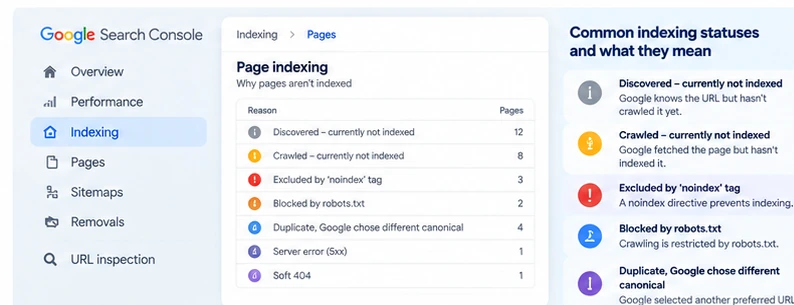
Here are some of the most important statuses.
Search Console status | What it means | What to investigate |
|---|---|---|
Discovered – currently not indexed | Google knows about the URL but hasn't crawled it yet | Crawl accessibility, internal links, sitemap inclusion, and time |
Crawled – currently not indexed | Google has fetched the page but hasn't indexed it | Content usefulness, duplication, page quality, and indexing signals |
Excluded by noindex tag | Google encountered an instruction not to index | Whether the directive is intentional |
Blocked by robots.txt | Crawling is restricted | Which rule prevents Googlebot access |
Duplicate, Google chose different canonical | Google selected another preferred version | Whether the selected URL is appropriate |
Alternate page with proper canonical tag | Google recognizes the URL as an alternate | Usually no fix if the canonical is correct |
Server error (5xx) | Google encountered a server problem | Hosting, availability, and server responses |
Soft 404 | The page appears to have little meaningful content or resembles a missing page despite its response | Missing content, incorrect templates, or unavailable resources |
These are diagnostic categories, not a universal list of automatic fixes.
Google's Page indexing report documentation explains the reasons in more detail.
Discovered – currently not indexed
Google knows the URL exists but hasn't crawled it yet.
This can happen with new websites.
First, confirm the page is in the sitemap and accessible through relevant internal links.
Check whether server availability or crawling restrictions might be interfering.
Then allow time for crawling.
Creating multiple duplicate versions of the page or repeatedly submitting indexing requests won't solve the underlying problem.
Crawled – currently not indexed
Google has fetched the page but hasn't added it to the index.
There isn't one universal explanation.
The page may overlap substantially with other content, provide little additional value, or simply not have been selected for indexing.
Start by reading the page.
Does it answer a real question?
Does it contain meaningful information?
Is it substantially different from other pages on your website?
Is the content actually present in the version Google fetched?
If you find a genuine problem, improve the page.
Don't rewrite a useful article simply because Search Console hasn't indexed it after a few days.
Google chose a different canonical
This often happens when the same content is available through multiple URLs.
For example:
https://example.com/service
https://www.example.com/service
If these lead to the same content, Google may choose one version as canonical.
That isn't necessarily an error.
What matters is whether Google selected the URL you actually want visitors to use.
Use consistent redirects, canonical signals, internal links, and sitemap URLs.
If the selected canonical is correct, there's usually no reason to force the alternate URL into the index as another page.
Make important pages easy to discover through internal links
A sitemap helps Google find URLs.
Internal links help people and search engines navigate your website and understand how pages relate to one another.
Imagine a website with twelve useful articles.
All twelve appear in the sitemap, but only three are linked from the public blog listing.
The others can be opened if someone knows the exact URLs, but they're difficult to discover through normal navigation.
That isn't an ideal website structure.
A better approach connects the articles to the subjects they support.
A guide about landscaping costs might link to the company's landscaping service page.
A guide about choosing paving materials might link to a relevant comparison or installation page.
A new article about garden maintenance could be accessible from the blog listing and linked from another useful article.
The links should make sense to readers.
Don't insert dozens of unrelated links merely to increase link counts.
A simple internal linking check
For every important new article, ask:
Can someone reach this page through a normal link on the website?
Does at least one relevant page link to it?
Can the reader move naturally from the article to a related service or resource?
If the answer to all three is no, improve the site's navigation and content connections.
This is especially useful for newer websites that don't yet have many external references.
Internal linking helps establish a discoverable structure without requiring another subscription.
What if your website has been indexed but still gets no traffic?
This is the point where the task changes.
If your homepage and important pages are indexed, more indexing requests probably aren't the answer.
Now you need to investigate search demand, relevance, competition, and search performance.
Open Search Console → Performance → Search results.
Review the queries and pages that already receive impressions.
If an indexed page receives relevant impressions but few clicks, examine how its title and content match the search.
If a service page attracts searches unrelated to your business, you may have a targeting problem.
If your pages receive almost no impressions, investigate whether the topics match real searches and whether competing results better satisfy those searches.
You can also review the broader order of work in what to fix first on a website that gets no traffic.
The distinction is simple:
Indexing makes a page eligible to appear in Google. Ranking and search demand determine whether it is likely to bring visitors.
A website needs both to attract organic traffic.
A practical website launch checklist
Suppose you've launched a new website for a small interior design studio.
It has a homepage, an About page, three service pages, a portfolio, and two useful editorial articles.
You don't need a complex enterprise SEO system to establish a sensible indexing process.
Use this checklist.
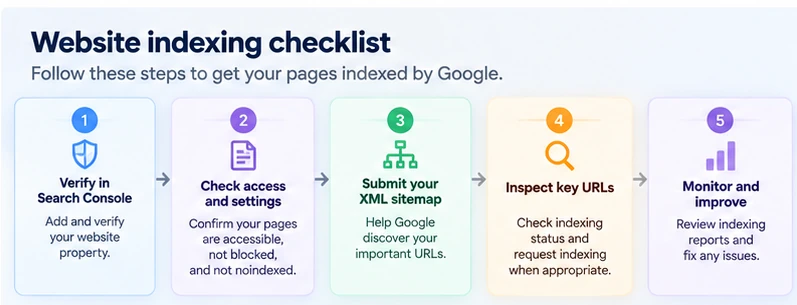
Check | Expected result |
|---|---|
Search Console ownership | Verified property |
Homepage inspection | Accessible and eligible for indexing |
Main service pages | Public and reachable |
robots.txt | No unintended Googlebot restrictions |
Indexing directives | No unintended noindex rules |
Canonical URLs | Consistent preferred versions |
XML sitemap | Accessible and submitted |
Internal navigation | Important pages linked naturally |
URL Inspection | Important indexing issues investigated |
Performance monitoring | Search Console data checked over time |
The objective is not to make every URL appear in Google.
For example, a private account page, duplicate filter page, or deliberately excluded page may have no reason to be indexed.
Focus on the pages that help customers understand your business and make useful decisions.
What to do on launch day
Verify Search Console ownership.
Check the homepage and most important pages.
Confirm your sitemap exists and submit it.
Look for accidental noindex or crawling restrictions.
Make sure navigation links to the public pages you care about.
If appropriate, request indexing for your homepage and a small number of priority URLs.
What to check after several days
Inspect the priority URLs again.
Review whether Google has discovered them and whether Search Console reports any problems.
If the pages are accessible and have no obvious technical issues, allow time for crawling and indexing.
If a specific problem is reported, investigate that problem rather than changing unrelated SEO settings.
What to review over the following weeks
Check whether important pages are indexed.
Start monitoring relevant queries and impressions.
Improve any pages that don't properly answer the questions they're intended to cover.
Continue adding useful content when your business has something worth explaining.
Don't publish articles simply to make the sitemap larger.
Indexing shortcuts that aren't worth relying on
New businesses often want Google to discover their websites immediately.
That's understandable.
It also creates an opportunity for services selling questionable shortcuts.
Paying for guaranteed instant indexing
Be skeptical of providers promising that ordinary website pages will be indexed within a fixed number of hours.
Google controls crawling and indexing.
A third-party service cannot guarantee inclusion in Google's index.
Using the Google Indexing API for ordinary blog posts
Google has an Indexing API, but its documented use is limited to pages with JobPosting structured data or BroadcastEvent embedded in a VideoObject.
It's not a general-purpose solution for submitting ordinary blog articles or service pages.
For normal website content, use Search Console, sitemaps, and crawlable internal links.
See Google's Indexing API documentation for its supported use cases.
Repeatedly changing article dates
Updating publication dates without materially improving content doesn't create an indexing advantage you can rely on.
Use accurate dates and meaningful updates.
Creating unnecessary duplicate URLs
Publishing substantially identical pages under several addresses can complicate canonical selection.
Use a clear preferred URL for each piece of content.
Treating sitemap submission as a ranking strategy
A sitemap can help Google discover URLs.
It doesn't establish that the pages deserve to rank above competitors.
Once discovery is working, invest in useful content, sound website architecture, and genuine relevance.
Where RepGet can help
A new website owner shouldn't have to investigate every technical problem manually.
RepGet offers website auditing, SEO tools, content planning, publishing, and search performance reporting in one platform.
Its free Sitemap Checker can help locate and inspect your XML sitemap, while its robots.txt tool helps investigate crawler access rules.
For a broader starting point, the free website audit examines technical and visibility issues that may deserve attention.
Those tools can help identify problems, but they don't override Google's indexing decisions or replace Search Console.
After your important pages become discoverable, RepGet can also help organize keyword research and ongoing content publishing.
The more useful approach is to establish a sound technical foundation first, then develop content that answers real customer questions.
The bottom line
Getting your website indexed by Google doesn't require a secret service or a complicated collection of tools.
Start by checking what Google already knows about your pages.
Make sure important content is accessible.
Submit an accurate sitemap.
Connect pages through relevant internal links.
Use URL Inspection to investigate problems and request indexing when appropriate.
Then give Google time to process the changes.
Once your pages are indexed, stop chasing indexing requests and start working on the searches that could bring customers.
Check your website before publishing more content
If you're unsure whether technical problems are limiting your site's visibility, begin with a free website audit from RepGet.
It can help identify issues worth investigating before you invest in a larger content plan.
No account or credit card is required.
FAQ
How long does it take Google to index a new website?
Google says crawling may take a few days to a few weeks. There is no guaranteed timeframe for indexing, and some pages may not be indexed. Technical accessibility, discoverability, and content usefulness all matter.
Can I request Google indexing for free?
Yes. Google Search Console is free. Verified website owners with appropriate permissions can use URL Inspection to request indexing of their pages. Submitting a request does not guarantee inclusion.
Does submitting a sitemap guarantee indexing?
No. A sitemap helps Google discover preferred URLs. Google still decides whether and when to crawl and index individual pages.
Why does Search Console say Crawled - currently not indexed?
It means Google has fetched the URL but hasn't indexed it. There may be issues involving content usefulness, duplication, or other indexing considerations, but the status alone does not identify one definitive cause.
Do I need to submit every new blog post manually?
Usually not. If your CMS maintains a valid sitemap and your articles are accessible through internal links, Google can discover new pages through its normal crawling process. URL Inspection is useful when checking individual important URLs or requesting a recrawl after significant changes.
Can I pay Google to index my website faster?
Google does not sell guaranteed organic indexing. Paid advertising is a separate system and does not guarantee that a page will be added to Google's organic search index.
My website is indexed. Why doesn't it rank?
Indexing and ranking are different stages. An indexed website can still have limited visibility because its content doesn't match search demand, competing pages are more useful, or other ranking factors affect its performance. Review Search Console's Performance report to understand which searches are actually producing impressions and clicks.