

View Website as Googlebot: How to See What Google Sees
Short answer
Google Search Console's URL Inspection tool lets you view your website as Googlebot, showing the exact HTML it fetched and a screenshot of the rendered page. This often reveals problems invisible in a normal browser: text that depends on JavaScript and never loads, blocked CSS or JS files, or a page excluded by a noindex tag. Checking your main pages this way takes about twenty minutes and needs no coding knowledge.
A business owner redesigns their homepage, and it looks great in every browser they try.
A few weeks later it quietly drops out of Google's results.
They pull it up in Search Console's URL Inspection tool and get a screenshot with blank spaces where the text and photos should be.
Nothing is wrong with the page in a browser. Something is wrong with what Google saw when it tried to read it.
That gap between what you see and what a search engine sees is common, and it's usually invisible until you go looking for it. Here's how to view your website as Googlebot, using tools that don't require any coding knowledge, and what to look for once you do.
Why Googlebot Doesn't See Your Site the Way You Do
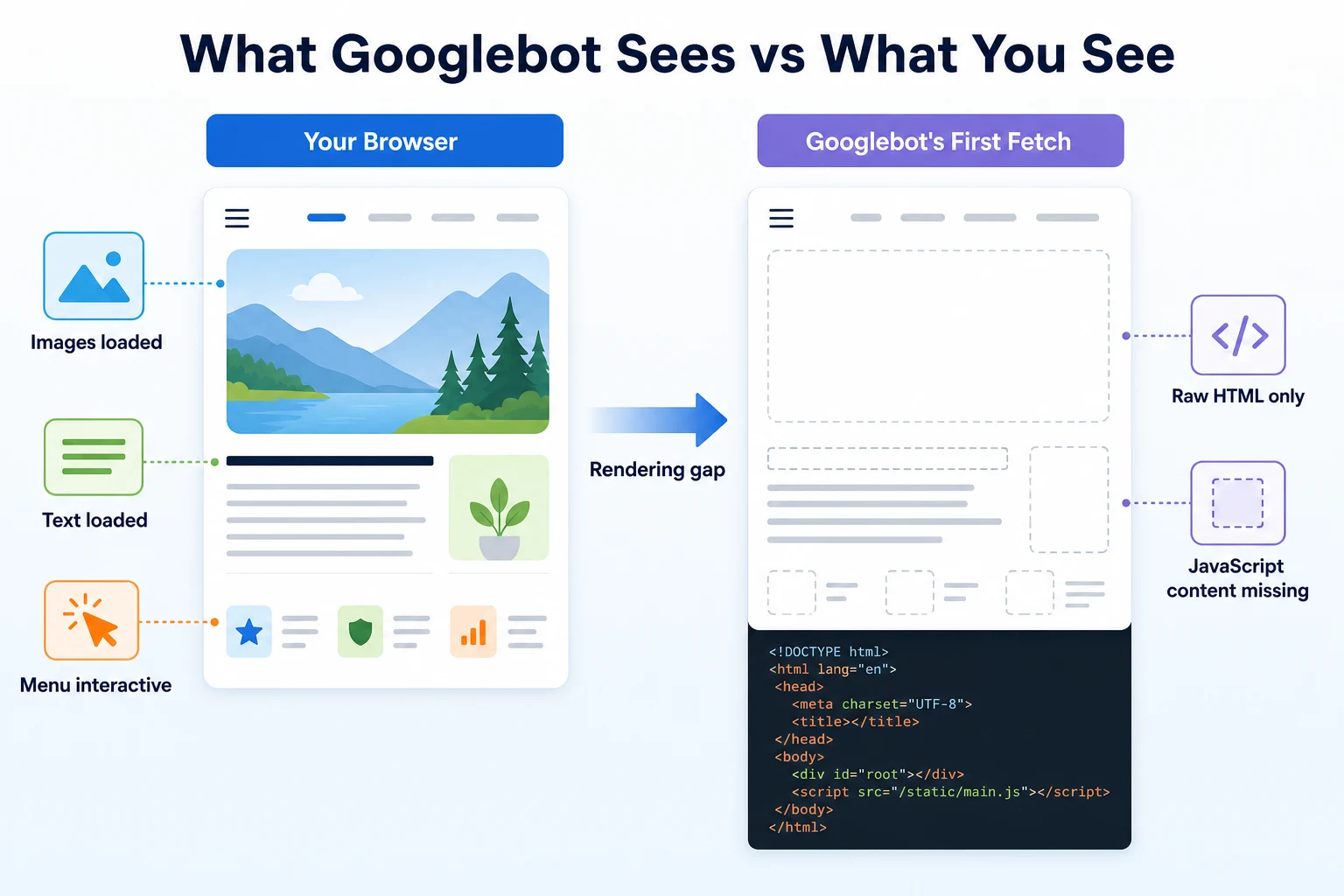
Your browser and Googlebot both start from the same URL, but they don't always end up with the same page.
Two separate steps: crawling and rendering
Google's own documentation on JavaScript and SEO describes this as two separate steps. First, Googlebot crawls a page, which means it requests the URL and downloads the raw HTML that comes back. Then, if the page needs it, Google renders the page in a separate step, running the JavaScript the way a browser would to see the final content.
These two steps don't always happen together. Rendering can happen later, and it uses separate resources, so a page that depends heavily on JavaScript can sit in a queue before Google ever sees its finished state.
Why the same page can look different to each
A browser runs JavaScript immediately, every time, for every visitor. Google doesn't treat every page the same way. If a page builds its main content with JavaScript, there's a real chance the raw HTML Googlebot first fetches looks close to empty, with the actual text and images only appearing after rendering finishes.
Most of the time, this isn't a crisis. Plenty of sites use JavaScript without any problem. But it does mean that a page looking complete in your browser tells you nothing about whether Googlebot's fetch, or even its rendered version, looks the same way.
How to View Your Website as Googlebot With the URL Inspection Tool
Google Search Console's URL Inspection tool is the most direct way to see this for yourself, and it's free to use once you've verified your website.
Running a live test versus checking the indexed version
Open Search Console, paste the page's full URL into the inspection bar at the top, and press enter. You'll first see Google's record of the last time it crawled that page, if it has one.
That record can be old. To see what Google would find right now, click Test Live URL. According to Google's Search Console Help documentation, this runs a fresh check against the live page, separate from whatever was last indexed.
The live test takes a little time to finish. Once it does, click View Tested Page to see the result.
Opening the rendered screenshot
Inside the tested page view, you'll find a tab showing a screenshot of how Google rendered the page, alongside the HTML it fetched and the HTML after rendering. This screenshot is the closest thing to seeing your page through Googlebot's eyes.
Compare it against the same page open in your own browser. If text, images or whole sections are missing from Google's version but present in yours, that's the gap worth investigating.
Reading the URL Inspection Report Field by Field
The report has several sections, and the labels aren't always self-explanatory if you haven't used it before.
Field | What it actually tells you |
|---|---|
Coverage | Whether the page is indexed, and if not, the specific reason Google gives, such as a crawl error or an exclusion by a noindex tag |
Mobile usability | Whether the page has issues that would make it hard to use on a mobile device, since Google primarily indexes the mobile version of a page |
Page fetch | Whether Google was able to successfully request the page at all, separate from how it later rendered |
Rendered page | The screenshot and HTML showing what the page looked like after Google ran any JavaScript on it |
Page resources | A list of the files, like images, CSS and scripts, that the page requested, and whether any of them failed to load |
A clean report across every field doesn't guarantee a page will rank well. It does rule out the most basic reason a page might be missing from search results entirely: Google simply couldn't fetch or read it properly.
Comparing Googlebot's View to What a Browser Shows
The URL Inspection tool is the most reliable check, but a couple of simpler techniques in your own browser can give you a quick first impression without leaving the page you're looking at.
Checking view-source for the raw HTML
Most browsers let you see a page's original HTML, before any JavaScript runs, by typing view-source: in front of the page's URL. This is roughly what Googlebot's first fetch looks like, before any rendering happens.
If the words you can read on the page, your headline, your main paragraphs, your key offer, aren't anywhere in that raw HTML, there's a good chance they're being added by JavaScript after the initial load.
Disabling JavaScript to see a rough approximation
Browser developer tools usually include an option to disable JavaScript and reload the page. With JavaScript off, you're looking at something closer to a worst-case version of what a crawler might see if rendering didn't happen or failed.
This isn't an exact match for what Googlebot does, since Google does render JavaScript in many cases. It's a useful rough check, not a substitute for the actual test in Search Console.
Where you're looking | What you typically see |
|---|---|
Normal browser | The fully loaded page, with JavaScript run and all content visible |
View-source | The raw HTML as first delivered, before JavaScript adds or changes anything |
Googlebot's rendered view in Search Console | The page after Google has run JavaScript on it, which may still differ from your browser if something failed to load |
Content Problems Googlebot Finds That You Won't
Some issues only show up once you compare your browser's view against Googlebot's, because a normal visit never reveals them.
Text that depends on JavaScript to appear
A product description, a pricing table, or even a whole section of a homepage can be written in a way that only appears once a script runs. Your browser runs that script instantly, so you never notice a delay.
If Google's rendering step is delayed, skipped, or runs into an error, that same text can be missing from what gets indexed. The URL Inspection tool's rendered screenshot is where this becomes visible: a blank gap where you know there should be a paragraph or a price.
Content locked behind a click or tab
Accordions, tabs, and "read more" sections are common on service pages and FAQs. A visitor clicks to expand them without a second thought.
Google can sometimes read content that's hidden this way, but it depends on how the page is built. If the content only loads into the page after a click, rather than being present in the HTML and just visually hidden, there's a real chance it never gets read at all. A quick check of the rendered HTML in Search Console will show whether that hidden text is actually there.
Images and infinite scroll that load late
A page that loads images only as you scroll down, or that adds new rows of content automatically as you reach the bottom, works fine for a patient human visitor. Googlebot doesn't scroll and wait the way a person does.
Content that only appears after several rounds of scrolling can end up effectively invisible to a crawl, even though every visitor who scrolls down sees it clearly.
Symptom | Likely cause | Fix |
|---|---|---|
Rendered screenshot shows blank space where text should be | Content is built entirely with JavaScript and didn't render in time | Check that the content appears in the rendered HTML, not just the raw fetch |
FAQ or accordion text missing from rendered HTML | Hidden content loads only after a click rather than being present on load | Load hidden content into the page's HTML upfront, then hide it visually with CSS |
Only the first few products or posts appear in the rendered page | Infinite scroll or lazy loading without a fallback | Add a loadable link or paginated version alongside the scroll behavior |
Blocking Problems That Shut Googlebot Out Completely
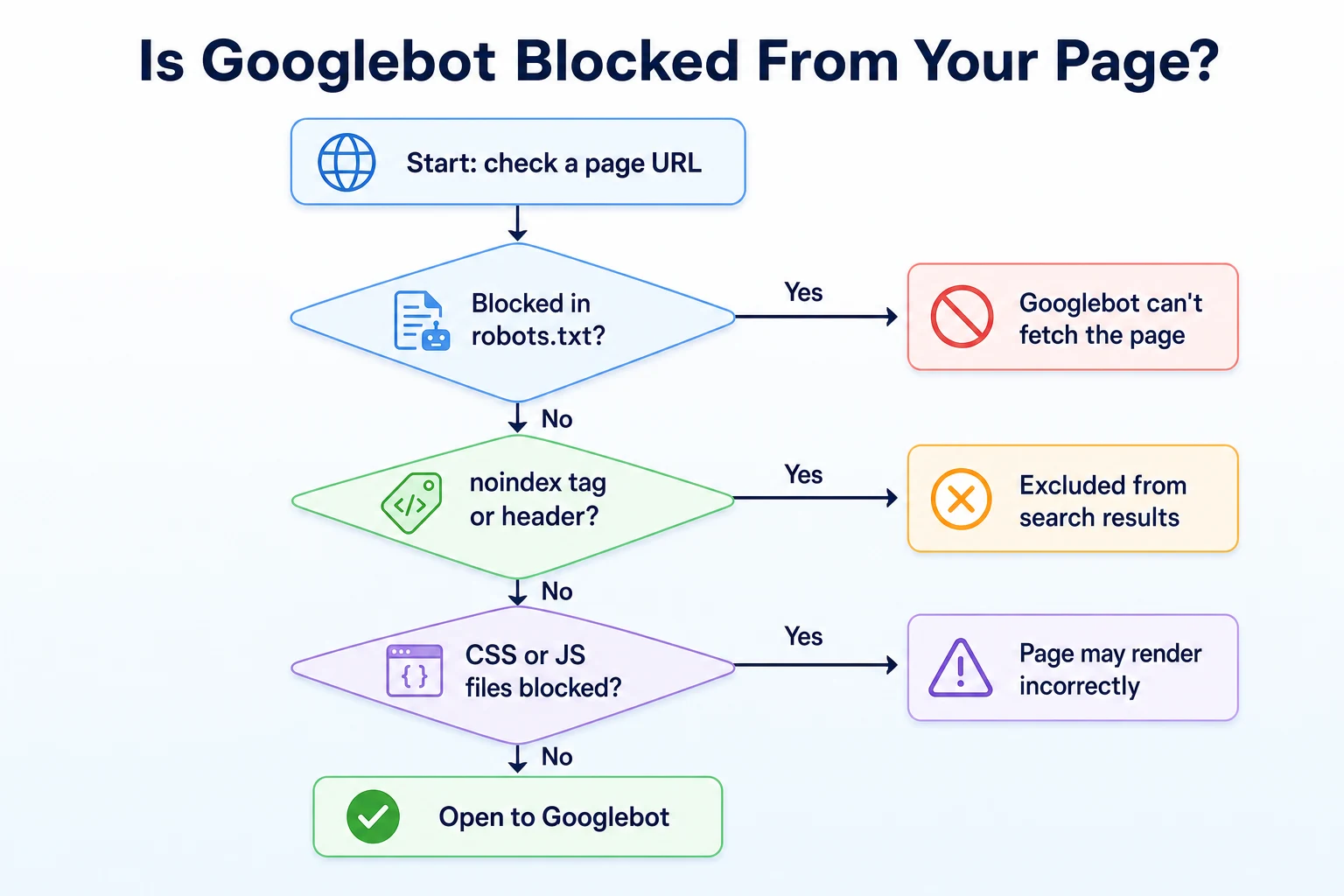
Content that fails to render is one kind of problem. A page that Googlebot can't even reach is a different, more serious one.
robots.txt rules that block a page
Google's documentation on robots.txt explains that a Disallow rule tells a crawler not to request a given path at all. If a page, or a whole folder it sits in, is disallowed, Googlebot won't fetch it, and nothing about its content matters if it's never read in the first place.
This file sits at the root of a site, something like example.com/robots.txt, and it's worth checking directly, since a rule added during a redesign or a site migration can block more than intended. RepGet's free Robots.txt Checker gives a verdict for a specific URL against your current rules, and our guide to the robots.txt generator covers how to build a file that doesn't block more than you mean it to.
noindex tags and headers
A page can be fully reachable and still be told to stay out of search results, through a noindex meta tag in the page's HTML or an equivalent HTTP header. This is often added deliberately on a staging site or a thank-you page, then left in place by mistake after launch.
The Coverage field in the URL Inspection tool will state plainly if this is the reason a page isn't indexed, so it's one of the first things worth checking when a page has gone missing.
Blocked CSS or JavaScript files
A page's HTML can be fine while the files it depends on to look and function correctly are blocked. If a robots.txt rule accidentally disallows a folder of stylesheets or scripts, Google can fetch the page but fail to render it the way a visitor's browser does.
The Page resources section of the URL Inspection report lists exactly which files loaded and which didn't, which makes this kind of problem straightforward to spot once you know to look there.
A Worked Example: Why a Redesigned Homepage Disappeared
Imagine a furniture store relaunches its homepage with a new design built heavily around JavaScript animations. This example is illustrative.
Everything looks right in every browser the owner tests. A few weeks later, search traffic to the homepage drops sharply, and a search for the business name no longer shows the homepage at all.
Stage | What was checked | What was found |
|---|---|---|
1 | URL Inspection tool, Coverage field | Page was crawled but excluded, with no noindex tag found |
2 | Rendered screenshot | Mostly blank, with only the header and footer visible |
3 | Page resources list | Several JavaScript files returned errors instead of loading |
4 | robots.txt | A disallow rule added during the redesign blocked the folder holding those scripts |
5 | Fix and recheck | Rule removed, live test rerun, rendered screenshot showed the full page |
Nothing about the design itself was broken. A single overlooked rule in robots.txt had quietly cut off the files the page needed to render, and no amount of checking the site in a browser would ever have shown that.
Mobile-First Indexing: Checking the View That Matters Most
Most of what's covered so far applies whether you're looking at a desktop or mobile version of a page. For Google specifically, one of those versions matters more than the other.
What mobile-first indexing means in practice
Google's documentation on mobile-first indexing explains that Google primarily uses the mobile version of a page's content for indexing and ranking. That doesn't mean the desktop version is ignored entirely, but it does mean the mobile version is the one that counts most when Google decides what a page contains.
This matters here because a page can render completely on desktop and still have content missing on mobile, if a mobile template hides a section, loads it differently, or skips it altogether to save space. A clean desktop screenshot in the URL Inspection tool tells you less than you'd expect if the mobile rendering looks different.
Checking the mobile rendered view
By default, the URL Inspection tool's live test renders the page the way Googlebot Smartphone would see it, since that's the version Google indexes for most sites. The screenshot and HTML you get back after running a live test already reflect this.
If your site serves a genuinely different layout to mobile visitors, a navigation menu that collapses, a sidebar that disappears, a block of text that's hidden behind a toggle, check that whatever matters on the page is still present in that mobile rendered view. A desktop-only check can miss a mobile-only problem entirely.
Other Free Ways to Check What Crawlers See
Search Console's URL Inspection tool is the most complete option, but it's not the only way to get a sense of what a crawler encounters.
Switching your browser's user agent
Most browser developer tools let you change the user agent your browser sends, which is the short text string identifying what's making the request. Switching it to Googlebot's user agent and reloading the page can reveal differences in what's served, if your site treats different user agents differently.
This is a narrower check than the URL Inspection tool, since it only changes how your own browser identifies itself. It still runs JavaScript the way your browser normally would, so it won't catch a rendering delay the way Google's actual rendering step might. It's useful as a quick sanity check, not a replacement for the real tool.
Free tools for a quick check
A few free tools can answer narrower questions without needing a verified Search Console property. RepGet's AI Crawler Checker tests whether specific crawlers, including AI crawlers like GPTBot, can access a given page, which is a related but separate question from how Googlebot specifically renders a page's content. Our guide to the AI web crawler covers how these crawlers generally request and read a page.
RepGet's Meta Tag Checker looks at the tags in a page's HTML, including a noindex directive if one is present, which is useful for a fast check before opening Search Console at all.
Tool | What it checks | Needs an account |
|---|---|---|
URL Inspection tool (Search Console) | Live fetch, rendering, screenshot and indexing status for a specific page | Yes, a verified property |
view-source in your browser | The raw HTML delivered before JavaScript runs | No |
Browser user agent switch | Whether a page serves different content to a different identified crawler | No |
AI Crawler Checker | Whether specific crawlers can access a given page | No |
Meta Tag Checker | Tags present in a page's HTML, including a noindex directive | No |
A 20-Minute Checklist to Check Your Key Pages
This doesn't need to be a full site audit to be useful. Checking a handful of important pages in one sitting catches most of what matters.
Minutes | Step | What you're doing |
|---|---|---|
0 to 3 | Pick your pages | Choose three to five pages that matter most, such as the homepage, a top service page and a contact page |
3 to 8 | Run a live test on each | Open each URL in Search Console's URL Inspection tool and run Test Live URL |
8 to 13 | Compare screenshots | Open each page in your own browser alongside the rendered screenshot and look for missing text or images |
13 to 16 | Check the Coverage and Page resources fields | Note any page marked as excluded, and any resource listed as blocked or failed |
16 to 20 | Write down what needs fixing | List any robots.txt rules, noindex tags or missing content to address, in order of which page matters most |
Running this once a month, or right after any redesign, catches a blocked page or a rendering gap well before it has time to quietly affect how a page performs in search.
Common Mistakes When Checking Googlebot's View
A handful of habits make this kind of check less useful than it should be, even when someone's going through the right motions.
Testing only the desktop version, or only glancing at how a page looks in a normal browser, misses the gap this whole article is about. The point of the exercise is to see the version Google actually works with, not the version that's easiest to look at.
Assuming the URL Inspection tool's live test and the indexed version are the same thing is another common slip. The indexed version reflects whatever Google last crawled, which can be weeks or months old. A live test is the only way to see the page as it stands right now.
Checking a page once after a launch and never again lets new problems build up quietly. A robots.txt rule can get added during a later update, a script can start failing after a hosting change, and none of that shows up unless the check gets repeated.
Reading a single blank screenshot as proof of a disaster, without checking which field actually explains it, wastes time chasing the wrong fix. A blocked resource, a noindex tag and a genuine rendering failure all look similar at a glance but need completely different fixes.
Mistake | Why it hurts | What to do instead |
|---|---|---|
Only checking the desktop view | Mobile rendering is what Google primarily indexes, and it can differ from desktop | Check the mobile rendered view in the URL Inspection tool first |
Treating the indexed version as current | The indexed version can be weeks or months old | Run Test Live URL to see the page as it stands right now |
Checking once and never again | New rules or broken scripts can appear after any later update | Recheck key pages on a regular schedule, and right after any redesign |
Guessing the cause from the screenshot alone | A blocked resource, a noindex tag and a true rendering failure look similar at first glance | Check the Coverage and Page resources fields before deciding what to fix |
Where RepGet fits
RepGet doesn't replace the URL Inspection tool, and it doesn't run a live Googlebot rendering test the way Search Console does. That specific check, comparing a rendered screenshot against your own browser, stays a manual job you do directly in Search Console.
What RepGet's free website audit does is crawl your site and give it a 0 to 100 SEO score, flagging technical and content issues worth investigating, including some of the groundwork that leads to a blank Googlebot screenshot in the first place, like thin content or structural problems. No account or credit card required.
Its free tools cover related, narrower checks: the Robots.txt Checker gives a verdict on whether a specific URL is blocked, the Meta Tag Checker shows whether a noindex tag is present, and the AI Crawler Checker tests access for other crawlers beyond Googlebot. None of these replace an actual look at Googlebot's rendered view, but they're a fast way to rule a few things in or out before opening Search Console.
The bottom line
A page can look finished in every browser you try and still be missing from what Google actually indexes. The only way to know for certain is to look at the page the way Googlebot does, not the way you do.
Google Search Console's URL Inspection tool makes that comparison possible without any coding knowledge: a live fetch, a rendered screenshot, and a plain record of whether anything was blocked along the way. Most of what it reveals traces back to a short list of causes, JavaScript that didn't finish rendering, a robots.txt rule that went further than intended, or a noindex tag left over from testing.
Checking a handful of key pages this way, on a regular schedule, catches these problems while they're still easy to fix, rather than weeks later when the only sign is a quiet drop in traffic.
Find out what your website needs first
Before testing every page one by one in Search Console, see what your whole site needs in one pass. Run a free website audit with RepGet to check your site's technical setup alongside its content. No account or credit card required.
FAQ
How do I see my website the way Google sees it?
Open Google Search Console's URL Inspection tool, paste in your page's URL, and run Test Live URL. It shows a rendered screenshot and the fetched HTML, which is the closest view to what Googlebot actually sees.
What is the URL Inspection tool in Search Console?
It's a Search Console feature that checks a single URL's crawl and index status, including whether it was blocked, and gives a screenshot of how Google rendered the page, alongside its fetched HTML.
Why does my page look different to Googlebot than in my browser?
Your browser runs JavaScript instantly every time. Google's rendering step happens separately and can be delayed or fail, so content built with JavaScript may not appear in what Googlebot ultimately reads.
Can I fetch my website as Googlebot without Search Console?
You can get a rough approximation using view-source for raw HTML or switching your browser's user agent, but neither reproduces Google's actual rendering step, so the URL Inspection tool remains the most reliable check.
Does Google see my JavaScript content?
Often yes, since Google renders JavaScript in a separate step after crawling. But rendering isn't guaranteed to happen quickly or successfully, so it's worth confirming in the URL Inspection tool's rendered screenshot.
How do I know if robots.txt is blocking my page?
Check your site's robots.txt file directly, or use a tool like RepGet's free Robots.txt Checker, which gives a verdict for a specific URL against your current rules without needing to read the file yourself.
Is the URL Inspection tool a live, real-time crawl?
Only when you click Test Live URL. Without that, the tool shows the last indexed version, which can be outdated, so running a live test is the only way to see the page exactly as it stands now.
Why did my page disappear from Google after a redesign?
Common causes include a new robots.txt rule that accidentally blocks the page or its scripts, a leftover noindex tag from a staging site, or JavaScript content that no longer renders correctly.