

All in One SEO: A Setup Guide for Small Business WordPress Sites
Short answer
All in One SEO (AIOSEO) handles a WordPress site's title tags, meta descriptions, XML sitemap, and schema markup. For a small business, only a few settings need real attention: the setup wizard, the homepage title and description, the local business details, and the sitemap's exclusions. The rest of its defaults are safe to leave alone.
A small business owner installs All in One SEO on their WordPress site, clicks through the setup wizard, and lands on a dashboard with a dozen menu items: General, Search Appearance, Social Networks, Local SEO, Sitemaps, Redirects, and more.
Nothing tells them which of these actually matters for a plumbing company or a hair salon, and which can be left exactly as installed.
So they either spend an afternoon clicking through every tab, or they close the dashboard and never touch it again.
Neither is necessary. All in One SEO (AIOSEO) is a large plugin, but only a handful of its settings need a small business's attention. Here's which ones matter, which defaults are safe to leave alone, and how to get through the parts that count in about half an hour.
What All in One SEO Does for a WordPress Site (and What It Doesn't)
AIOSEO is a WordPress plugin, which means everything it does happens inside your site's own admin area. It doesn't crawl other websites, it doesn't talk to Google directly on your behalf beyond what you configure, and it has no influence over anything outside your own WordPress install.
What AIOSEO configures directly in WordPress
Inside that scope, AIOSEO handles a specific set of jobs. It writes the title tag and meta description that appear in search results for each page. It generates an XML sitemap listing your site's pages for search engines to find. It adds schema markup, structured data that describes what a page is, in a format search engines can read. And for businesses with a physical location or service area, it has a Local SEO module that can add local business schema.
What still depends on the content and the business, not the plugin
None of that touches whether a page is actually useful to someone who lands on it. AIOSEO can write a technically correct title tag, but it can't write a good one for your business, that's still a judgment call you make. It can generate a sitemap, but it can't make a thin or outdated page worth including in it. And nothing in the plugin can promise a ranking position, since no plugin or platform is in a position to guarantee that.
Feature area | What AIOSEO handles | What still needs a person's judgment |
|---|---|---|
Title tags and descriptions | Generates them from a template and lets you edit each page's version | Whether the wording actually matches what a customer searches for |
XML sitemap | Builds and updates the file automatically as pages are published | Deciding which pages belong in it and which should be excluded |
Schema markup | Adds structured data for your business type, posts and pages | Confirming the business type and details are actually correct |
Content quality | No direct role | Writing pages that genuinely answer what a visitor came for |
Our guide to local SEO for small businesses covers the parts of getting found locally that sit outside any plugin entirely, like your Google Business Profile and customer reviews.
Running the Setup Wizard: Which Choices Actually Matter
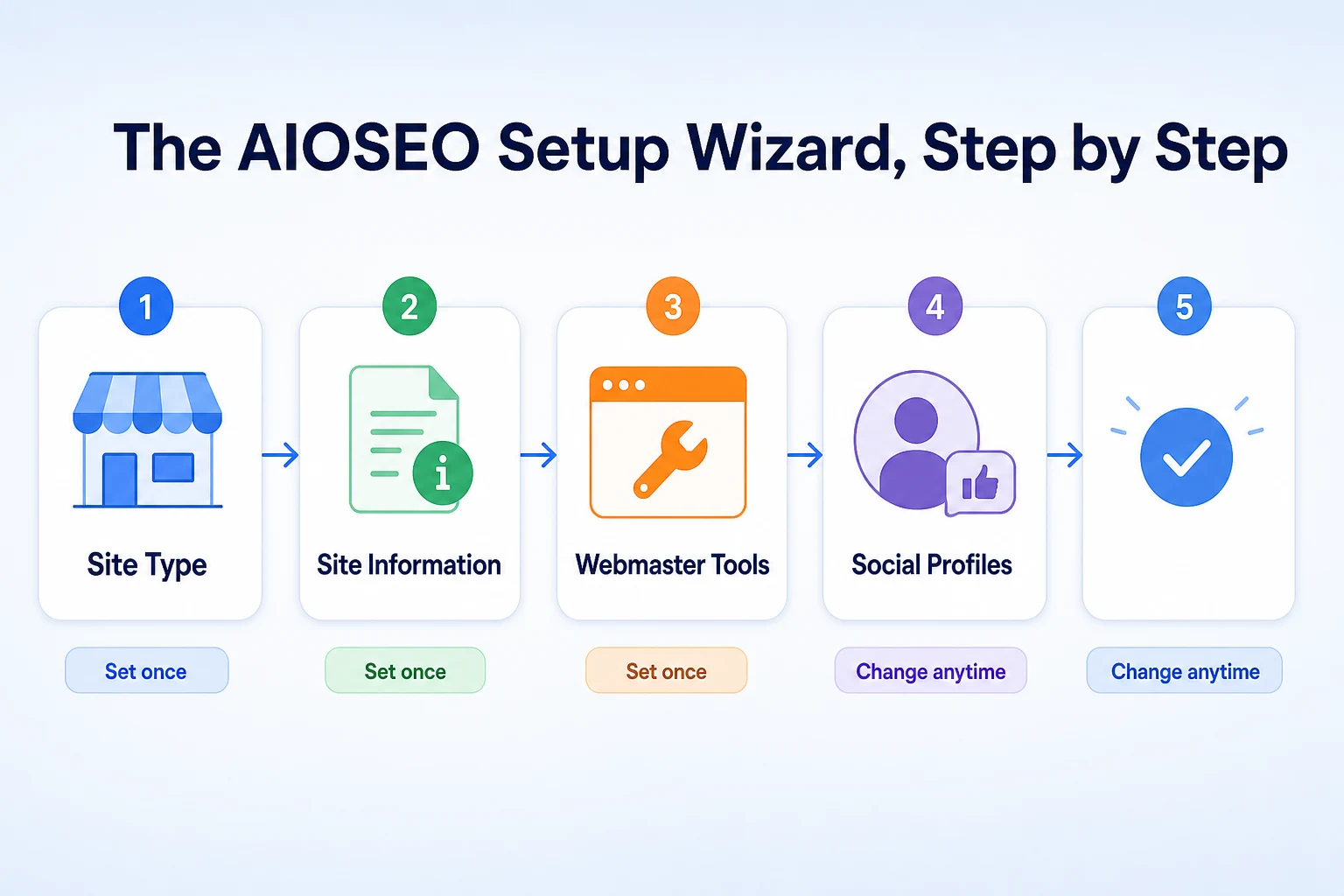
The first time you open AIOSEO, it runs a short setup wizard. Most of the screens matter less than they look like they do.
Picking a site type and why it changes some defaults
The wizard asks what kind of site you're running: a business, an online store, a blog, and so on. This choice changes some of the plugin's defaults, including which settings screens are shown and what the Local SEO module expects, so it's worth answering honestly rather than picking the first option. A local service business should choose the business option, not a generic blog setting.
Connecting Search Console during setup
The wizard offers to connect Google Search Console and, separately, Bing Webmaster Tools. If your site is already verified in either, connecting here saves a step later. Google's own documentation on adding a sitemap describes Search Console as the place you confirm Google can see your site's pages, so having this connection in place from the start is worth doing if you can.
Answers you can safely change later
Most of the rest of the wizard, like social profile links and some display preferences, can be changed at any time from the regular settings screens with no downside. There's no need to get these perfect on the first pass.
Wizard step | Why it matters | Safe to revisit later |
|---|---|---|
Site type | Changes which settings and schema options the plugin shows you | Yes, but changing it later can shift other settings, so it's worth getting right the first time |
Site information (name, logo) | Feeds into schema markup and some title templates | Yes |
Webmaster tools connection | Links the plugin to Search Console and Bing Webmaster Tools | Yes |
Social profiles | Adds links used in schema markup | Yes |
General Settings: The Few Toggles Worth Checking
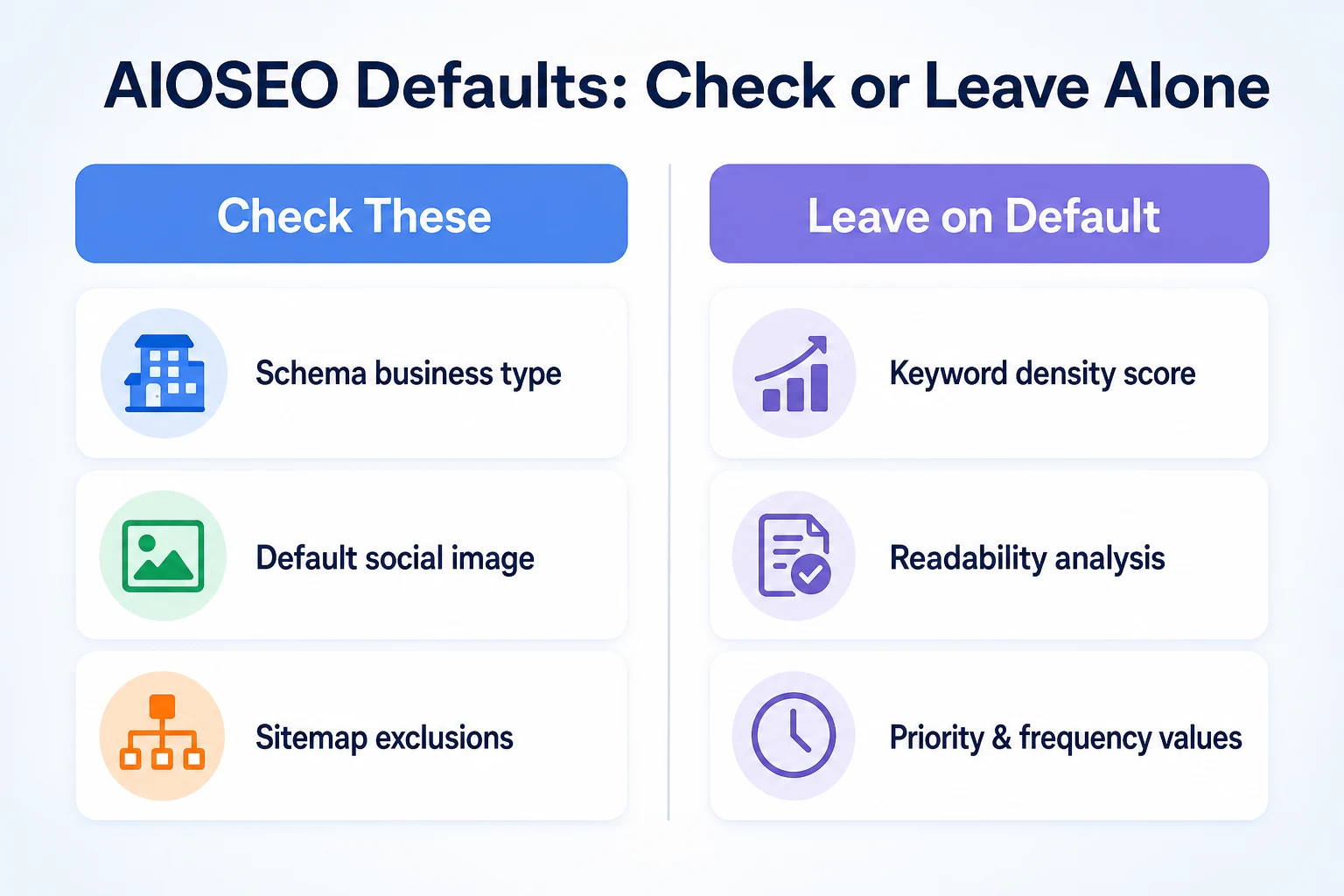
AIOSEO's General tab has a long list of options. Most of them are fine left exactly as installed. Two are worth a direct look.
Verifying Search Console and Bing Webmaster Tools codes
If you connected Search Console or Bing Webmaster Tools during the wizard, or added a verification code manually, confirm it's actually sitting in the Webmaster Tools section of General settings. A code that didn't save, or one left over from a previous plugin, won't cause an error message. It just quietly fails to verify anything, and you won't know until you go looking for it.
Checking which content types are set to noindex by default
AIOSEO lets you set entire content types, like media attachment pages or certain custom post types, to noindex, meaning they're excluded from search results. This is usually fine on its default settings, but it's worth a quick scan if your site uses custom post types for things like staff profiles or locations. A noindex setting applied to the wrong content type can quietly keep real pages out of search results without any obvious warning sign.
Search Appearance: Titles and Meta Descriptions That Show Up in Google
This is the tab that has the most direct effect on what a customer actually sees in a search result, so it's worth more attention than most of the others.
Writing a homepage title and description that matches how customers search
AIOSEO's Search Appearance tab lets you set a specific title and description for your homepage, separate from whatever template applies to the rest of the site. This is worth writing by hand rather than leaving on a generic default, since it's often the first thing a potential customer reads about your business in a search result. Name the business, say what it does, and mention the area it serves if that's relevant.
Using title variables without making every page sound the same
For other page types, like posts or service pages, AIOSEO uses a title template built from variables, placeholders that pull in information like the page title or site name automatically. These save time across many pages, but it's worth checking the result doesn't make every page sound identical. A template that always appends the same phrase to every title can end up looking repetitive in search results once several of your pages appear side by side.
Variable | What it inserts | Example |
|---|---|---|
Page Title | The title of the individual page or post | Emergency Drain Cleaning |
Site Title | Your site's name, as set in WordPress | Riverside Plumbing Co. |
Separator | A character placed between other variables | | |
Tagline | Your site's tagline, as set in WordPress | Licensed and insured plumbers |
Checking a page's title and description before it goes live
Before publishing a page, it's worth previewing how its title and description will actually look in a search result, since a title that reads fine in the editor can still get cut off once it reaches typical search result width. RepGet's free SEO Title Checker shows a live preview and scores a title for click-through appeal, and the Meta Description Generator can offer a few options with an actual reason to click, which is a faster starting point than writing one from a blank field.
Local SEO Settings: What Matters for a Small Business
If your business has a physical location or a service area, AIOSEO's Local SEO module is worth turning on. It's a separate add-on from the main title and sitemap settings, and it's the part of the plugin most directly aimed at businesses like a salon, a clinic, or a trade.
Filling in business details that feed local schema
Once enabled, this module asks for your business name, address, phone number, opening hours, and a few other details. These feed directly into the local business schema markup AIOSEO adds to your site, the structured data that tells a search engine what kind of business you are and how to reach you. Filling these in accurately matters more than almost anything else in this tab, since an old phone number or a wrong set of hours carried into schema can sit there unnoticed for a long time.
Choosing the right business type
AIOSEO asks you to pick a business type from a list, and this choice should match what the business actually does rather than the closest-sounding option. A general contractor and a plumber are both trades, but they're different schema types, and picking one that's close but not accurate doesn't help a search engine describe your business correctly. If your business has more than one location, AIOSEO also supports adding multiple locations individually rather than cramming them into one entry.
Why this doesn't replace a Google Business Profile
It's worth being clear about what this module does and doesn't do. Local business schema on your website is a way of describing your business in your own site's code. It isn't the same as a Google Business Profile, which is a separate listing Google maintains directly and which is what actually shows up in Google Maps and the local pack of search results. Filling in AIOSEO's Local SEO settings is a useful complement to a Google Business Profile, not a substitute for one. Our guide to local SEO for small businesses covers how the two fit together, along with reviews and citations that sit outside anything a WordPress plugin can touch.
Sitemaps: Confirming AIOSEO's XML Sitemap Is Working
AIOSEO builds an XML sitemap automatically, and for most sites this works correctly without any changes. It's still worth a quick check, since a sitemap listing the wrong pages can quietly send a search engine toward content that isn't worth its attention.
Checking which content types are included by default
Open the Sitemaps tab and look at which content types are turned on. Pages and posts are almost always included, and that's correct. Some sites also have taxonomy pages, like tag archives or category pages, included by default, and these are worth a second look, since a thin tag archive with a single post on it rarely adds anything useful to a sitemap.
Excluding thin or low-value pages from the sitemap
AIOSEO lets you exclude specific pages or whole content types from the sitemap. A good candidate list includes tag archive pages, a privacy policy or terms page if it's not meant to attract search traffic on its own, and any draft or placeholder pages left over from building the site. None of these need to disappear from the site itself, they just don't need to be flagged to search engines as worth crawling and indexing.
Content type | Included by default | Worth excluding |
|---|---|---|
Pages | Yes | Rarely, unless it's a duplicate or placeholder page |
Posts | Yes | Rarely, unless it's an old post that's been replaced |
Tag archives | Often yes | Usually, if tags are thin or unused |
Category archives | Often yes | Only if a category has very few posts under it |
Media attachment pages | Sometimes | Usually, since these rarely have useful content of their own |
Submitting the sitemap in Search Console
Once the sitemap looks right, confirm it's actually submitted in Google Search Console, under the Sitemaps section. Google's own documentation on building a sitemap explains that submitting one helps Google discover pages it might not otherwise find quickly, though it doesn't guarantee those pages get indexed. RepGet's free Sitemap Checker & Finder can confirm your sitemap's address is live and valid before you submit it, which saves a round trip if something's misconfigured.
Schema Markup and Social Settings: What to Check, What to Skip
AIOSEO generates schema markup automatically for most content on your site, alongside the social media settings in its own tab. Most of this needs no attention at all. A couple of items are worth confirming once.
Confirming the default schema type matches the business
Beyond the Local SEO module's business type, AIOSEO also sets a general schema type for the site as a whole, usually Organization or a more specific business type depending on what you chose in the wizard. It's worth opening the Schema settings once to confirm this matches the business, since schema.org's own reference for LocalBusiness lists a wide range of specific subtypes, and a generic Organization setting on a site that clearly serves a local area is a missed opportunity to be more specific.
Social settings worth a quick look
In the Social Networks tab, the one setting worth checking is the default image used when a page is shared on social media without a specific image of its own. This should be something that represents the business clearly, like a logo on a plain background, rather than whatever image happened to be set by default.
Settings that don't need touching
Most of the rest of the Social Networks tab, along with the finer schema toggles for things like breadcrumb markup, are safe left exactly as installed. These are aimed at larger sites with more complex content structures, and changing them on a small business site rarely has any noticeable effect.
Setting | Default usually fine? | Worth checking |
|---|---|---|
Site-wide schema type | Sometimes | Confirm it matches the specific business type, not just a generic category |
Default social share image | No | Set it to a clear image representing the business |
Breadcrumb schema | Yes | No action needed for most small business sites |
Twitter and Facebook card type | Yes | No action needed unless images consistently look wrong when shared |
A Worked Example: Setting Up AIOSEO for a Local Plumbing Business
Imagine a two-person plumbing company sets up AIOSEO on a newly built WordPress site. This example is illustrative.
They run through the wizard, choosing the business site type and connecting their existing Search Console property. From there, they work through the tabs covered so far.
Stage | Setting checked | What was changed |
|---|---|---|
1 | Setup wizard, site type | Selected business, not blog, so Local SEO options appeared |
2 | Search Appearance, homepage title | Replaced a generic default with the business name, main service and city |
3 | Local SEO, business details | Added the correct phone number and hours, which had been left blank by the site builder |
4 | Local SEO, business type | Changed from a generic Local Business type to the specific Plumber schema type |
5 | Sitemaps | Excluded tag archives, which had no content under most tags |
None of these changes took more than a few minutes individually. The homepage title and the missing phone number were the two that mattered most, since both had been sitting wrong since launch without anyone noticing. Our guide to service page SEO covers what a page like their drain cleaning service page needs beyond what any plugin configures automatically.
A 30-Minute AIOSEO Setup Checklist
Everything covered in this article fits into a single sitting. Here's an order that gets the parts that matter done first, without wandering into tabs that don't need attention.
Minutes | Step | What you're doing |
|---|---|---|
0 to 5 | Run the setup wizard | Choose the correct site type, connect Search Console if your site is already verified there |
5 to 10 | Check General settings | Confirm webmaster tools codes saved correctly, scan noindex settings for custom post types |
10 to 18 | Write the homepage title and description | Replace any generic default with the business name, main service and area served |
18 to 25 | Fill in Local SEO details | Add accurate business name, address, phone, hours, and the correct specific business type |
25 to 30 | Check the sitemap | Exclude thin tag archives or placeholder pages, confirm the sitemap is submitted in Search Console |
Thirty minutes won't cover every setting in the plugin, but it covers the ones that actually change what a customer or a search engine sees. The rest can wait, or never get touched at all.
Common Mistakes When Setting Up AIOSEO
A handful of habits come up often enough on small business sites that they're worth naming directly.
Running AIOSEO alongside another SEO plugin, like one left over from an old theme or a previous developer, is the most common one. Two plugins both trying to write title tags and schema markup for the same page can conflict, with one quietly overwriting the other, and the result is often inconsistent rather than simply redundant.
Leaving the homepage title on whatever the WordPress theme generated by default is another. A theme's automatic title is rarely written with a specific customer's search in mind, and it's one of the few settings in this whole plugin that directly shapes the first impression a search result makes.
Picking a local business type that's close but not accurate is a quieter mistake. A landscaper filed under general contractor, or a dentist filed under medical clinic, still produces valid schema. It just describes the business less precisely than it could, for no real reason.
Never checking the sitemap after the initial setup lets it drift out of date. Pages get added, old ones get deleted, and a sitemap that was accurate at launch can end up listing pages that no longer exist or missing ones that do, unless it's checked again occasionally.
Mistake | Why it hurts | What to do instead |
|---|---|---|
Running two SEO plugins at once | They can conflict over title tags and schema, producing inconsistent results on the same page | Deactivate and fully remove any other SEO plugin before relying on AIOSEO |
Leaving the theme's default homepage title | A generic title rarely matches how a real customer searches for the business | Write a specific homepage title and description by hand |
Choosing a close but inaccurate business type | Schema describes the business less precisely than it could | Pick the most specific matching type from AIOSEO's Local SEO list |
Never rechecking the sitemap after launch | Pages added or removed later can leave the sitemap out of date | Glance at the sitemap every few months, especially after adding new pages |
Where RepGet fits
AIOSEO manages the settings covered in this article directly inside WordPress: the title tags, the sitemap, the local business schema, and the rest of what it's built to configure. RepGet doesn't touch any of those plugin settings itself, and it isn't a WordPress plugin.
What RepGet's free website audit does is crawl the resulting site from the outside and give it a 0 to 100 SEO score, flagging technical and content issues worth investigating, including whether a title tag, meta description or sitemap actually came through the way AIOSEO was set up to produce. It's a useful way to confirm the plugin's settings are actually working as intended, rather than assuming they are because the dashboard looks correctly filled in. No account or credit card required.
RepGet also doesn't replace a Google Business Profile or Search Console, and it can't guarantee a ranking, a Maps position, or any traffic result from the changes covered in this article. No honest tool can make that promise, and AIOSEO's own documentation doesn't make it either.
The bottom line
All in One SEO has a lot of settings screens, but a small business site only needs real attention on a short list: the setup wizard's site type, the homepage title and description, the Local SEO business details, and a quick pass over the sitemap's exclusions.
Everything else in the plugin, the finer schema toggles, most of the social network tab, the readability extras, is built with a much wider range of sites in mind, and leaving those on default rarely costs a small business anything.
Get the few settings that matter right, and the rest of the dashboard can sit untouched without any real downside.
Find out what your website needs first
Before clicking through every tab in the plugin, see what your site actually needs in one pass. Run a free website audit with RepGet to check your site's technical setup alongside its content. No account or credit card required.
FAQ
Is All in One SEO better than Yoast?
Both plugins handle similar jobs: titles, meta descriptions, sitemaps and schema. Neither is documented as producing better rankings than the other, so the choice usually comes down to which interface and feature set fits your site more comfortably.
Do I need All in One SEO if my WordPress theme already has SEO features?
If your theme already writes title tags and generates a sitemap, running AIOSEO alongside it can cause conflicts. Pick one source for these settings and confirm the other is fully disabled rather than running both at once.
How do I connect All in One SEO to Google Search Console?
Add your Search Console verification code in AIOSEO's Webmaster Tools section, either during the setup wizard or later under General settings, then confirm it shows as verified in Search Console itself.
What is the local business schema in AIOSEO used for?
It adds structured data to your site describing your business name, address, phone number and type, in a format search engines can read. It complements a Google Business Profile rather than replacing it.
Can I run All in One SEO and Yoast at the same time?
Running both isn't recommended, since they can both try to write title tags and schema for the same pages, leading to conflicting or duplicated output. Choose one and remove the other.
Does All in One SEO slow down a WordPress site?
Like any plugin, it adds some processing, but its core settings, titles, sitemaps and schema, are lightweight compared to page builders or heavy media. Site speed issues are more often caused elsewhere on a typical small business site.
Is the free version of All in One SEO enough for a small business?
The free version covers the settings this article walks through, including titles, sitemaps, and basic local schema, which is enough for most small business sites without needing a paid upgrade.
How do I exclude pages from my AIOSEO sitemap?
Open the Sitemaps tab, find the content type or individual page you want removed, and toggle it off or add it to the excluded posts list, then confirm it's gone by checking the live sitemap file.